🔗Anki Note Linker

AnkiWeb addon 1077002392

Links Anki notes together via a custom link format, adding link panels, interactive graphs, and a global relationship graph.
AI-generated summary; may contain mistakes.

note-managementmobile-compatible

Open on AnkiWeb GitHub Find alternatives

AnkiWeb

Votes
97 (👍 90 · 👎 7)
Updated
2026-10-14
Anki versions
26.09.3~
License
AGPL-3.0 (from the license file in the package)
Virus scan
No ClamAV match A match does not prove malware. No match does not prove that the code is safe.
Languages
JavaScript, JSON, Python, CSS, Vue, HTML
Description language
en

Maintenance

active

  • Last update or commit: 2026-10-16 (16 days before the snapshot).
  • Test files: 24.
  • GitHub Actions workflows: 3.
  • Commits in the last year: 35.
  • Issues: 15 open, 28 closed.
  • Pull requests: 0 open, 8 merged.
  • Median first response: 22 hours (39 answered issues and pull requests).
  • Outside pull requests: 89% of 9 merged.

GitHub

Repository
gugutu/anki-note-linker · more by gugutu
Stars
⭐ 80 · forks 10 · open issues 15
Last commit
2026-10-16
License
AGPL-3.0
Languages
TypeScript, Python, HTML, JavaScript
Tests
24

Will it work on my Anki?

Version branches
Min AnkiMax AnkiUpdated
2.1.5626.09.3+2026-10-14
History across monthly snapshots

Loading…

Similar addons

Auto Note Linker

Adds an editor button that links a selected keyword to other notes containing it within the current deck, with undo support, requiring the Anki Note Linker plugin.

note-management

2 votes 34% approval 👍 2 · 👎 0 ⭐ 1 Anki 24.04.1~ Updated 2024-09-16
Clickable note links has 1 fork →

Lets users create clickable links between notes by inserting a note identifier via shortcut or button, then opening the linked note in the browser during review.

note-managementshortcuts

1 votes 21% approval 👍 1 · 👎 0 ⭐ 1 Anki 24.11~ Updated 2024-05-30
LLM Tag Linker

Uses an LLM to generate English concept tags for selected notes and displays their connections in an interactive, offline 3D knowledge graph.

aitagging

1 votes 21% approval 👍 1 · 👎 0 Anki 2.1.1~ Updated 2026-06-18
Modern Stats Dashboard

Replaces standard deck stats with a customizable, theme-adaptive dashboard showing per-deck progress, remaining cards and today's completed reviews, configured through a graphical menu.

statisticsprogress-trackingappearance

25 votes 87% approval 👍 25 · 👎 0 Anki 2.1.66~ Updated 2025-06-28

Description

English | 简体中文

View on Github

img

img

gif

You can easily connect your Anki notes together by this add-on, forming a web of interconnected information. By establishing links between relevant notes, you can create a comprehensive and organized knowledge base that reflects the relationships between various concepts, ideas, and topics.

Link Format

[Link Title|nidxxxxxxxxxxxxx]

The link title is the content displayed in the card. If the title contains[, it needs to be escaped with\[

x is the ID of the note, consisting of 13 digits

You can customize the style of the links by using the CSS selector: .noteLink

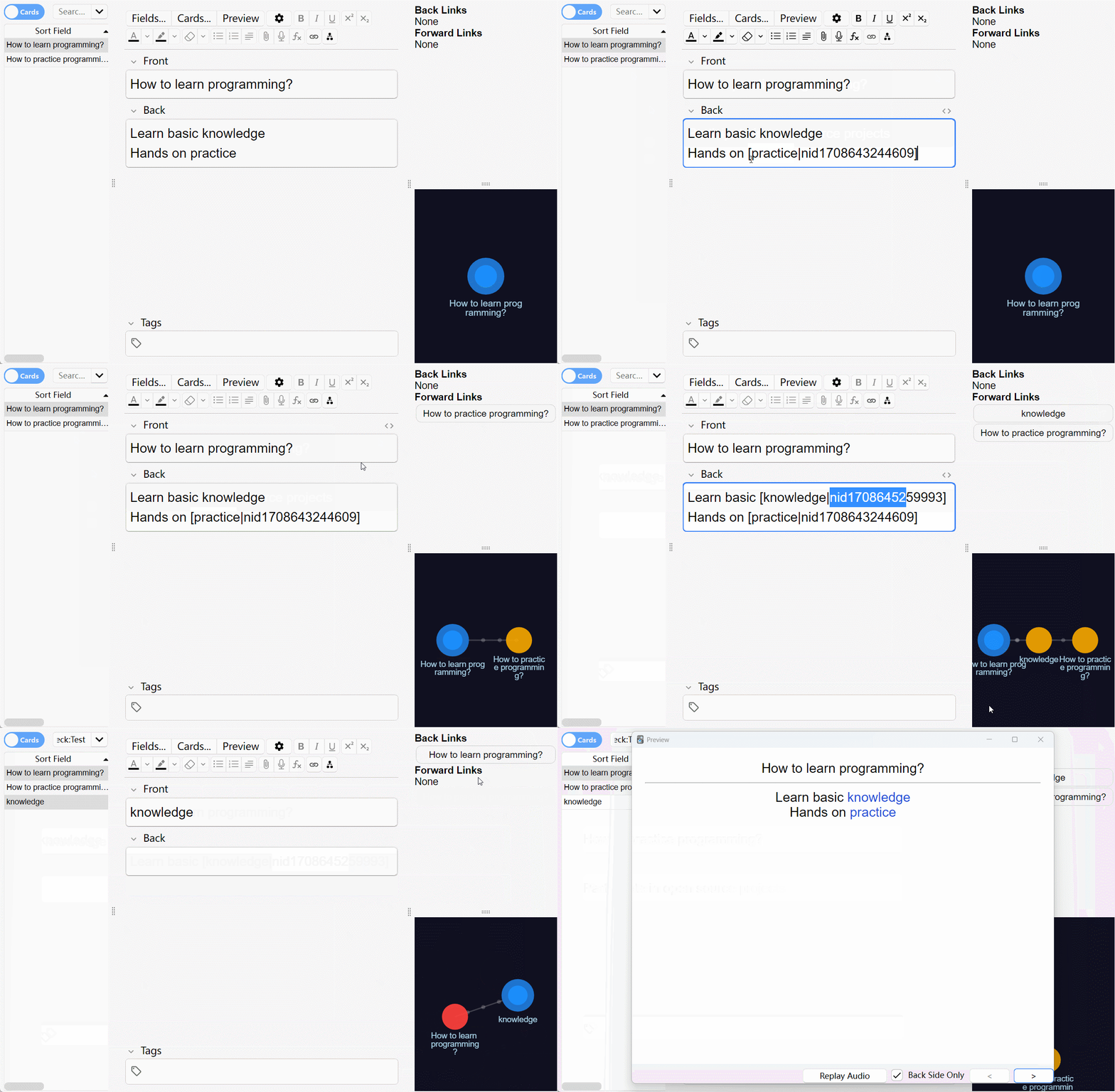
In the editor:

Copy note ID

Copy the ID of the current note in the editor by using the right-click menu or the configured shortcut key

Copy note link

Copy the link of the current note in the editor by using the right-click menu or the configured shortcut key

Insert link with copied note ID

Generate a link from the note ID in the clipboard and the currently selected text by either using the right-click menu or the configured shortcut key

Insert new link

Generate a new link from the currently selected text by either using the right-click menu or the configured shortcut key

Double-clicking the generated link text allows adding a corresponding new note

Insert link template

Generate a link template from the currently selected text by either using the right-click menu or the configured shortcut key

The generated link template looks like this: [selected text|nid], you need to manually complete it

Note: If no text is selected, using the above actions will generate a link without a title

Open current note in new window

Open current note in new window by using the right-click menu or the configured shortcut key

Open the note corresponding to the link

Double click link text to open the corresponding note in a new window

In the "links panel / graph panel" attached to the editor:

Left click link to open the corresponding note in the current editor window

Right click link to open the corresponding note in a new editor window

Middle click link to open the corresponding note in the browser (unsupported in graph panel)

In the reviewer / previewer / global graph:

Left click link to open the corresponding note in a previewer window

Right click link to open the corresponding note in an editor window

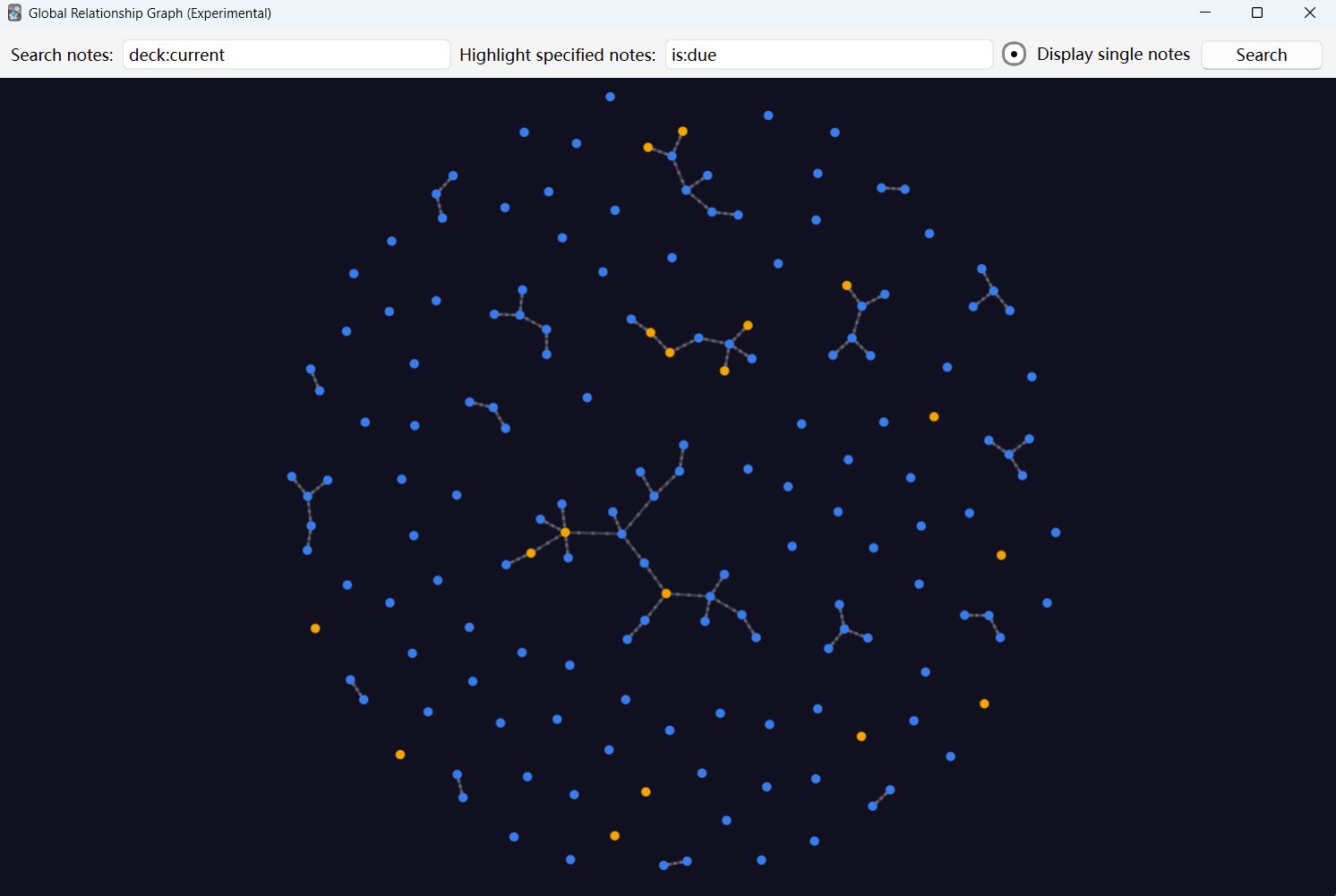
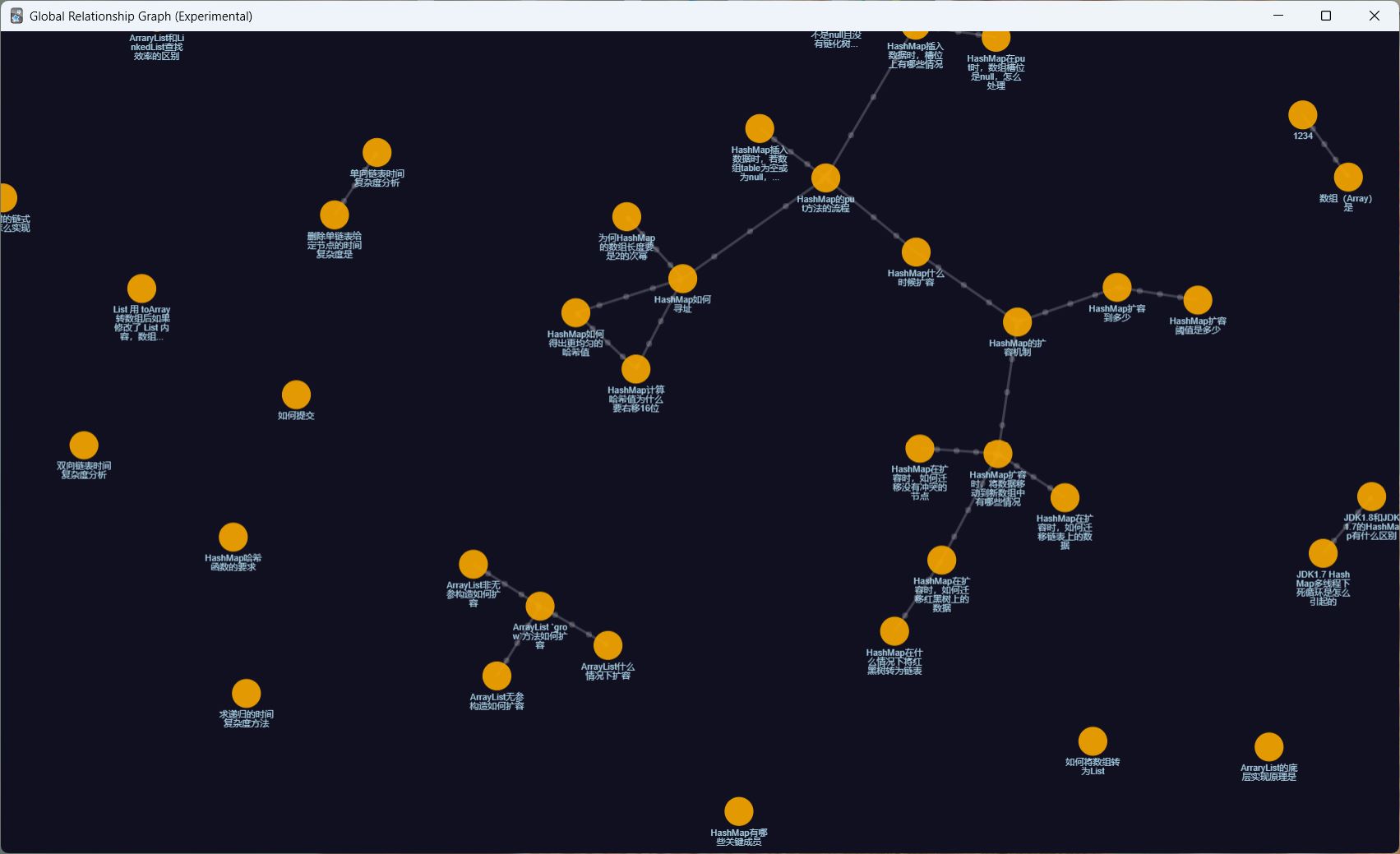
Global relationship graph

Entrance: Menu -> Anki Note Linker -> Global Relationship Graph

Please set the video driver in Anki preference to an option other than Software, as it can significantly decrease graphic performance. Not recommended to set it to Vulkan, as it may cause some issues in the current version

Graph image previews, zoom behavior, and advanced zoom options can be adjusted in the add-on configuration.

Customize shortcut keys

You can customize the shortcut keys according to your preferences in add-on configuration

Default shortcuts:

  • Windows / Linux: Alt+Shift+...
  • macOS: Command+Option+...

If there is no response when using the shortcut key, it may be due to a shortcut key conflict. Please try changing the shortcut key

How to display note links properly without this add-on (such as on AnkiDroid, AnkiWeb, or AnkiMobile clients)

This add-on automatically renders note links as corresponding content on the desktop version of Anki. Without the add-on, the links will not be rendered properly, affecting use on mobile devices. However, you can still regain some functionality.

If you have already generated note links and need to use them without the add-on, you can follow the steps below to get links working:

  1. In the card template, add a class attribute "linkRender" to each note field on the front and back sides. You can also customize the attribute's name.
<div class="linkRender">{{Front}}</div>
<div class="linkRender">{{Back}}</div>
<!-- If the field already has a class attribute, 
you can use a space to separate the new attribute from the original one -->
<div class="otherClassName linkRender">{{Addition}}</div>
  1. Copy the following code to the end of the card template on both sides. Rename the linkRender attribute in the code if you changed it. Set the disableLinks variable to true if you only want the text to render (removes the "[|nid]" marker).
<script>
    var disableLinks = false; // Change to true if you want to disable all link rendering for clients without add-on
    if (!window.AnkiNoteLinkerIsActive) {
        const renderLinks = _ => {
            document.querySelectorAll('.linkRender').forEach(element => { // You can rename "linkRender" on this line, but leave the "." in front
                element.innerHTML = element.innerHTML.replace(
                    /\[((?:[^\[]|\\\[)*)\|nid(\d{13})\]/g,
                    (match, title, nid) => {
                        title = title.replace(/\\\[/g, '[');
                        let link;
                        if (document.documentElement.classList.contains('iphone') || document.documentElement.classList.contains('ipad')) {
                            link = `anki://x-callback-url/search?query=nid%3a${nid}`;
                        } else try {
                            window.jsAPI ||= new AnkiDroidJS({ version: "0.0.3", developer: "github.com/gugutu" });
                            link = `javascript:window.jsAPI.ankiSearchCard(\`nid:${nid}\`)`;
                        } catch (e) {
                            link = `https://ankiuser.net/edit/${nid}' target='_blank`;
                        }
                        return disableLinks ? `${title}` : `<a href='${link}' class='noteLink'>${title}</a>`;
                    }
                );
            });
        };
        document.readyState !== 'loading' ? renderLinks() : document.addEventListener('DOMContentLoaded', renderLinks, { once: true });
    }
</script>
  1. Save the card template and sync your deck to AnkiWeb.

After completing these operations, Anki will automatically display the correct content.

If you click a link on an AnkiDroid or AnkiMobile client, it will attempt to display the corresponding note's flashcard in the card browser; if you click a link on AnkiWeb, it will open the AnkiWeb edit page for the corresponding note. If you changed the disableLinks variable to true, then the original content of the card will be displayed without any links.

----------------------------------------

This add-on is inspired by Obsidian

The following projects were used in this project:

The implementation of this add-on is inspired by the following add-ons:

Changelog (Download previous versions)

  • 2026-10-14 Added support for multi-card cloze syntax; improved nested cloze and MathJax handling in note summaries; excluded cloze hints from expanded summaries.

  • 2026-10-12 Optimize resource usage, allow graph zoom during node and canvas dragging.

  • 2026-09-28 Improved compatibility with Anki's experimental new editor (by roshad); added an option to hide notes with all cards suspended in the Global Relationship Graph (hidden by default).

  • 2026-08-10 Fixed compatibility with Anki 26.08; Fixed crash issue with the graph in specific environments; Optimized click interaction recognition in the graph.

  • 2026-05-05 Improved graph image previews and zoom behavior; added optional advanced graph zoom settings; updated default macOS shortcuts for new installs. (by moo-dy)

  • 2026-03-31 Fixed the issue where the add-on fails to start in Python environments below version 3.10.

  • 2026-03-21 Support adjusting the size of nodes in the global graph based on link count; support displaying link titles in the forward links panel.

  • 2026-03-12 Added an optional graph panel in the review interface; fixed the rendering issue of the dropdown menu on the configuration page on macOS by replacing it with left/right radio button groups.

  • 2025-09-20 Adds automatic centering in the Global Relationship Graph. (by BruceFooo)

  • 2025-04-27 Fixed the issue where double-clicking on links in the editor in the new version of Anki had no response.

  • 2024-10-12 Fixed the crash when opening the add new note window.

  • 2024-09-09 Fixed the conflict with the image occlusion cards.

  • 2024-09-05 Fixed the issue where Anki's preferences behavior was being overridden on macOS.

  • 2024-08-16 Fixed the error message that appeared when exiting reviewer with the automatic links panel display in reviewer disabled.

  • 2024-07-26 Fixed the issue of link jump failure when the deck name contains spaces (by qappell); Supports customizing which note field to display in the note summary.

  • 2024-07-11 Fixed the issue where the automatic filling of the question field fails when opening an 'Add Note' window by double-clicking a new link; Fix some issues with the previewer.

  • 2024-07-09 Support showing the links panel in the reviewer; Behavior change: Some link click actions have been modified to be more intuitive, which is inconsistent with the behavior in previous versions, please refer to the latest documentation.

  • 2024-07-08 Global graph supports displaying tag nodes; Global graph supports changing the background color (by qappell); Optimize the configuration page.

  • 2024-07-02 Support displaying Mathjax formulas in links panel and graphic labels; Optimize the line wrapping effect of links to improve readability; Fix incorrect display of \[ in note summary.

  • 2024-06-26 Mask the display of [sound:xxx] in the note summary; Optimize the display when the size of the graph panel changes; Fixed the issue where occasionally no graphics would be displayed when switching the graph panel; Fixed the issue of graphics automatically reverting back to their initial size when modifying notes.

  • 2024-06-12 Reconstruct the graphics rendering mechanism; Improve graphics performance; Fix inaccurate graphic click/drag recognition; Fix anomalies in graphics when a note contains a link to itself; Optimize the display effect of graphics and text; Optimize the adaptive size effect of graphics; Optimize graphic scaling effects; Added a configuration item for whether the global graph defaults to displaying single nodes.

  • 2024-05-09 Optimize the performance of refreshing links/graph panel.

  • 2024-05-08 Refactor link loading scheme to reduce lag; Fix Anki unresponsive when using AnkiConnect to batch operate notes.

  • 2024-04-16 Using GUI configuration interface; Added configuration options for global graph node color; Change menu position; No longer supports old shortcut keys; Fix the error message box pop-up when closing Anki with auto-sync enabled.

  • 2024-03-30 Enable the global graph to support highlighted specified notes; Use the previewer of hjp-linkmaster if it is installed; Added configuration options for default search text in the global graph; Added configuration option for whether to use hjp-linkmaster's previewer.

  • 2024-03-22 Enable the global graph to support search and filtering; Fixed the issue of occasional incorrect links in global graph links.

  • 2024-03-15 Fixed memory leaks in the QtWebEngineProcess; Optimize performance in certain situations.

  • 2024-03-14 Optimize the performance of the global graph and fix the issue of not refreshing the global graph in certain situations.

  • 2024-03-13 Optimize performance when adding note.

  • More. . .

README

English | 简体中文

Anki Note Linker

Ask DeepWiki

View on AnkiWeb

show0.jpg

show.jpg

show.gif

You can easily connect your Anki notes together by this add-on, forming a web of interconnected information. By establishing links between relevant notes, you can create a comprehensive and organized knowledge base that reflects the relationships between various concepts, ideas, and topics.

Announcement 📢

Due to limited personal capacity, I am unable to continuously develop new features for this add-on. Future updates will primarily focus on bug fixes. If anyone is interested in contributing new features, feel free to submit a pull request or independently listed on Anki add-on market after development.

Link Format

[Link Title|nidxxxxxxxxxxxxx]

The link title is the content displayed in the card. If the title contains[, it needs to be escaped with\[

x is the ID of the note, consisting of 13 digits

You can customize the style of the links by using the CSS selector: .noteLink

Usage

In the editor:

Default shortcuts for new installs:

Action Windows/Linux macOS
Copy note ID Alt+Shift+C Command+Option+C
Copy note link Alt+Shift+L Command+Option+L
Insert link with copied note ID Alt+Shift+V Command+Option+V
Insert new link Alt+Shift+N Command+Option+N
Insert link template Alt+Shift+T Command+Option+T
Open current note in new window Alt+Shift+W Command+Option+W

Existing users keep their current shortcut settings. On macOS, Anki/Qt may display Command+Option shortcuts as Ctrl+Alt in the configuration.

Copy note ID

Copy the ID of the current note in the editor by using the right-click menu or the default shortcut

Copy note link

Copy the link of the current note in the editor by using the right-click menu or the default shortcut

Insert link with copied note ID

Generate a link from the note ID in the clipboard and the currently selected text by using the right-click menu or the default shortcut

Insert new link

Generate a new link from the currently selected text by using the right-click menu or the default shortcut

Double-clicking the generated link text allows adding a corresponding new note

Insert link template

Generate a link template from the currently selected text by using the right-click menu or the default shortcut

The generated link template looks like this: [selected text|nid], you need to manually complete it

Note: If no text is selected, using the above actions will generate a link without a title

Open current note in new window

Open current note in new window by using the right-click menu or the default shortcut

Open the note corresponding to the link

Double click link text to open the corresponding note in a new window

In the "links panel / graph panel" attached to the editor:

Left click link to open the corresponding note in the current editor window

Right click link to open the corresponding note in a new editor window

Middle click link to open the corresponding note in the browser (unsupported in graph panel)

In the reviewer / previewer / global graph:

Left click link to open the corresponding note in a previewer window

Right click link to open the corresponding note in an editor window

Global relationship graph

Entrance: Menu -> Anki Note Linker -> Global Relationship Graph

Notes whose cards are all suspended are hidden by default. Use Display suspended notes in the graph toolbar to include them.

Please set the video driver in Anki preference to an option other than Software, as it can significantly decrease graphic performance

Customize shortcut keys

You can customize the shortcut keys according to your preferences in add-on configuration

If there is no response when using the shortcut key, it may be due to a shortcut key conflict. Please try changing the shortcut key


How to display note links properly without this add-on (such as on AnkiDroid, AnkiWeb, or AnkiMobile clients)

This add-on automatically renders note links as corresponding content on the desktop version of Anki. Without the add-on, the links will not be rendered properly, affecting use on mobile devices. However, you can still regain some functionality.

AnkiDroid: The new study screen does not yet support opening linked notes with this script. For now, disable "New study screen" in AnkiDroid's settings and use the old study screen. Support is being added in AnkiDroid PR #22022; once completed and released, the script should work in a future version.

If you have already generated note links and need to use them without the add-on, you can follow the steps below to get links working:

  1. In the card template, add a class attribute "linkRender" to each note field on the front and back sides. You can also customize the attribute's name.
<div class="linkRender">{{Front}}</div>
<div class="linkRender">{{Back}}</div>
<!-- If the field already has a class attribute, 
you can use a space to separate the new attribute from the original one -->
<div class="otherClassName linkRender">{{Addition}}</div>
  1. Copy the following code to the end of the card template on both sides. Rename the linkRender attribute in the code if you changed it. Set the disableLinks variable to true if you only want the text to render (removes the "[|nid]" marker).
<script>
    var disableLinks = false; // Change to true if you want to disable all link rendering for clients without add-on
    if (!window.AnkiNoteLinkerIsActive) {
        const renderLinks = _ => {
            document.querySelectorAll('.linkRender').forEach(element => { // You can rename "linkRender" on this line, but leave the "." in front
                element.innerHTML = element.innerHTML.replace(
                    /\[((?:[^\[]|\\\[)*)\|nid(\d{13})\]/g,
                    (match, title, nid) => {
                        title = title.replace(/\\\[/g, '[');
                        let link;
                        if (document.documentElement.classList.contains('iphone') || document.documentElement.classList.contains('ipad')) {
                            link = `anki://x-callback-url/search?query=nid%3a${nid}`;
                        } else try {
                            window.jsAPI ||= new AnkiDroidJS({ version: "0.0.3", developer: "github.com/gugutu" });
                            link = `javascript:window.jsAPI.ankiSearchCard(\`nid:${nid}\`)`;
                        } catch (e) {
                            link = `https://ankiuser.net/edit/${nid}' target='_blank`;
                        }
                        return disableLinks ? `${title}` : `<a href='${link}' class='noteLink'>${title}</a>`;
                    }
                );
            });
        };
        document.readyState !== 'loading' ? renderLinks() : document.addEventListener('DOMContentLoaded', renderLinks, { once: true });
    }
</script>
  1. Save the card template and sync your deck to AnkiWeb.

After completing these operations, Anki will automatically display the correct content.

If you click a link on an AnkiDroid or AnkiMobile client, it will attempt to display the corresponding note's flashcard in the card browser; if you click a link on AnkiWeb, it will open the AnkiWeb edit page for the corresponding note. If you changed the disableLinks variable to true, then the original content of the card will be displayed without any links.


This add-on is inspired by Obsidian

The following projects were used in this project:

The implementation of this add-on is inspired by the following add-ons:

Development

See CONTRIBUTING.md for setup and test commands, and ARCHITECTURE.md for project boundaries and compatibility rules.


Add-on code:1077002392