Feynman Audio — NB

AnkiWeb addon 1980871359

Records voice audio during card review via a microphone button or Ctrl+Shift+R, opening the note editor and inserting the recording into a per-note-type field.
AI-generated summary; may contain mistakes.

card-creationnote-managementshortcuts

Open on AnkiWeb GitHub Find alternatives

AnkiWeb

Votes
0 (👍 0 · 👎 0)
Updated
2026-04-19
Anki versions
25.09.2~
License
MIT (from the AnkiWeb description)
Virus scan
No ClamAV match A match does not prove malware. No match does not prove that the code is safe.
Languages
Python, JSON
Description language
en

Maintenance

stale

  • Last update or commit: 2026-04-19 (196 days before the snapshot).
  • Commits in the last year: 1.
  • Issues: 0 open, 0 closed.
  • Pull requests: 0 open, 0 merged.

Will it work on my Anki?

Version branches
Min AnkiMax AnkiUpdated
25.09.2+2026-04-19
History across monthly snapshots

Loading…

Similar addons

MCQs Converter - NB

Converts messy MCQ text into editable notes with preview and review, then imports them into Anki using positional fields, plus a bundled note-type installer.

card-creationcard-templatesquiz

5 votes 57% approval 👍 5 · 👎 0 ⭐ 0 Anki 25.09.2~ Updated 2026-08-01
Hands-Free Voice Review

Enables fully offline, hands-free deck review using spoken commands to reveal answers, grade cards, and undo actions, with configurable vocabulary, timing, and noise filtering.

review-flowaccessibility

3 votes 21% approval 👍 2 · 👎 1 ⭐ 0 Anki 25.09~ Updated 2026-07-03

Description

Feynman Audio — NB

Record your own voice while reviewing cards, directly from the reviewer — no extra windows, no context switching.

This add-on is built around the Feynman Technique: the best way to check whether you actually understand something is to explain it out loud. Now you can do that inside Anki and save the recording directly to your note.

What it does

While you are in review mode, the add-on adds:

  • A microphone button in the top-right corner of the reviewer
  • A keyboard shortcut: Ctrl+Shift+R

Triggering either one will:

  1. Open the current note in Edit Current
  2. Start recording your audio
  3. Insert the recorded file into the field you configured for that note type

Reviewer view

The microphone button sits unobtrusively in the top-right corner while you review.
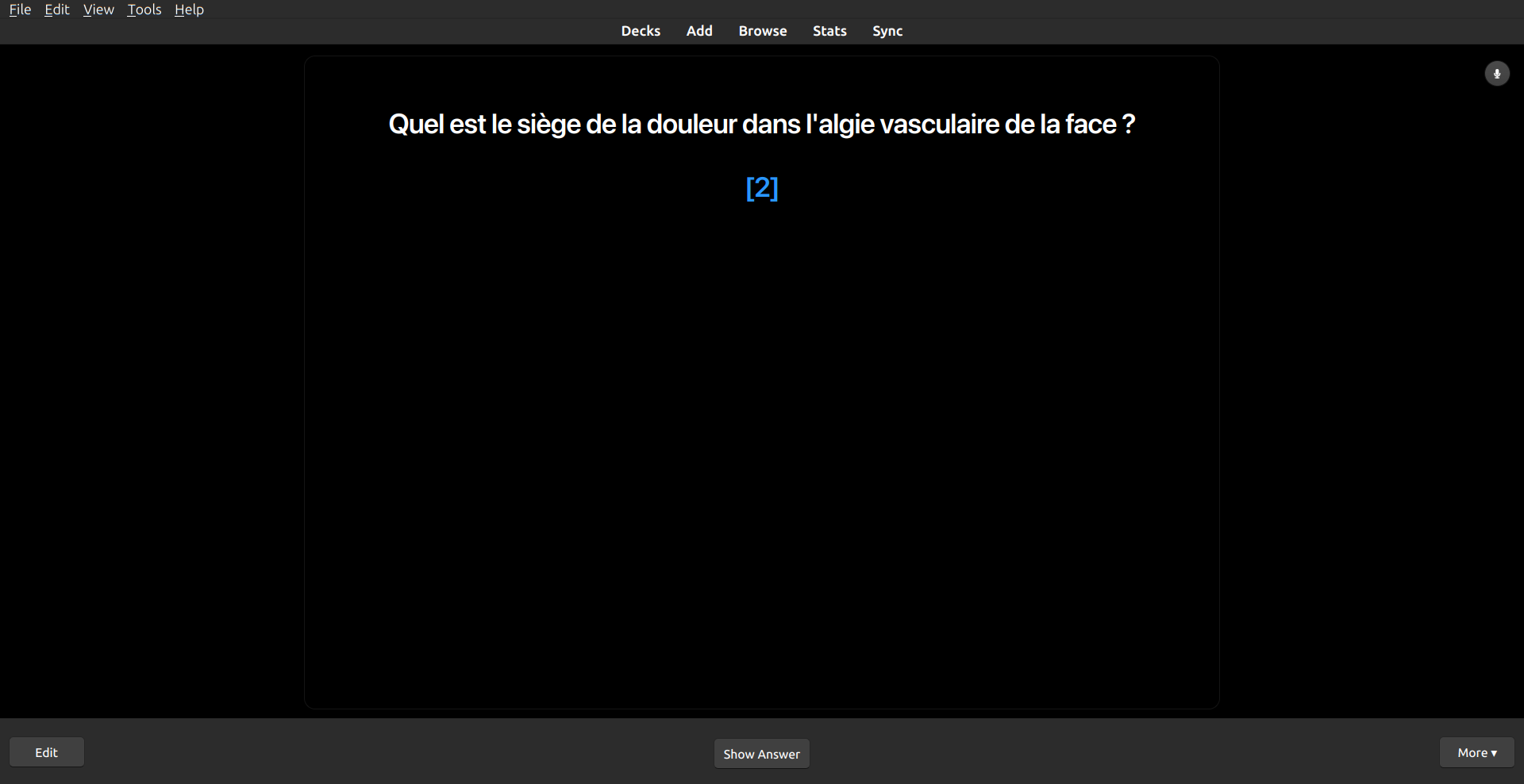
Reviewer microphone button

Recording flow

Once triggered, Anki opens the note editor and the recording begins immediately into the target field.
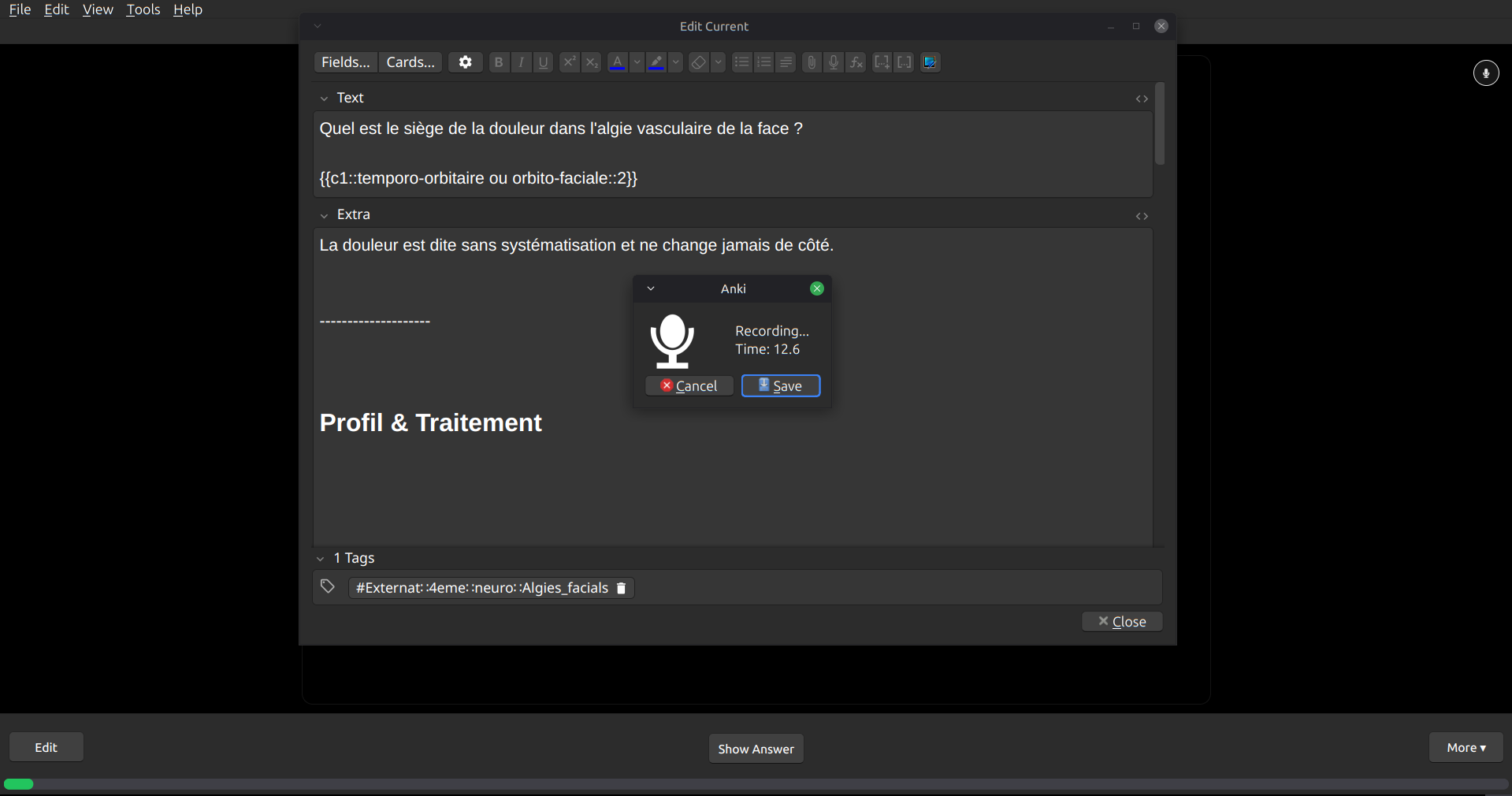
Recording audio into the selected field

Setup

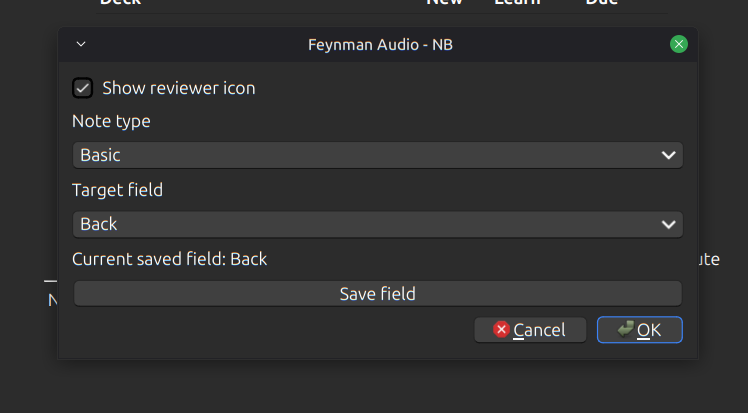
The target field is configured per note type, so you can use different fields across different decks.

  1. Go to Tools → Review Audio Shortcut Settings
  2. Select your note type
  3. Select the field where audio should be inserted
  4. Click Save field

Settings window

The add-on remembers the saved field for each note type and restores your last selection when you reopen the settings.

Behavior to know

  • The reviewer icon is enabled by default
  • If no field is configured for the current note type, the add-on shows a warning prompting you to open the settings
  • If the saved field no longer exists (e.g. after editing the note type), the add-on will skip insertion until you reconfigure
  • If the target field already contains content, the new audio is inserted at the top of the field — existing content is preserved

Source

GitHub: Feynman-Audio-NB

License

MIT License

README

Feynman Audio - NB

This add-on lets you record audio directly while reviewing cards in Anki Desktop.

When you are in review mode, it adds:

  • A small microphone icon in the top-right corner of the reviewer
  • A keyboard shortcut: Ctrl+Shift+R

Reviewer view

This is how the microphone button appears while you are reviewing a card.

Reviewer microphone button

When you click the icon or use the shortcut, the add-on:

  • Opens the current note in Edit Current
  • Records audio
  • Inserts the new audio into the field you selected for that note type

Recording flow

After you trigger the shortcut, Anki opens the current note and starts recording into the configured field.

Recording audio into the selected field

How it works

The target field is set separately for each note type.

To choose a field:

  1. Open Tools > Review Audio Shortcut Settings
  2. Select your note type
  3. Select the field where you want audio to be inserted
  4. Click Save field

This is the settings window where you choose the target field.

Settings window

The add-on remembers:

  • The saved field for each note type
  • The last note type you worked on in the settings window

Important behavior

  • The reviewer icon is enabled by default
  • If no field has been selected for the current note type, the add-on shows a warning telling you to open Tools > Review Audio Shortcut Settings
  • If the saved field is no longer valid because the note type changed, the add-on will not insert audio until you choose a valid field again
  • If the target field already has text or audio, the new audio is added at the top of that field

Installation

  1. Copy the add-on folder into your Anki addons21 directory
  2. Restart Anki

Compatibility

  • Anki Desktop only
  • The microphone icon and shortcut work only while reviewing cards