Exam Notifier Enhanced — V4.0
Keep your Anki reviews connected to your exam date.
Exam Notifier Enhanced helps you spot cards whose next review would fall
on or after an upcoming exam and bring eligible reviews forward.
Enter your exam name and date, compare Anki’s proposed schedule with
your exam schedule, and choose how to handle the card from a
customizable popup.
New in V4.0:.
More art. Sell button changes.
A little secret in the corner…
Look for the tiny plant icon beside ⋯ in the popup header.
Click it, and your secret farm opens. The icon appears in Detailed,
Simple, and Mini without making the review popup larger.
Your first visit starts with four soil plots, free turnip,
daisy, and basil seeds, and 20 coins. Choose a seed and plant it
in empty soil. Return to reviewing: a turnip is ready after just
three recorded reviews. Click a ready plant to harvest it.
Start simple. Discover more as you grow.
Ten farm levels lead from a hidden clearing to an ethereal garden,
with new crops, companions, buildings, recipes, and little discoveries.
-
A bigger farm.
Expand from 4 plots through 8, 12, 16, 24, 32, 40, 48, and 56,
up to 64 plots. Use Collect all for ready crops and
animal products, or Plant all to fill empty plots with your selected
crop using available seeds. Quick plant lets you plant empty soil
directly with the chosen seed.
-
23 plant varieties.
Grow 20 ordinary crops, flowers, herbs, vines, and fruit trees,
plus rare Moonflower, Glow pumpkin, and Crystalberry.
Five distinct pixel growth stages show each plant developing.
Some crops remain planted and regrow after harvest.
-
Seasons and rare discoveries.
Planting follows the calendar season. Stored seeds and existing
plants stay safe when seasons change. The Moonlit conservatory
allows year-round planting. Successful crop harvests have a
1-in-200 rare-seed chance, with additional gifts
at farm levels 5 and 10. Rare seeds cannot be bought or duplicated
through seed saving.
-
Harvests, seed saving, and recipes.
Sell produce for coins, buy seeds, and expand your farm.
At level 2, turn an ordinary harvested item into two seeds.
The Workshop opens at level 3 with bouquets and garden soup;
later levels unlock berry preserves and more, for
12 recipes in total.
-
Pets and livestock.
Adopt a cat, dog, rabbit, duck, turtle, or fox; your first cat is
free at level 2. Build up to three barns with ten animals
each for chickens, ducks, goats, cows, sheep, and pigs.
Reviews help livestock mature and produce eggs, milk, wool,
or truffles. Make cheese from two milk, then store or sell products.
Pets and livestock have matching idle, movement, and interaction
animations. They never need feeding.
-
Make it yours.
Upgrade your house, pond, and fences. Name your companions and
farm animals. Place benches, lanterns, flower borders, and stepping
stones on open grass, then move or return them to your collection.
Fit farm gives you an overview; zoom and navigation controls help
you explore larger fields.
-
A farm that feels alive.
Dawn, daylight, sunset, and night follow your local clock.
Butterflies, a frog, fireflies, chimney smoke, and animated
companions bring small moments of life. Matching side fences
frame the new sprite style. Reduced motion pauses the animations.
Clock changes and animation do not earn growth or animal production.
Farm levels require both reviews and harvests.
Level 2 opens at 120 reviews and 12 harvests,
level 3 at 350 reviews and 35 harvests, and level 4
at 800 reviews and 80 harvests.
Higher levels continue the journey through level 10.
Your Journal shows the next requirements and discoveries.
Meet Rosabelle
Rosabelle visits after your first recorded garden review.
Click her on the farm or open the Fairy tab to say hello.
After greeting her, completing eight reviews, and
picking your first crop harvest, invite her to stay
for free.
Once recruited, she can pick ripe crops when you open the farm.
Use the Fairy page to choose her chores or press Help now.
Automatic help and crop harvesting start on; replanting and
animal-product collection start off.
-
Help when I open the farm.
Pause this to ask for help manually instead.
-
Pick ripe crops.
Harvest ready plants and keep their produce in your basket.
-
Replant picked plots.
Use one stored seed to replant the same crop, when in season.
She never buys seeds, replaces growing plants, or replants crops
that already regrow.
-
Collect ready animal products.
Gather ready products into your existing storage.
Between chores, Rosabelle flies around the farm, waves, twirls,
visits the pond, tends flowers, rests, and spends time with companions.
Her idle routines are visual; your recorded reviews still supply growth.
A home that grows with your farm
All 11 house stages have matching interiors, from a
timber study and rose-curtained cottage to a sunroom, lantern lounge,
loft, glass conservatory, celestial library, tower room, and luminous
sanctuary. Exterior and interior upgrade together. An already-upgraded
house receives its matching room automatically, with no extra purchase.
You can buy the next eligible house upgrade directly inside the House window.
Your farmhouse also keeps exam mementos and reflections.
Record course or block exams, clinical shelf exams, and USMLE Step
milestones, including past exams. Choose subjects, dates, results,
and optional reflections. Original medical artwork, silver and gold
shelf supports, Step windows, and Resilience Lanterns remain available.
Qualifying tracked exams offer one-time preparation rewards;
retrospective entries provide display recognition.
Exam entries can be edited, finalized, or deliberately removed.
A separate, confirmed one-time exam-awards reset
lets you rebuild the displayed collection while keeping your farm progress.
Exam history and mementos save locally with your profile’s farm.
Progress that waits for you
Every recorded rating waters growing plants equally,
including Again. Growth begins after you discover the farm
and continues even when an exam popup stays quiet.
Blocked or canceled answers, manual date changes, and simply opening
the farm do not earn review growth. Opening the farm can run your
recruited fairy’s enabled chores. Earlier review history is not imported.
Plants never wilt while you are away. There is no daily-streak penalty,
and your farm waits between sessions. Farm levels and review counts
reflect activity rather than knowledge or exam readiness.
The farm opens in its own window. The review popup tucks away while
you garden and returns when you close it if the same card is still
on its answer. Rating shortcuts are blocked while the farm has focus.
You can also use arrow keys to select soil and Enter to plant or harvest.
Farm progress saves locally for each Anki profile
and stays through add-on updates. It is not included in Anki sync.
Existing crops, seeds, coins, inventory, pets, animals, purchased upgrades,
discoveries, and awards migrate without an automatic reset.
Farm levels are calculated using the current review-and-harvest requirements.
Undo removes a review’s activity credit and growth from the crops
and animals it originally advanced. Redo restores that credit without
growing later plantings or duplicating an already-collected product.
Harvested items, purchases, crafting, and earned awards remain saved.
Fairy chores use the same protections as harvesting and collecting by hand.
Optional prestige offers ten collectible badges
after completing the farm and required house and pond upgrades.
It is a deliberate whole-farm reset with a full preview and confirmation.
Exam mementos, earned awards, prestige badges, reduced-motion setting,
and fairy chore preferences remain; fairy recruitment and farm gameplay
start fresh. Old review credit cannot grow the replacement farm.
Make the controller your own
Drag rating buttons and their schedules wherever you want
in Simple and Detailed views.
Create a familiar controller arrangement, a compact pocket-controller
layout, or your own design.
Each rating keeps its number key, color, action, and schedule information.
Open ⋯ → Edit controller layout… from the popup, or use
Tools → Exam Notifier Enhanced → Customize controller layout
to open the Simple or Detailed canvas.
-
Choose an outline.
Start with Xbox, PlayStation, Compact · Rounded rectangle,
or a blank canvas.
Show or hide the outline, adjust available shape handles,
and change the compact rectangle’s corner roundness.
-
Place controls freely.
Drag a button or its schedule to any canvas position.
Optional grid snapping helps with alignment.
Place schedules above, below, to the left, or to the right.
The preview flags overlaps while still allowing free placement.
-
Customize button shapes and labels.
Choose circles, rounded squares, shoulders, triggers, stick presses,
or stick directions.
New labels support 1–3 visible characters.
Existing longer labels remain available until edited.
-
Connect face buttons.
Choose no links, a triangle, or a diamond.
Links connect only controls marked as face buttons;
shoulder, trigger, and stick controls stay separate.
At least three eligible face controls are needed.
-
Keep schedules readable.
Choose Normal, Larger, or Largest text.
Long schedules wrap instead of shrinking.
Narrow live popups temporarily arrange controls into readable rows
while keeping your saved canvas positions.
-
Fit the outline to the controls.
The live controller removes unused canvas space and surrounds
the buttons and schedules with modest padding.
Detailed places it beneath Review controls;
Simple places it beneath the exam date.
-
Choose the popup size.
Set the width independently for Simple and Detailed.
Fit popup height to content is on by default.
Turn it off to choose a fixed height.
Longer content scrolls when space is limited.
-
Spread buttons to fill.
Use this explicit preview action when you want more spacing
while retaining the arrangement’s relative order.
Save applies it; Cancel discards it.
-
Save layouts for later.
Simple and Detailed save independently.
Named layouts retain positions, labels, shapes, schedule placement,
outline settings, popup size, and text preferences.
Changes stay in the preview until Save.
Save applies your design; Cancel leaves the saved layout alone.
Rating clicks and shortcuts cannot answer a card while the layout editor
is open.
Reset controller layout restores the current view’s defaults.
Reset popup positions controls window placement separately.
Mini keeps its existing compact row.
Its shared labels, shapes, and cardinal order remain available through
Customize controller layout → Mini button styles….
Editing a Simple or Detailed canvas does not change Mini.
Anki’s rating keys remain 1–4 regardless of button
labels or positions. 6 remains Dismiss / Recall.
Configure physical controller bindings in your controller app.
Want another look before the exam?
Two independent checkboxes customize your existing Good and Easy buttons.
Both start off.
Hover over either checkbox—or focus it with Tab—for an explanation.
Live date previews show how your selected window fits before the exam.
-
Good: review sooner.
“I recalled it correctly and want more practice soon.”
Choose a review window, such as 3–7 days from today.
The add-on records Good, then brings an eligible review into that
window, shortened as needed to fit before your exam.
-
Easy: want a second pass?
“I know this well. Give me one final check near the exam.”
Choose a window, such as 1–3 days before the exam.
The add-on records Easy and requests one later-day final review
for that card and exam.
These optional windows preserve an earlier Anki review.
For a second-pass request, earlier reviews keep the request pending.
A later-day review in or after the final window, but before the exam,
completes it even if you choose another rating.
Easy then uses Anki’s schedule for that card and exam.
A changed exam name or date defines a new exam request.
Learning and relearning steps remain native until the selected answer
graduates the card to Review.
Both optional settings work even when the automatic popup stays quiet.
On the day before the exam, Good: review sooner
caps eligible reviews at exam day while preserving an earlier Anki date.
Easy: second pass keeps Anki’s schedule.
On exam day and afterward, all ratings use native scheduling.
These optional windows do not create same-day review loops.
Turning an option off stops future adjustments; dates already set remain.
Second-pass requests are saved with the card and included in normal
collection sync.
If a request cannot be saved, the add-on explains the failure and
keeps native scheduling.
Completing a scheduled second pass still depends on studying the card
and Anki’s daily limits.
It does not bypass suspended or buried cards.
Choose which exam applies
Exam names, dates, and optional review windows belong to deck presets.
Decks sharing a preset share its exam settings.
For each study deck, choose:
-
Each card’s home-deck preset.
The default.
Cards use the exam plan from their own home deck, including cards
studied through a parent deck or a rescheduling filtered deck.
-
One existing exam preset.
Use one preset’s complete exam plan while studying this deck,
without changing the cards’ underlying Anki scheduling presets.
-
Off.
Keep Anki’s schedule while studying this deck.
Your choice applies to the deck you open, including its subdecks during
that session. Opening another deck uses that deck’s choice.
Filtered preview mode always keeps native scheduling.
Missing or inactive plans are identified clearly;
a missing preset never silently falls back to the Default preset.
The deck overview summarizes the exam plans in use.
During review, a banner identifies the current card’s exam and home deck.
Open Details for full source information.
To hide the top review banner, uncheck
Tools → Exam Notifier Enhanced → Show exam banner during review.
The deck overview still shows the exam context.
Choose your popup view
-
Detailed / Full.
Compare Anki’s native schedule with the exam date or review window
each rating will use.
Includes exam-source information and additional scheduling explanations.
-
Simple.
See the warning, exam name, exam date, rating buttons, and resulting
dates with days away.
Additional explanations remain available through Details.
-
Mini.
A compact row with your customized rating buttons and resulting dates.
More actions, including Details and Set date only, are available through
More… or the ⋯ menu.
All three views share the same rating and scheduling rules.
Switch views through the popup’s controls,
Your exam plan, or Tools → Exam Notifier Enhanced.
Move the popup where you want it.
Drag its header to reposition it.
Each view remembers its location on that desktop across cards and restarts.
Placement stays within the visible Anki window when the window or screen
changes. Use Reset popup positions to restore defaults.
Popups use rounded panels, thin outlines, and subtle shadows.
Light and dark themes use coordinated backgrounds and readable colors.
The red Exam Schedule banner remains present,
with an animated warning triangle in Simple and Detailed.
Countdown text retains its changing urgency colors as the exam approaches.
The ⋯ options menu uses an opaque background,
stays within the screen, and belongs to its popup.
Review confirmations your way
Open Review confirmations… in Your exam plan or under
Tools → Exam Notifier Enhanced.
-
Choose which ratings show confirmations.
Configure Again, Hard, Good, and Easy independently after an actual
due-date change made by the add-on.
-
Silent.
Suppress routine confirmations while keeping the full result
available in Last review result.
-
Brief.
See the recorded rating and the old → new dates with their days away.
-
Detailed.
See the full result, days moved, reason, exam, home deck, and preset.
-
Adjust the duration.
Separate 1–20 second controls set Brief and Detailed durations.
Brief defaults to 3 seconds; Detailed defaults to 8 seconds.
Changed and unchanged dates have separate display settings.
Unchanged schedules stay silent by default.
Normal Anki or FSRS scheduling changes do not count as an add-on adjustment.
Hovering holds a confirmation on screen.
Moving away restarts its selected duration.
Confirmations disappear automatically, require no dismissal click,
and do not take keyboard focus.
A new exam popup takes priority so notices do not stack.
More features
-
Dynamic dates and windows.
See the resulting date or possible date range, plus days away.
Learning steps retain minutes or hours.
Displays refresh for the current card, exam plan, and day changes.
-
Configurable warnings.
The default Good-only mode opens the popup when native Good would
reach or pass your exam.
An Easy-only crossing stays quiet.
Any-rating mode offers broader warnings and final-three-days reminders.
Optional review windows work independently of the popup trigger.
-
Skip short-step popups.
An optional setting suppresses the automatic popup when all four
answers lead to native learning or relearning steps within five hours.
If any answer has a longer step or a review interval, your selected
popup trigger applies normally.
This setting starts off and does not change ratings or scheduling.
-
Optional calendar dates.
Show or hide calendar dates alongside Anki’s normal answer intervals.
The checkbox is on by default.
These dates show Anki’s native preview; optional-mode hints and
the popup explain exam adjustments separately.
-
Mouse, keyboard, and controller support.
Use your preferred way to review.
Anki’s rating keys remain 1–4, and physical controller bindings
are configured in your controller app.
-
Dismiss and recall with 6.
Dismiss the popup to use native scheduling for the current answer;
press 6 again to reopen it.
When optional modes are enabled and the popup is quiet, 6 can open
the controls once the answer’s reveal is ready.
This shortcut never rates a card.
-
Pause for the session.
Temporarily use native scheduling, then resume when needed.
Pause ends when you leave review or switch study decks.
-
Details when you need them.
Hover for explanations or open Details to see scheduling rules,
exam sources, and unavailable-button reasons.
-
One-by-One reveal support.
AnKing One-by-One cards delay the popup until the final reveal.
Set a date manually
Set date only… opens a calendar for an ordinary Review card.
Choose tomorrow or later, then deliberately click
Set date only to apply it.
In Mini, find this action under More… or
the ⋯ menu.
This changes the due date and moves past the current card
without recording an answer or FSRS review.
The interval, review history, FSRS memory, and second-pass requests
remain unchanged. One Undo restores the previous date.
A date-only action does not complete a second-pass request
or earn garden growth.
This manual action is unavailable for new, learning, relearning,
suspended, buried, or filtered-deck cards.
Return filtered cards to their home deck first.
Dates on or after the exam are allowed with a notice.
How the popup handles ratings
When an eligible exam popup is due or active, and the optional
Good and Easy settings are off:
-
Again:
follows Anki’s native learning or relearning behavior.
-
Hard:
eligible reviews use a randomized 3–7-day window that compresses
as the exam approaches: 2–4 days with five days remaining,
and 1–3 days with four days remaining.
During the final three days, Hard stays available when its native
date falls before the exam, keeping that schedule;
otherwise, it is unavailable.
-
Good:
eligible reviews keep their native date when it falls before the exam;
otherwise, they are capped at the day before it.
On the final pre-exam day, eligible Good reviews advance to exam day.
-
Easy:
eligible reviews keep their native date when it falls before the exam;
otherwise, they are capped at the day before it.
Easy is unavailable on the final pre-exam day when its optional
setting is off.
Short Hard steps always stay available.
Native Hard learning and relearning steps of 30 minutes or less remain
usable, including during the final pre-exam days and when both optional
pass settings are enabled.
Anki records Hard and keeps that native step.
When both optional pass settings are enabled, popup Hard is otherwise
disabled before the exam.
The final-three-days exception also allows Hard when its native date
is strictly before the exam, keeping Anki’s schedule.
Dismiss with 6 to use native Hard outside these popup rules.
An enabled Good or Easy option replaces that rating’s usual popup rule
with its optional behavior described above.
A pending second-pass request can also bring an eligible Hard or Good
review forward to preserve the final-pass opportunity.
All ratings use native scheduling on exam day and afterward.
Automatic exam warnings stop after the exam.
Your real answer still counts.
Each accepted rating is recorded normally by Anki.
Automatic exam adjustments happen afterward and preserve Anki’s interval,
FSRS memory, and complete review history, without adding another answer
or rescheduling-history entry.
Only the due date and, when applicable, the add-on’s own second-pass
tracking are adjusted.
One Undo restores the rating, due date, and any second-pass request
together; Redo restores the combined action.
These changes do not rewrite earlier review history.
Getting started
-
Install or update Exam Notifier Enhanced, then restart Anki.
For a downloaded installer, use
Tools → Add-ons → Install from file…
and select V3.0_Fairy_SNES_Farm.ankiaddon.
-
Open Deck Options → Add-ons → Your exam plan.
-
Enable exam reminders, enter your exam name and date,
and select any optional features you want.
-
Save preset settings with Anki’s Save button.
-
To change which exam applies while studying a deck, use
Exam plan… in the banner or
Tools → Exam Notifier Enhanced → Exam plan for this study deck….
-
Choose your popup view, controller layout, and confirmation preferences
under Tools → Exam Notifier Enhanced.
-
Curious? Find the tiny plant in the popup corner
and plant your first seed.
Updates under the Enhanced package preserve saved preferences,
controller layouts, and local garden files.
No separate base add-on is required.
Anki Desktop is required.
Exam settings, study-deck source choices, and second-pass tracking use
normal collection sync.
Other desktops need a compatible version of this add-on to apply them.
Controller layouts, popup sizes and positions, appearance preferences,
and garden progress are local to each desktop.
AnkiMobile and AnkiDroid continue to use native scheduling.
Automatic reconciliation of mobile reviews is not included in this release.
The package requires Anki Desktop 25.09.4 or later.
V3.0 passed 102 automated checks using Anki 26.9.2’s
real backend and native Qt widgets with isolated test collections.
Native installation, upgrade from V2.9, and add-on startup also passed
in an isolated installation. Checks covered old-save migration,
fairy flows and preferences, harvesting and collection, all house stages,
sprite loading, awards, Undo/Redo, exam scheduling, and FSRS history.
Other Anki versions, full desktop/WebEngine integration, and physical
controller hardware were not part of these checks.
What’s new in V3.0
-
Rosabelle joins the farm.
Early visits, a greeting and free recruitment flow, ripe-crop harvesting,
optional same-crop replanting, and optional animal-product collection.
One Fairy page keeps conversations and chore preferences together.
-
Animated fairy routines.
Pink ribbons, a frilled dress, sparkling wings, waving, dancing,
watering, resting, and companion visits around the farm.
-
Matching SNES-style sprites.
Original pixel artwork for all 23 plants with five growth stages,
plus animated pets and livestock, saved livestock variants,
and replacement side fences.
-
Linked house interiors.
Every exterior stage selects its corresponding interior.
Existing upgraded houses receive their matching room immediately,
and the next upgrade is available inside the House window.
-
Progress and awards preserved.
Backward-compatible farm saves, exam mementos and award art,
collected items, controller preferences, and Undo safeguards remain.
Closed or stale house-upgrade controls cannot spend your coins.
-
Exam scheduling retained.
Existing popup views, controller layouts, review windows,
confirmations, real rating semantics, and FSRS history behavior
remain intact.
Credits and source
Exam Notifier Enhanced is an independently modified version of
Exam Notifier.
Original code © 2019–2022 Aristotelis P. (Glutanimate),
with the original concept credited to The AnKing.
Thank you to the original developers and upstream contributors
for the foundation of this project.
Enhanced edition customized by Oscar Martinez;
no upstream endorsement is implied.
Uses
Libaddon
by Glutanimate.
Click here to support Glutanimate’s work.
Distributed under GNU AGPLv3 or later, with the additional terms
included in LICENSE and libaddon/LICENSE.
Readable source, original copyright notices, and license texts
are included.
The bundled packaging library credits Donald Stufft and individual
contributors and retains its own license notices.
See Exam Notifier Enhanced in action
These screenshots show earlier versions.
V3.0 adds the fairy, matching farm sprites, and linked house interiors,
while retaining the controller canvas and popup features described above.
The images do not show every current feature.
Click an image to view it at full size.
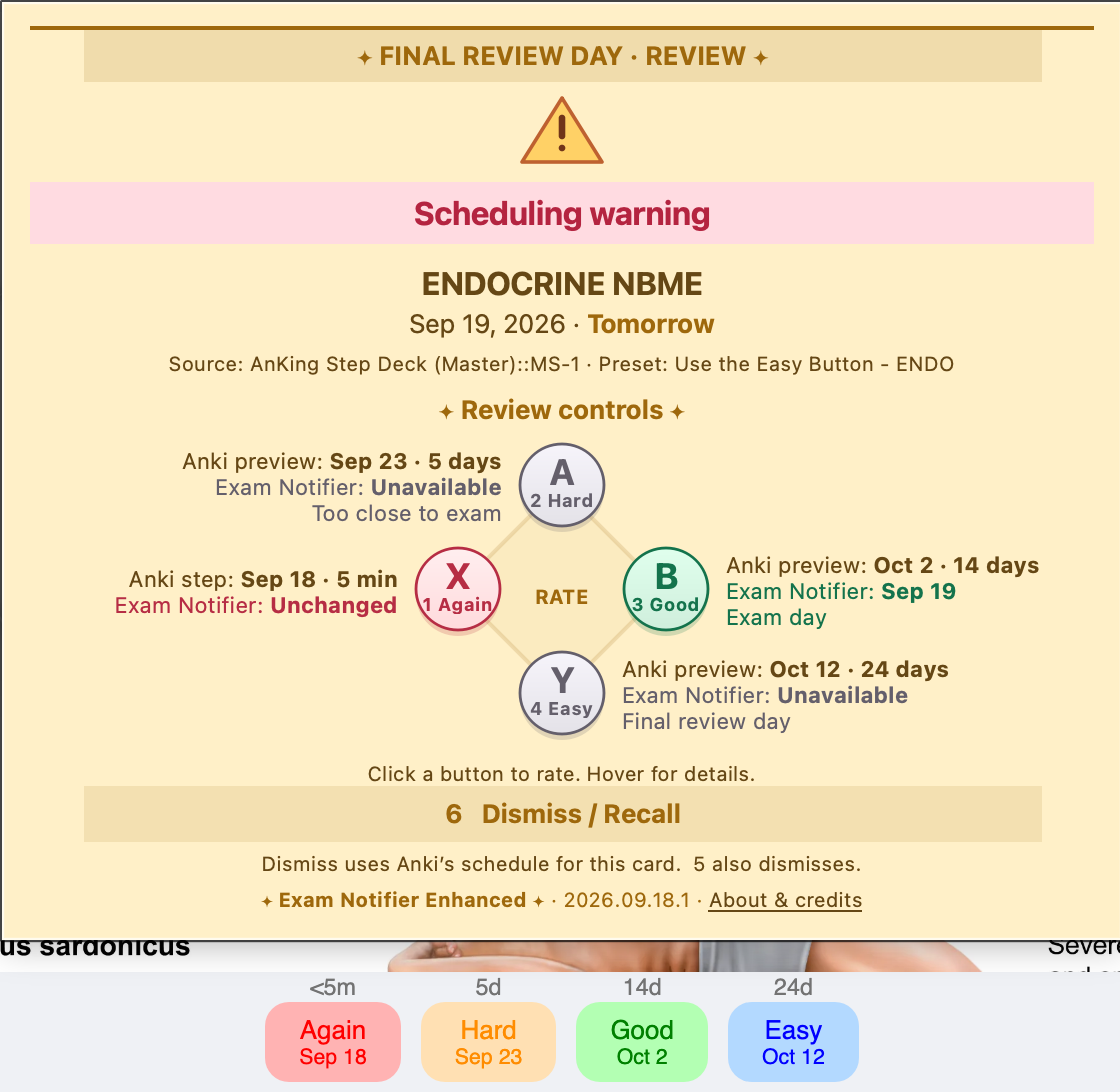
Detailed Review Popup
Compare Anki’s original schedule with the date or window
Exam Notifier will use, alongside the active exam and source information.
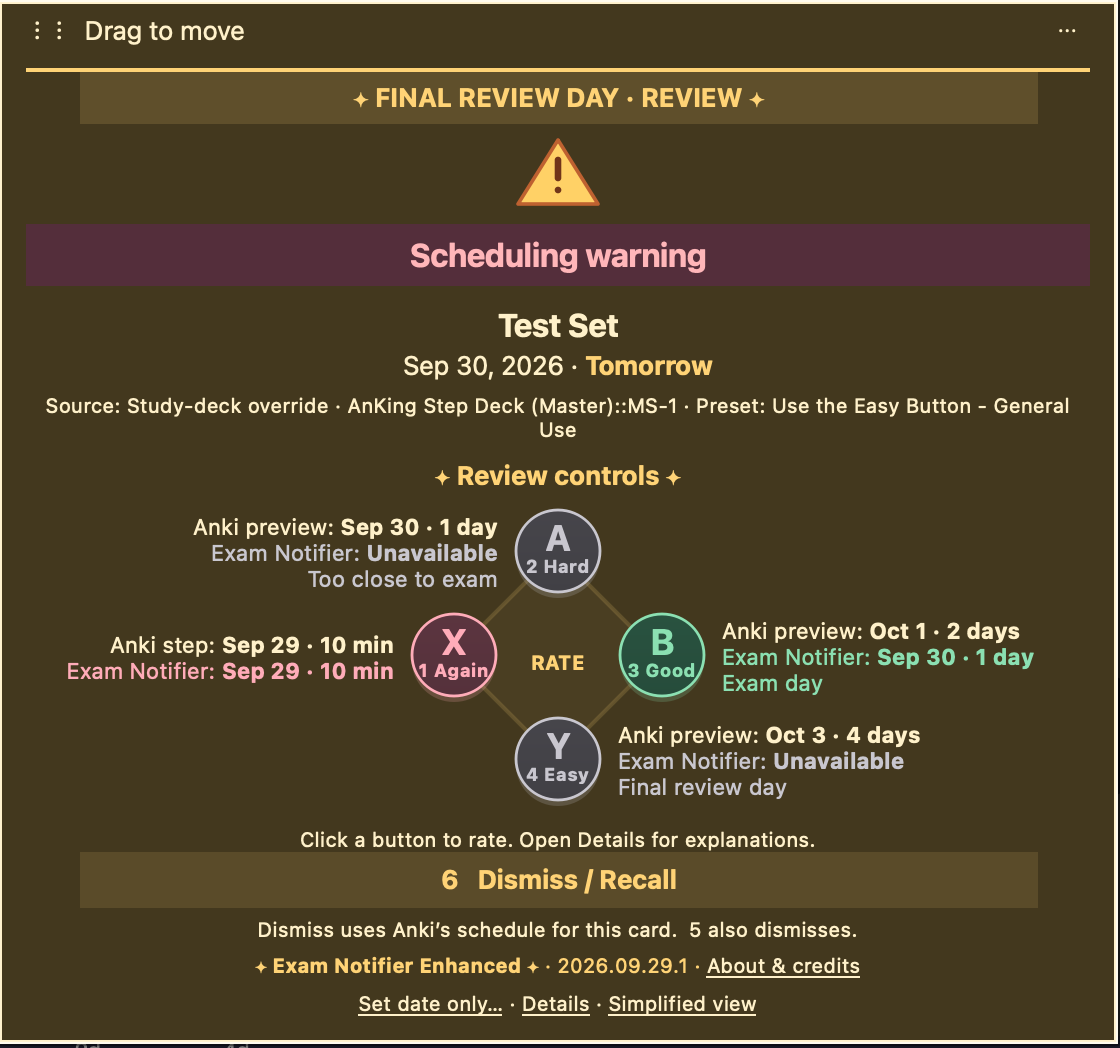
Simple Review Popup
Keep the warning, rating buttons, and resulting dates visible,
with extra information available through Details.
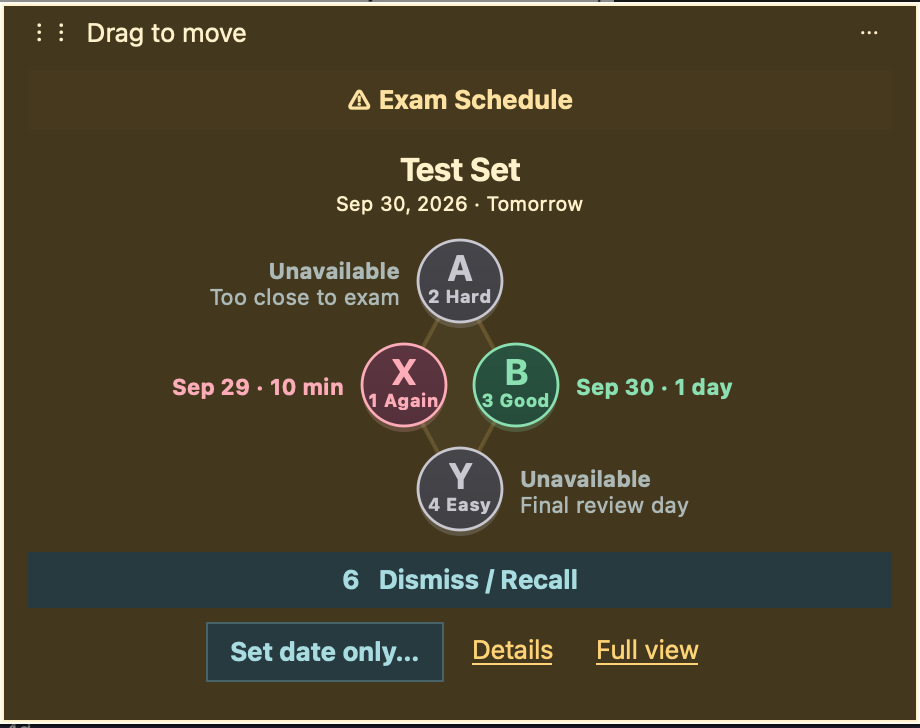
Mini Review Popup
A compact view with your customized rating controls and resulting dates.
Additional actions remain available through More or the options menu.
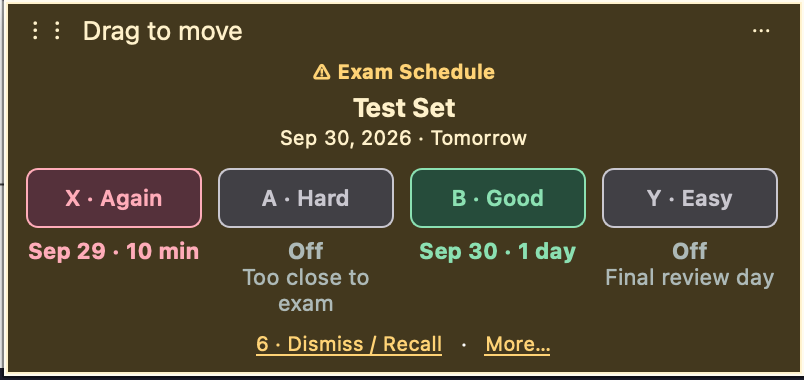
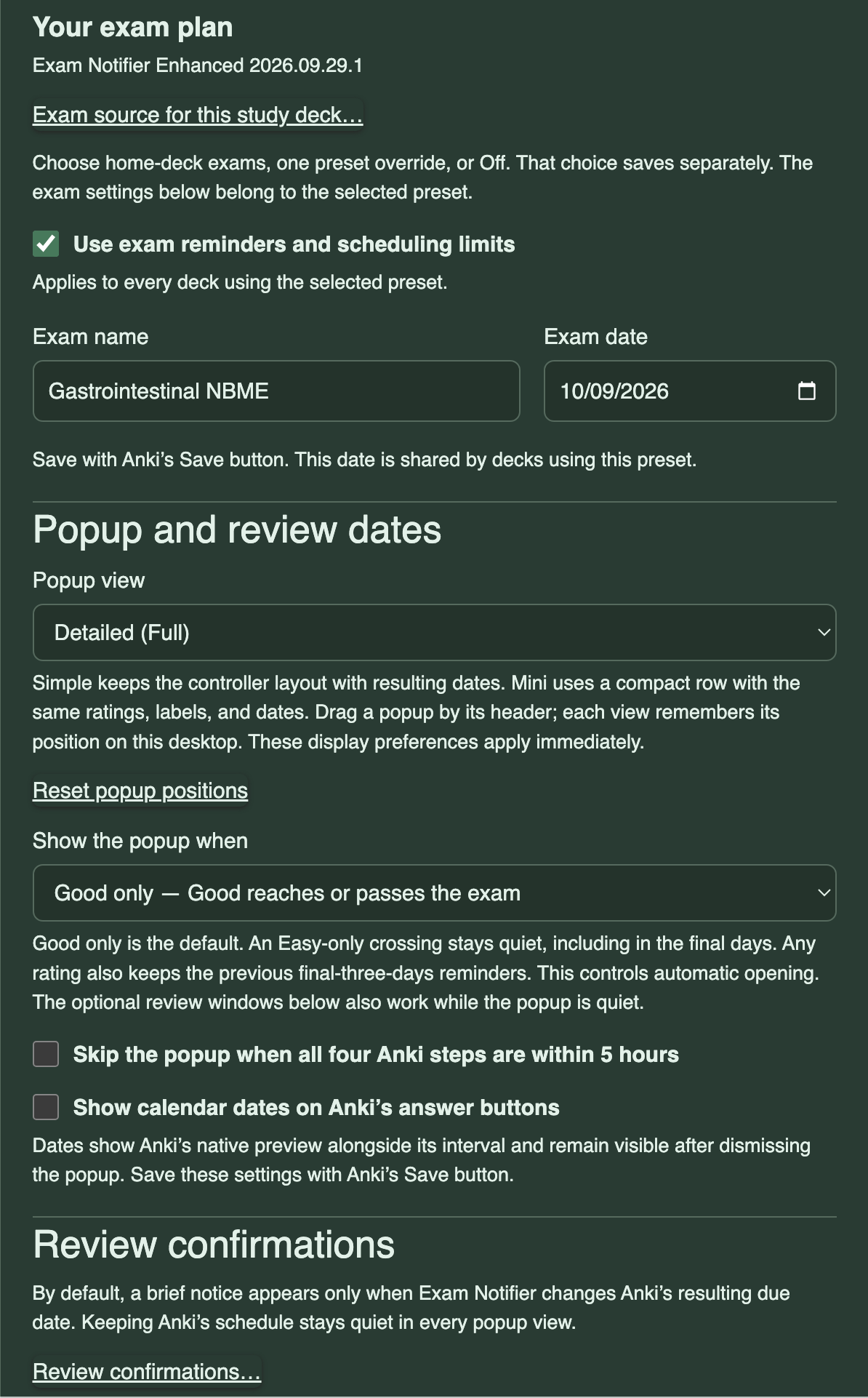
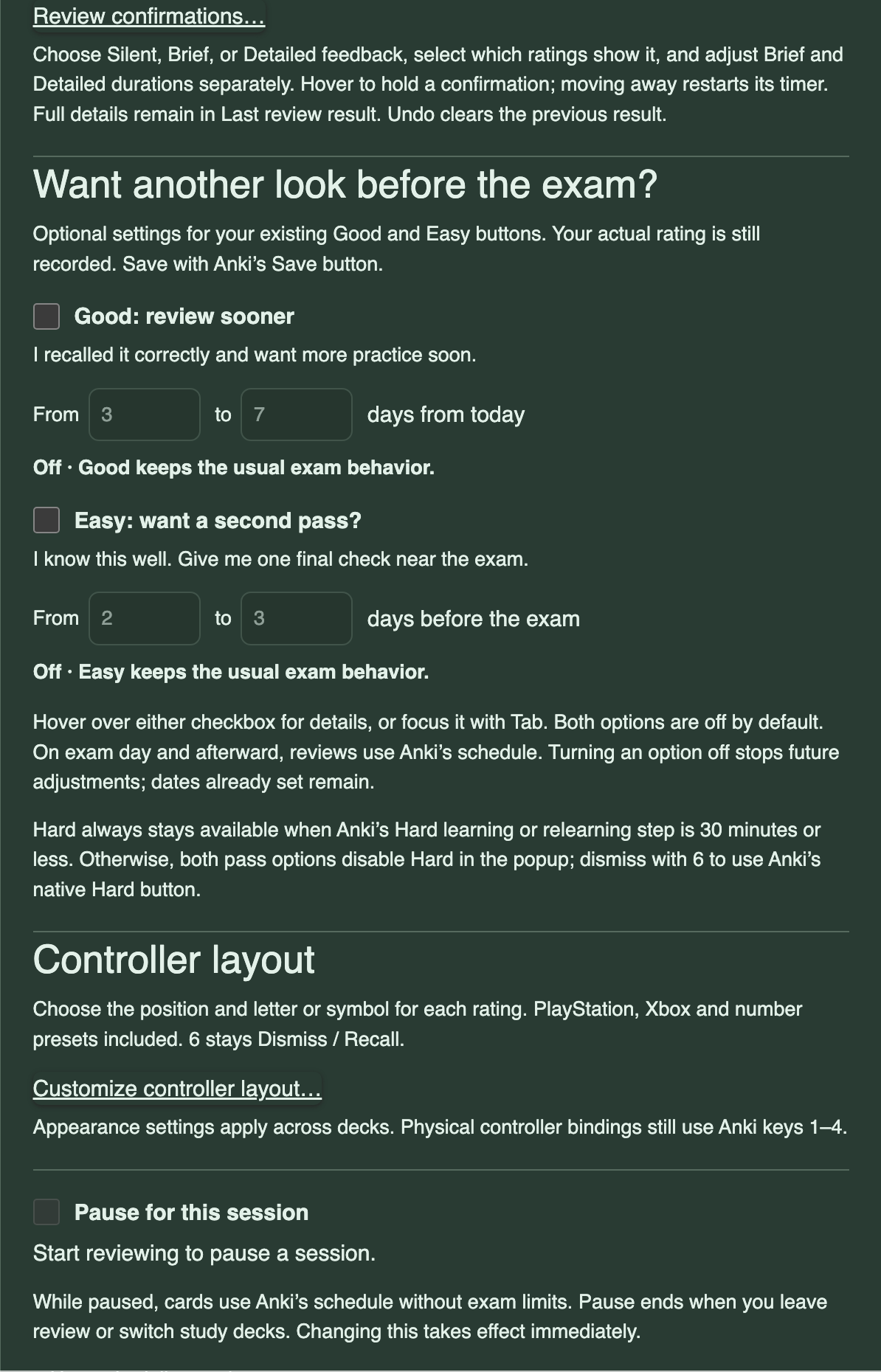
Exam Plan and Review Windows
Set the exam date, popup behavior, calendar-date display,
and optional Good and Easy review windows.
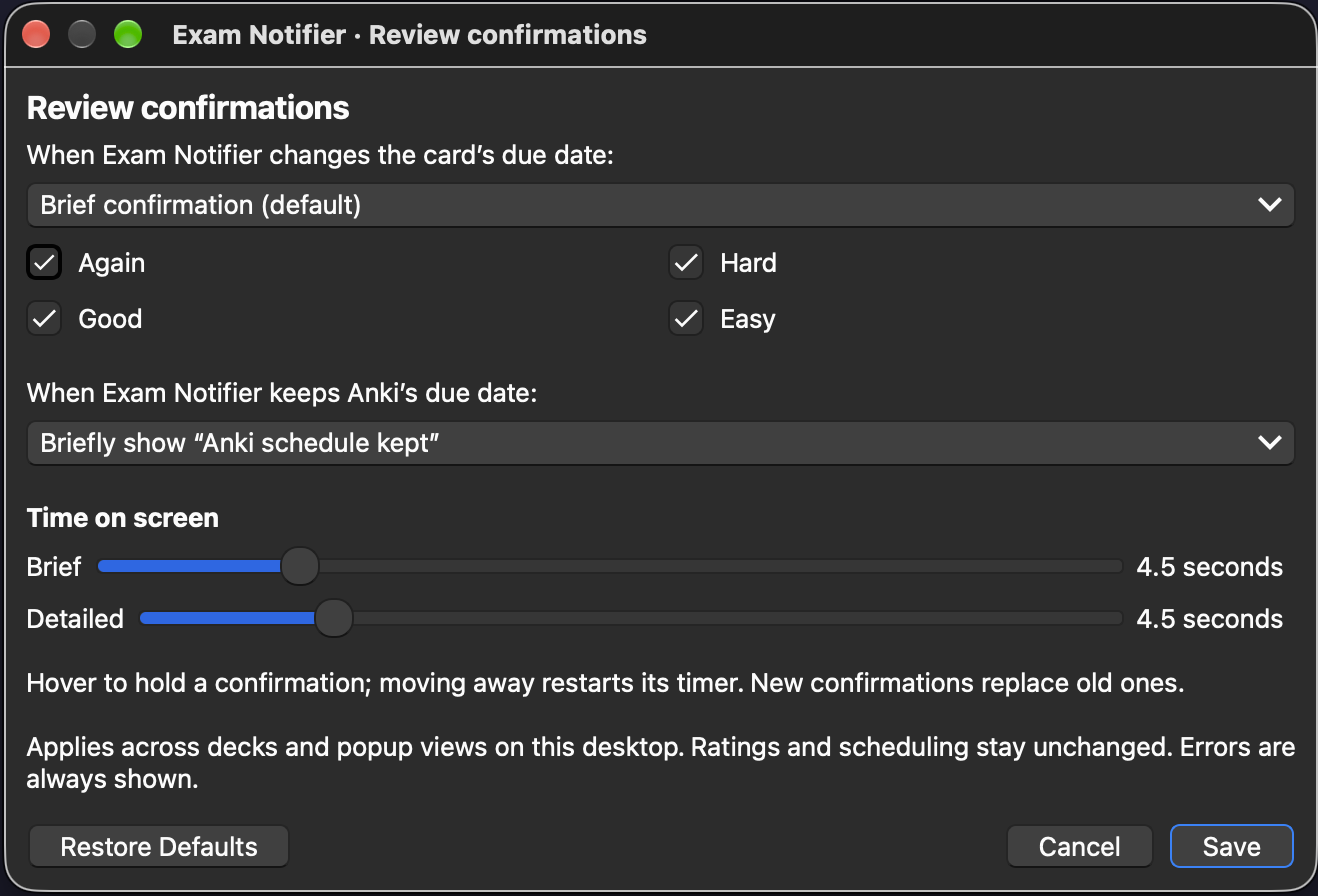
Review Confirmation Settings
Choose Silent, Brief, or Detailed feedback and adjust how long
confirmations remain visible.
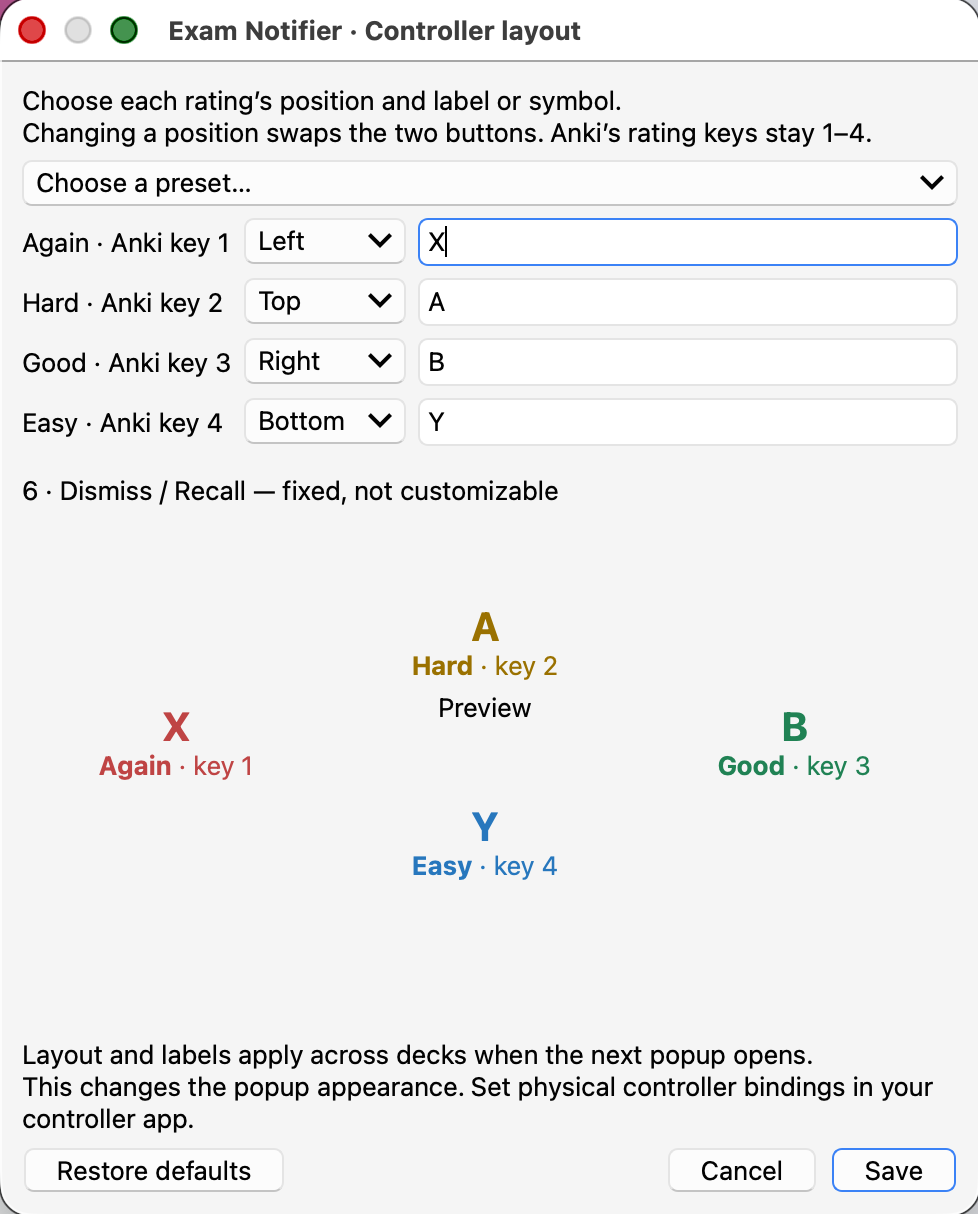
Controller Customization
This earlier editor shows controller labels and preset customization.
The current version also includes a free-placement canvas for Simple
and Detailed, with outlines, face-button links, readable text settings,
and independent popup sizing.
Optional Calendar Dates on Answer Buttons
Display Anki’s projected calendar date alongside each answer interval.