Math Shortcuts for Anki
Type LaTeX-style commands such as \alpha or quick ASCII shorthand such as -> in the Anki editor and have them turn into Unicode symbols (α, →, and so on). No MathJax or LaTeX rendering is needed, so the symbols display everywhere, including on mobile.
Quick start
- Install the add-on and restart Anki.
- Open the editor (Add, Edit, or Browse).
- Type
\alpha followed by a space. It becomes α.
That is all you need in the default Auto mode.
Modes
The add-on has two modes. Switch between them with the Auto button in the editor toolbar, or by editing the config.
- Auto (default): Shortcuts convert as you type, as soon as you press a space or punctuation mark after them.
- Manual: Nothing converts while typing. You convert text yourself with the Σ button or
Ctrl+Shift+M.
The Auto button is highlighted when Auto mode is on, and not highlighted in Manual mode. Your choice is saved and remembered the next time you open Anki.
Toolbar buttons and keyboard shortcut
- Σ button /
Ctrl+Shift+M: Converts all shortcuts in the current selection. If nothing is selected, it converts the whole field. Works in both modes, so you can also use it to clean up pasted text in Auto mode.
- Auto button: Toggles between Auto and Manual mode. Highlighted means Auto is on.
Using Σ
- Select text first to convert only that part.
- Select nothing to convert the entire field you were last editing.
- Formatting such as bold, italic, and colors is preserved.
- In Manual mode, the end of your selection counts as a word boundary, so selecting
\alpha and pressing Ctrl+Shift+M converts it without needing a trailing space.
How auto-conversion works
In Auto mode, a shortcut converts when you type one of these characters right after it:
- a space
- one of
, . ; : ! ? ( ) [ ] { } $
For example, typing \pi gives π , and typing (\alpha) gives (α).
Backslash commands (those starting with \) must also stand alone. They are not converted if they directly follow a letter, number, underscore, or another backslash. This keeps \in from being converted in the middle of \int, and keeps longer commands working: \leq becomes ≤ and \le also becomes ≤.
Tip: if you type \le and want ≤, press space. If you meant \leq, just keep typing q and it will wait for the longer command.
All shortcuts
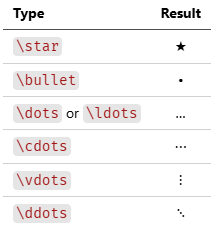
Where several shortcuts give the same symbol, any of them works.
Operators and relations
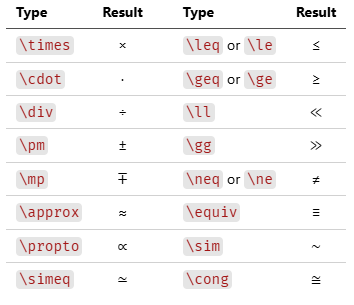
Arrows
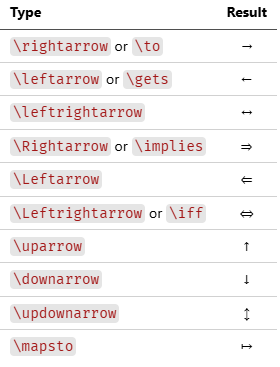
Greek letters (lowercase)
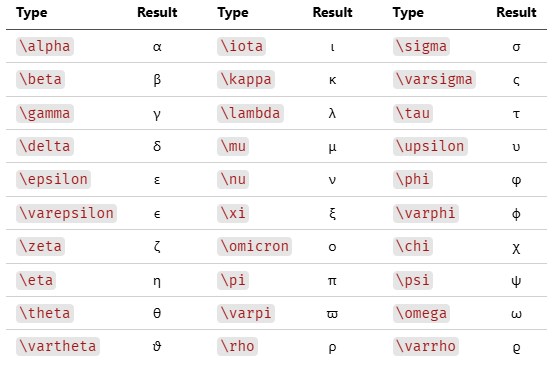
Greek letters (uppercase)
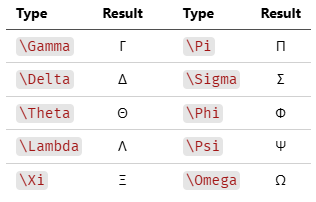
Calculus
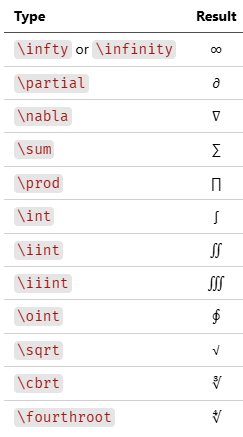
Sets and logic
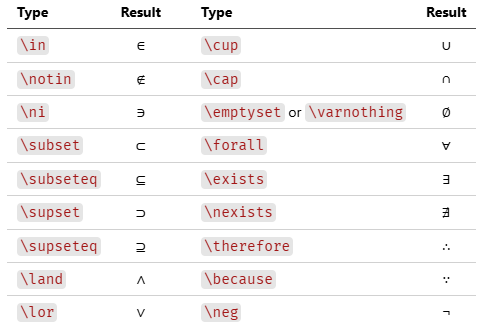
Number sets and constants
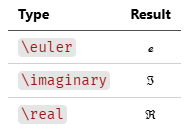
Geometry, physics, and units
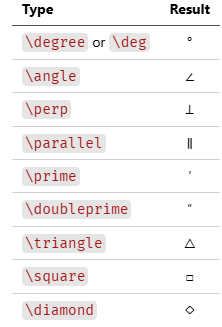
Miscellaneous symbols
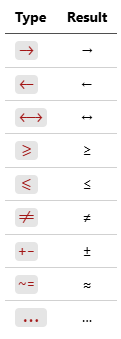
Quick ASCII shorthand
These do not need a backslash.
Configuration
Open Tools → Add-ons, select this add-on, and click Config:
{
    "mode": "auto"
}
Other option is "manual". Whether shortcuts convert while typing (auto) or only when you use the Σ button / Ctrl+Shift+M (manual). Toggling the Auto button in the editor updates this value for you.
Tips and limitations
- Pasted text is not converted automatically. Select it and press
Ctrl+Shift+M (or the Σ button).
- Several editor windows: the mode is applied when a window loads a note. If you toggle the mode in one window, an already-open Add window picks up the change the next time it loads a note.
- MathJax and LaTeX blocks: if you use Anki's
\( ... \) or \[ ... \] math blocks, be careful with Auto mode, since commands such as \alpha are meant to stay as LaTeX there. Use Manual mode and select only the plain text you want converted.
- Undo works. Conversions go through the editor's normal input handling, so
Ctrl+Z reverts them.
- Unicode font support: a few rarer symbols may look different, or fall back to another font, depending on your system and device.
Troubleshooting
Nothing converts in Auto mode
Make sure you type a space or punctuation mark after the shortcut. Check that the Auto button is highlighted.
A shortcut is not converting
Check the spelling against the tables above. Commands are case-sensitive (\Delta is Δ, \delta is δ).
The Auto highlight shows the wrong state
Open another note, which re-syncs the button, or check mode in the add-on