Anki Semantic Search
Semantic search and AI answers for your Anki collection. The add-on helps you find relevant notes by meaning, then can generate an answer grounded in the matching cards.
AnkiWeb code: 751846187
What It Does
- Searches your selected Anki notes by keyword, embeddings, or hybrid retrieval.
- Generates AI answers from the matching notes.
- Shows cited notes and lets you open selected results in the Anki Browser.
- Supports local-first workflows with Ollama, LM Studio, Jan, or other OpenAI-compatible local servers.
- Supports cloud providers for higher-quality answers or embeddings.
- Lets you choose exactly which decks, note types, and fields are searchable.
- Builds and refreshes an embedding index for semantic search.
- Includes optional medical/clinical retrieval tuning, re-ranking, query expansion, HyDE, and context-aware ranking.
- Keeps search history and lets you reload previous searches.
Requirements
- Anki 2.1.66 or newer.
- Restart Anki after installing or updating the add-on.
- One of the following:
- Local server for private/local answers or embeddings.
- Cloud API key for cloud answers or embeddings.
Optional features may require Python packages listed in requirements-optional.txt.
Quick Start
- Install the add-on from AnkiWeb with code
751846187, or place this folder in Anki2/addons21/.
- Restart Anki.
- Open the add-on from the side drawer or from Anki's add-ons/config area.
- Open Settings.
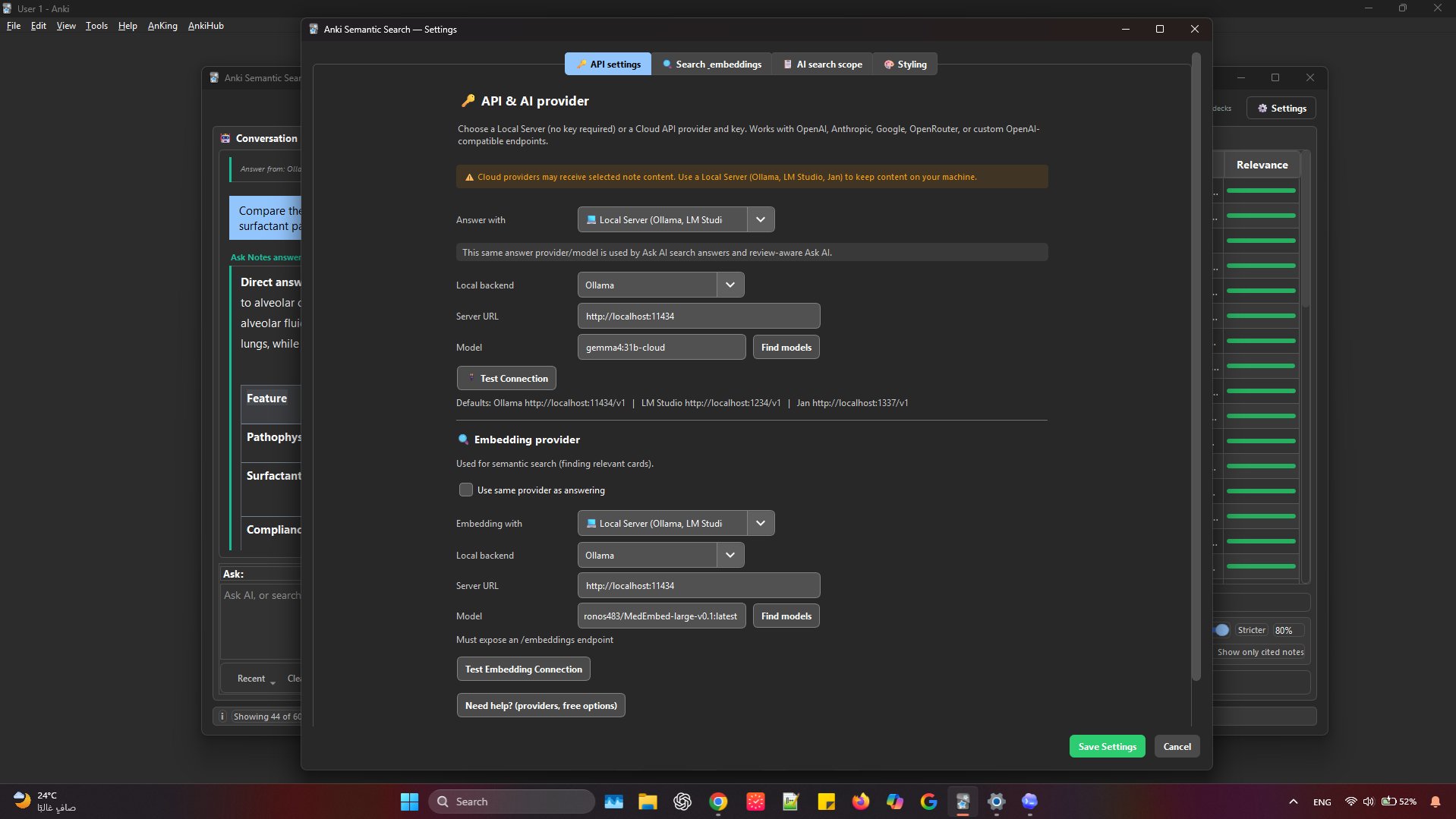
- Configure an answer provider in the API Settings tab.
- Configure an embedding provider in the API Settings tab or keep it set to use the same provider when supported.
- Choose decks, note types, and fields in Note Types & Fields.
- Go to Search & Embeddings and click Create/Update Embeddings.
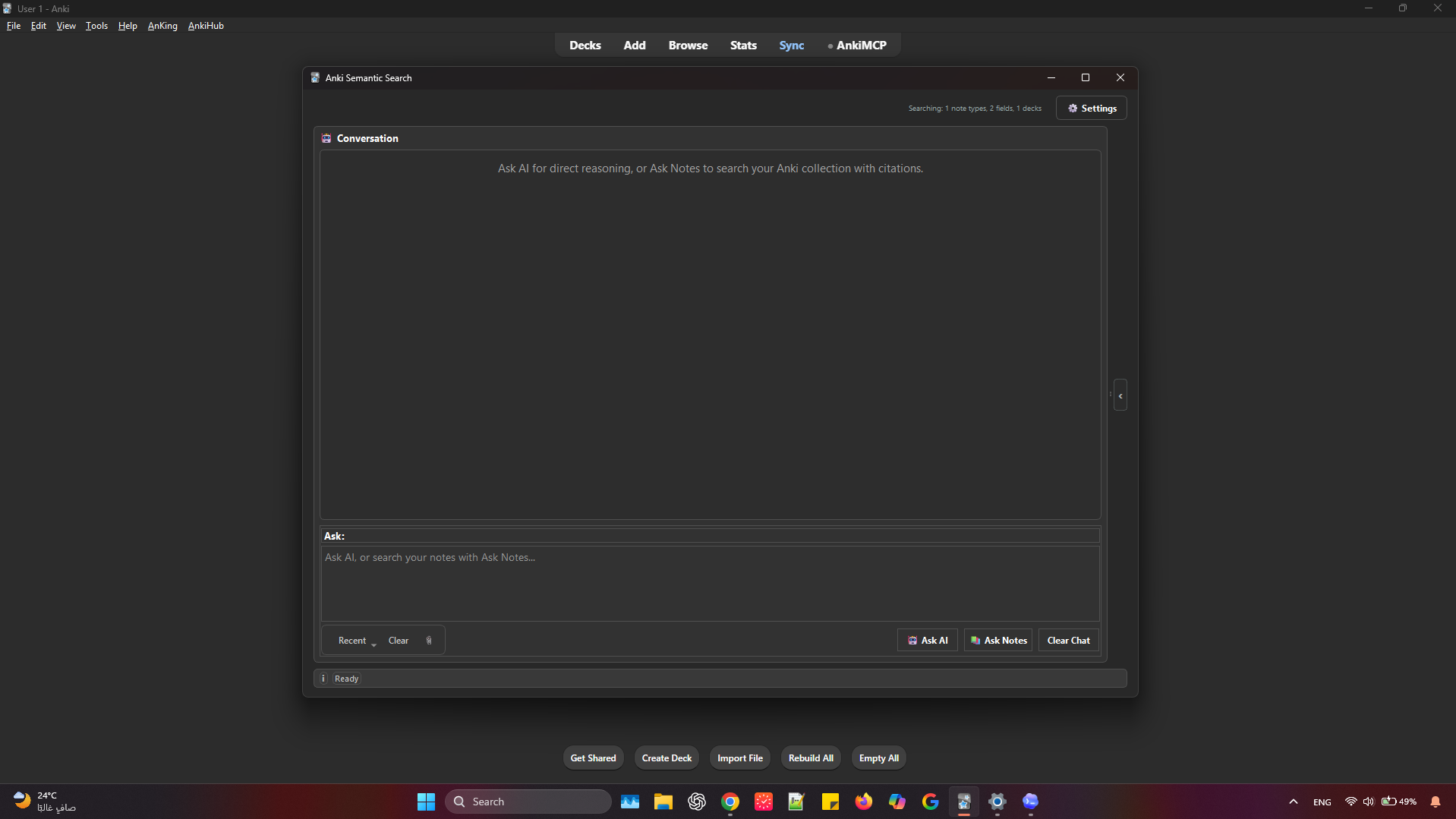
- Open the search dialog and ask a question.
Access Points
- Side drawer button in the Anki main window.
- Add-ons manager config entry.
- Settings button inside the search dialog.
Main Search Workflow
- Type a question in the search box.
- Press Search or use
Ctrl+Enter.
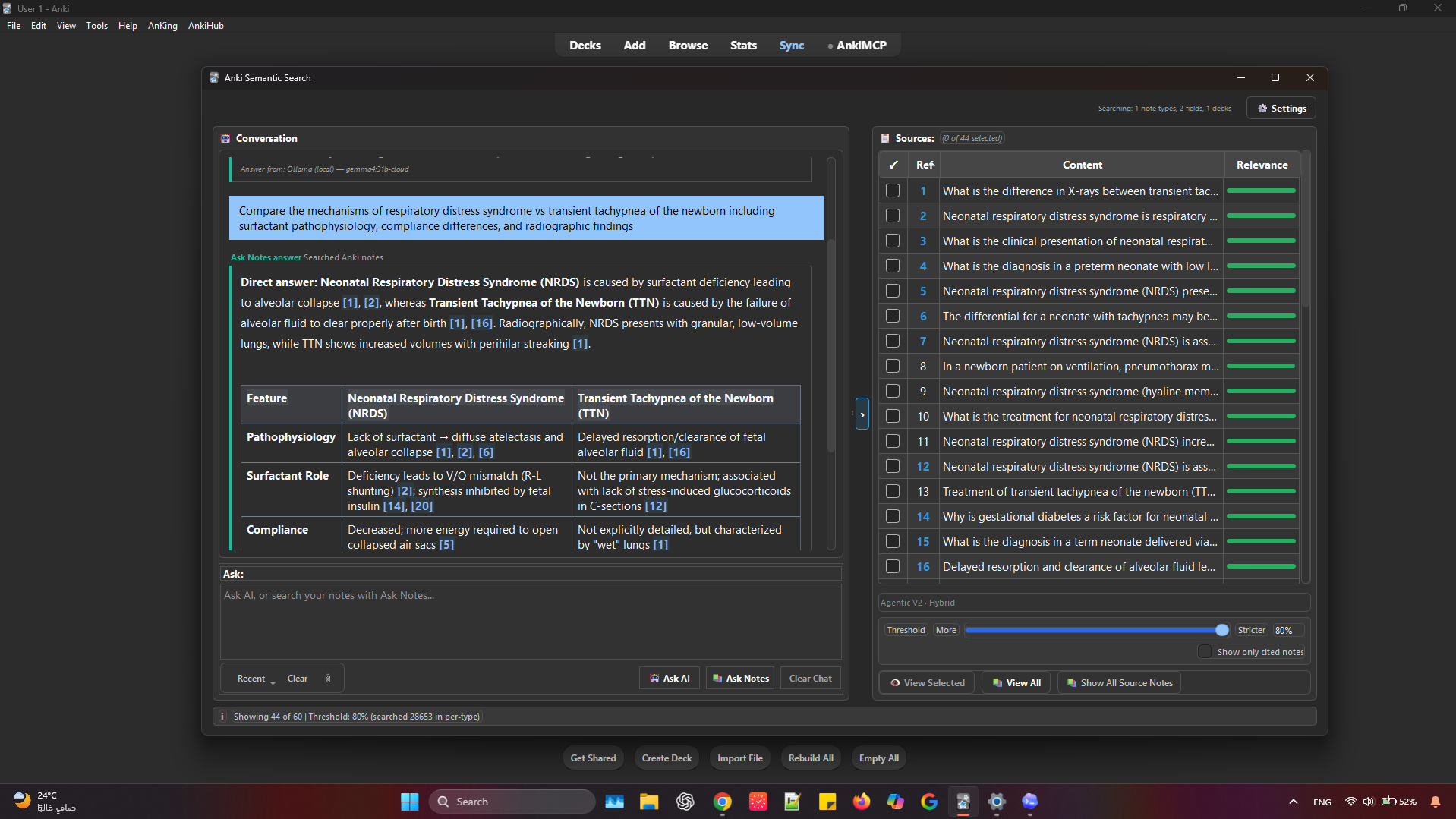
- Review Matching Notes.
- Select notes if you want to inspect or open them.
- Read the AI answer and use citation links to jump to supporting notes.
- Use Show only cited notes when you want to narrow the result table to notes used in the answer.
Search UI features:
- Search history dropdown.
- Clear history button.
- Matching notes table with relevance bars.
- Preview length slider for result snippets.
- Select all and deselect all controls.
- View Selected and View All buttons for opening notes in Anki Browser.
- Copy button for the AI answer.
- Source/status labels showing answer/search state.
Settings Tabs
Settings use a shared dark theme across tabs, with consistent rows, controls, tables, section headers, and scrollbars. The API and Styling tabs are width-constrained for comfortable reading on wide monitors, while Search & Embeddings and Note Types & Fields remain full-width work surfaces.
API Settings
Configure answer and embedding providers.
Answer providers:
- Local Server: Ollama, LM Studio, Jan, LocalAI, vLLM, or other OpenAI-compatible servers.
- Cloud API: OpenAI-compatible APIs, Anthropic Claude, Google Gemini, OpenRouter, and custom endpoints supported by the add-on configuration.
Embedding providers:
- Use same provider as answering when supported.
- Local server embedding endpoint.
- Voyage AI.
- OpenAI embeddings.
- Cohere embeddings.
Useful controls:
- API key input with Show/Hide.
- Automatic provider detection.
- Local server URL and model name.
- Local server autodetect for running Ollama, LM Studio, or Jan instances and loaded models.
- Local connection test.
- Cloud embedding provider selection.
- Embedding API key input.
Search & Embeddings
Controls retrieval behavior and embedding indexing.
Search strategies:
- Keyword Only.
- Keyword + Re-rank.
- Hybrid (RRF).
- Embedding Only.
AI-assisted retrieval:
- Query Expansion: adds related medical/semantic terms.
- Filter Filler Words: uses AI to reduce generic query terms.
- HyDE: generates a hypothetical answer/document first, then searches with it.
Clinical accuracy tuning:
- Minimum relevance threshold as a global retrieval quality floor.
- Max results pool.
- Hybrid embedding weight.
- Relevance from answer.
- Relevance Threshold slider: one visible cutoff for shown notes and AI context, while retrieval keeps a low internal floor for reranking breadth.
Re-ranking:
- Cross-Encoder re-ranking through
sentence-transformers.
- External Python path support, recommended on Windows to avoid Anki torch/DLL issues.
- Autodetect, browse, install/show command, and check-again controls.
- Context-aware ranking.
Technical diagnostics:
- Verbose search debug.
- Extra stop words.
- Max characters per note.
- Advanced Anki Python dependency install option.
Embedding actions:
- Create/Update Embeddings.
- Review Ineligible Notes.
- Test Connection.
- Reset to Clinical Defaults.
Note Types & Fields
Choose what can be searched and embedded.
- Include all note types or choose specific note types.
- Include all decks or choose specific decks.
- Choose fields per note type.
- Search all fields option.
- Use first field fallback when a note type has no selected fields.
- Count notes with current settings.
- Save, load, and delete presets.
- Refresh note type, field, and deck lists.
This tab is the main place to prevent irrelevant cards from entering the search index.
Styling
Controls visual and layout preferences.
- Question input font size.
- AI answer font size.
- Matching notes font size.
- Label font size.
- Default window width and height.
- Answer/notes layout mode.
- Section spacing.
- Answer line spacing.
- Centered, compact settings layout for easier use on wide displays.
Embeddings And Indexing
Semantic search needs embeddings. Click Create/Update Embeddings after:
- First install.
- Changing embedding provider/model.
- Changing searchable decks, note types, or fields.
- Adding many new notes.
- Editing note content you want reflected in semantic search.
The add-on stores embedding data under user_files/ and uses status checks to detect stale or incomplete indexing.
If a note is excluded from indexing, use Review Ineligible Notes to inspect why.
Local Memory
When Local Memory is enabled, the add-on stores compact snippets from the final notes selected for an answer. These snippets stay in user_files/agent_memory.db and are used only to help future retrieval planning.
- Memory snippets are not added to the answer prompt as numbered notes.
- Memory snippets are marked non-citable; final citations still refer only to visible Anki notes.
- Text memory works without embeddings.
- Hybrid memory can use the configured embedding provider for local memory retrieval; if embedding is slow or unavailable, it falls back to text retrieval.
- Use Settings -> Memory Summary or Inspect Memory to review stored snippets, prune, rebuild memory embeddings, or clear memory.
Local AI Setup
Ollama
- Install Ollama.
- Pull a chat model, for example:
ollama pull llama3.2
- Pull an embedding model, for example:
ollama pull nomic-embed-text
- In Settings, use:
http://localhost:11434
LM Studio, Jan, LocalAI, vLLM, or OpenAI-Compatible Servers
Use the server's OpenAI-compatible base URL, commonly:
http://localhost:1234/v1
Make sure the server exposes the endpoints needed for your selected role:
- Chat/completions for answers.
- Embeddings endpoint for semantic search.
Cloud Provider Setup
Enter API keys in Settings. Typical choices:
- Anthropic Claude for answers.
- OpenAI-compatible APIs for answers.
- Voyage AI for embeddings.
- OpenAI for embeddings.
- Cohere for embeddings.
Provider detection helps identify some keys automatically. Custom endpoints can be set through the API URL field where supported.
Optional Dependencies
Optional packages are not required for basic search, but enable extra features.
Install into the correct Python environment:
- Anki Python for in-process UI features.
- External Python for Cross-Encoder re-ranking when configured.
Packages:
pip install sentence-transformers anthropic pyspellchecker
Feature mapping:
sentence-transformers: Cross-Encoder re-ranking.anthropic: Anthropic streaming support.pyspellchecker: spell check and right-click suggestions in the search box.
On Windows, using an external Python for sentence-transformers is recommended because torch can fail to load inside Anki's Python.
Privacy
What may be sent externally depends on your provider choices.
- Local-only setup: if both answers and embeddings use a local server, note content stays on your machine.
- Cloud embeddings: selected searchable note fields are sent to the embedding provider when building/searching embeddings.
- Cloud answers: your query and selected matching note context are sent to the answer provider.
- Local Memory: compact snippets from final answer context are stored locally for future retrieval planning. If hybrid memory is enabled with a cloud embedding provider, those snippets may be sent to that embedding provider to create memory vectors.
API keys are stored in config.json in the add-on folder. Do not share this file.
Logs and user data are stored under user_files/ where possible. Logs redact sensitive values.
Troubleshooting
Search finds nothing
- Check Note Types & Fields.
- Confirm the deck is included.
- Rebuild embeddings after changing search scope.
- Lower the minimum relevance threshold.
- Try Hybrid (RRF).
Results look irrelevant
- Use Note Types & Fields to limit searchable fields.
- Enable Query Expansion for medical synonyms.
- Enable Cross-Encoder re-ranking if installed.
- Raise the Relevance Threshold for a stricter visible result set, or lower it to show more matches.
- Review extra stop words.
Embeddings fail
- Use Test Connection in Search & Embeddings.
- Check API key or local server URL.
- Confirm the embedding model exists.
- For Ollama, pull the embedding model first.
- If provider/model changed, rebuild embeddings.
Cross-Encoder is not ready
- Set an external Python path.
- Click Install / show command for external Python.
- Run the shown command if needed.
- Click Check again.
Text in Matching Notes runs together
The add-on formats note display text separately from search text so HTML blocks and selected fields remain readable in previews and tooltips. Reopen the search dialog or rerun the search after updating.
License
MIT
Credits
Author: Zahi-Essam
Built for medical and general Anki search workflows with semantic retrieval, local AI support, and cloud provider support.