anki-remote-decks

Anki add-on to allow users to create decks in Google Docs that can then be synced with Anki. The remote deck acts as the source of truth. When a user syncs, cards are added / updated / deleted in the local deck. When cards are updated (excluding the primary field) their history is preserved.
Official Add-on => Anki Remote Decks
Overview
- This add-on is still in beta and so only supports very basic functionality
- Only Basic cards are currently supported
- Support for text formatting
- More features will come in the future
GIF of adding a new deck

Create a new deck
There are two steps:
- Creating a Google Doc
- Publishing the Google Doc
Example remote deck
Example Editable Google docs deck
Example Published Google docs deck
Creating Google doc
- Create a new Google Docs page
- Write your Questions and Answers in the following format using bullet points
# Some comment you don't want included
* Question 1
  * Answer 1
* Question 2
  * Answer 2
An example is shown below:

This would produce the following:
- A deck named
test_deck
- Two basic notes with the associated questions and answers
Publishing the Google docs
The Google Docs page must be published in order to be publically accessible.
An example published deck Example Google docs deck
Adding the deck to Anki
To add a new remote deck:
- Click on Tools => Manage Remote Decks => Add new remote deck
- Add the URL of your remote deck
- Click OK
The new deck will be added to Anki.
Adding new content and syncing decks to update with changes
Go to the original Google doc and make the changes you wish to see.
It can take up to 5 minutes for changes to be published to the public version.
Keep checking until you see your changes.
To sync all current remote decks:
- Click on Tools => Manage Remote Decks => Sync remote deck
GIF of adding new content and syncing

Remove a remote deck
Removed decks are only unlinked from the remote doc. The local copy is not deleted.
- Click on Tools => Manage Remote Decks => Remove remote deck
How does the add-on manage changes with note history?
- New notes are added without any history
- Notes removed from the Google doc are removed from the local deck
- If the answer section changes, the note is updated and history is preserved
- If the question line (primary field) changes, the old note is deleted and a new note is added.
- History is lost for the note
Formatting support
Currently the following formatting is supported:
- Bold
- Underlined
- Italics
- Colors
Using Table of contents to sort your file
Users can now use a table of contents to index large files.
This will allows users to create contents at the top of the file and then creating headings throughout. These will be ignored when generating questions
Manage image size
Images can be sized by change their size within the Google doc itself. The heigh and width in PX of the image is added to the Anki card.
Controlling note type
The note type can be set as follows:
This would set the note to a basic and reversed type:
* Question line
# type = Basic (and reversed card)
    * Answer line
This would set the note to a Cloze:
* When was Dublin founded {{c1::1204}}
* # type=Cloze
    * Extra Info
Cloze notes are a special case where the comment line can be bullet pointed. Trying to get the second indentation for the Extra field is too difficult in Google Sheets otherwise.
HTML list types => list
* Answers on cards are displayed as list
* By default this will use an unordered
Unordered list (Default)
# list=ul
# list=unordered
Produces a card like below
Question
_______________________________________________________________________
* Answer 1
* Answer 2
Ordered list
# list=ol
# list=ordered
Produces a card like below
Question
_______________________________________________________________________
1. Answer 1
2. Answer 2
No list
# list=false
# list=None
Produces a card like below
Question
_______________________________________________________________________
Answer 1
Answer 2
Multiline comments
Multi line comments are now supports. This allows you to mark an entire section to be ignored and add non Anki related data.
To start multiline comments:
multilineCommentStart
To stop multiline comments:
multilineCommentEnd
* Question before multiline comment
  * Answer before multiline comment

# multilineCommentStart

* Question in multiline comments
  * Answer in multiline comment

# multilineCommentEnd

* Question after multiline comment
  * Answer after multiline comment
Contributing
The repo is not really setup up currently for contributing.
In order to package the repository run the following scripts. This will generate a zip with the required files for an Anki Add-on
./installOrgToAnki.sh
./package.sh
Issues
If you have an issue please file a github issue! Thanks
Future development
Future development will be tracked under issues as feature requests
Contributors
Github user fneurohr22
Change log
2020/04/-7 - Release of Version V1.5.2 => Fix delete issues
2020/01/26 - Release of Version V1.5.1 => Bugfix
2020/01/26 - Release of Version V1.5.0 => Check for default models and fix image metadata bug
2020/01/26 - Release of Version V1.4.1 => Support table of contents
2020/01/26 - Release of Version V1.4.0 => Improved Sync and add speed. Debug mode added
2020/01/25 - Release of Version V1.3.1 => Unicode bugfix
2019/11/09 - Release of Version V1.3.0 => Warning and image bugfix
2019/10/21 – Release of Version V1.2.2 => Brackets and formatting bugs
2019/09/30 – Release of Version V1.2.1 => Image bugfixes
2019/09/25 – Release of Version V1.2.0 => Unicode and formatting bugfixes
2019/09/08 – Release of Version V1.2.0 => Formatting for color, bold, italics and underline is now also parsed
2019/08/30 – Release of Version V1.1.1 => Bugfix the resulted in double images
2019/08/29 – Release of Version V1.1.1 => Bugfix in org_to_anki
2019/08/28 – Release of Version V1.1.0 => Bugfix in org_to_anki
2019/08/28 – Release of Version V1.0.1 => Improve error handling
2019/08/28 – Release of Version V1.0.0 => Support for Cloze and image
2019/06/2 – Release of Alpha version V0.1.0
2019/06/2 – Release of Beta version V0.0.1
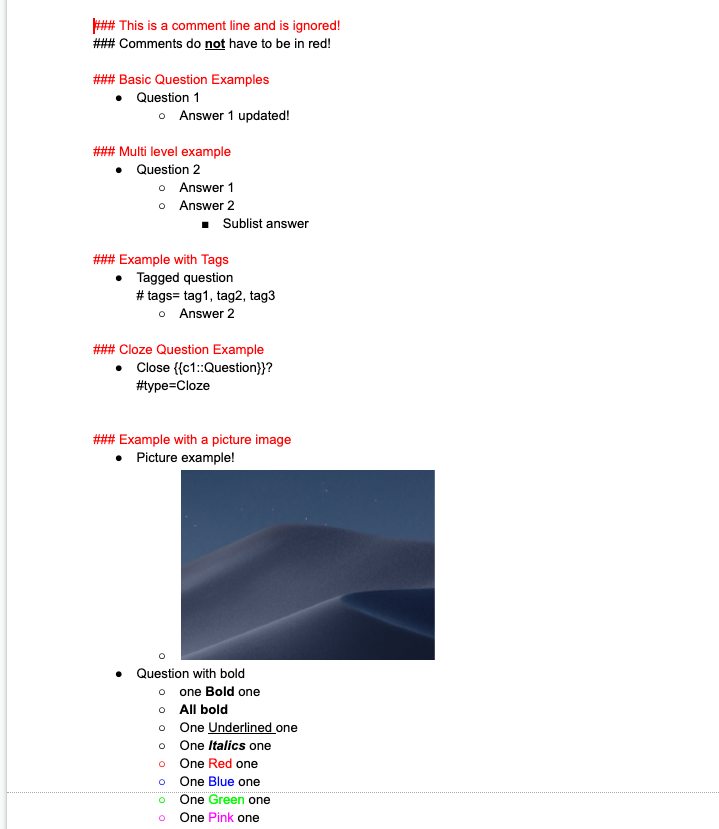 Example Google Document
Unpublished Google Document
Published Google Document
DOCUMENTATION
Video on how to add a remote deck
Current full documentation with gifs and more details! GitHub
OVERVIEW