Snap (BETA)
This is an add-on for Anki, which makes the process of creating cards faster while watching videos in a foreign language. You don't need to take multiple screenshots and search for information. It will capture information from your screen.
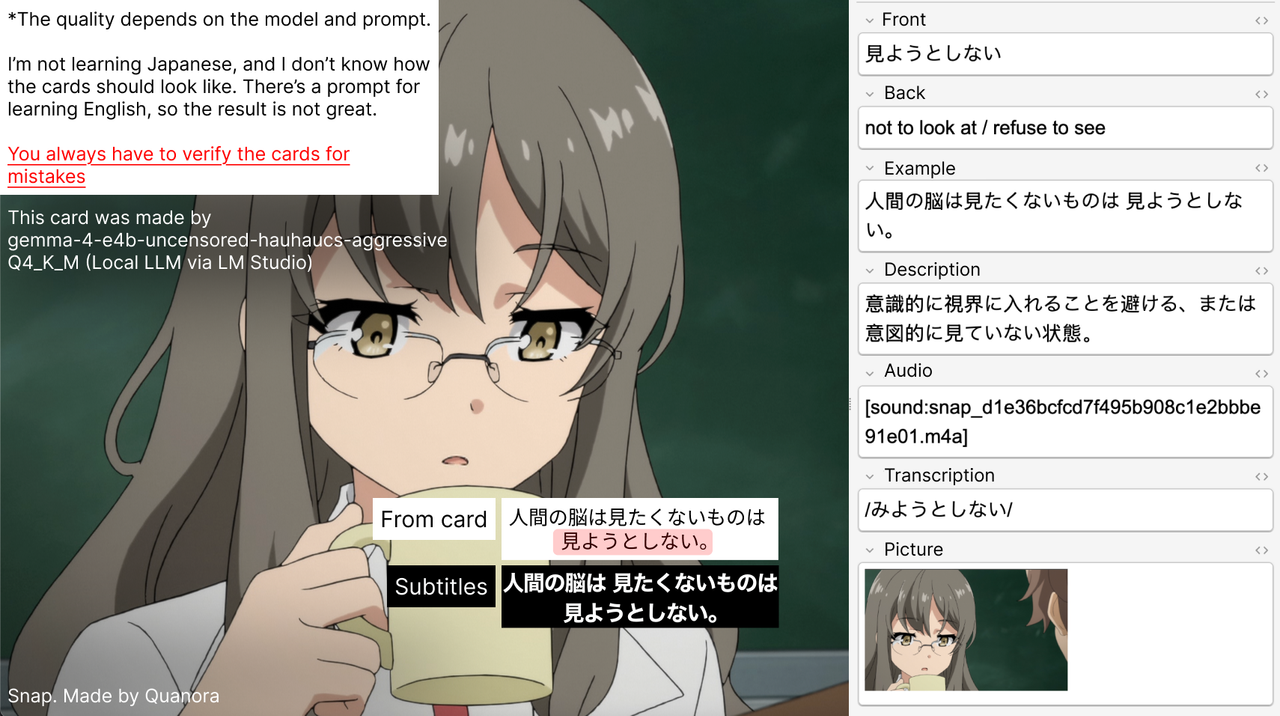
Example of card from my deck

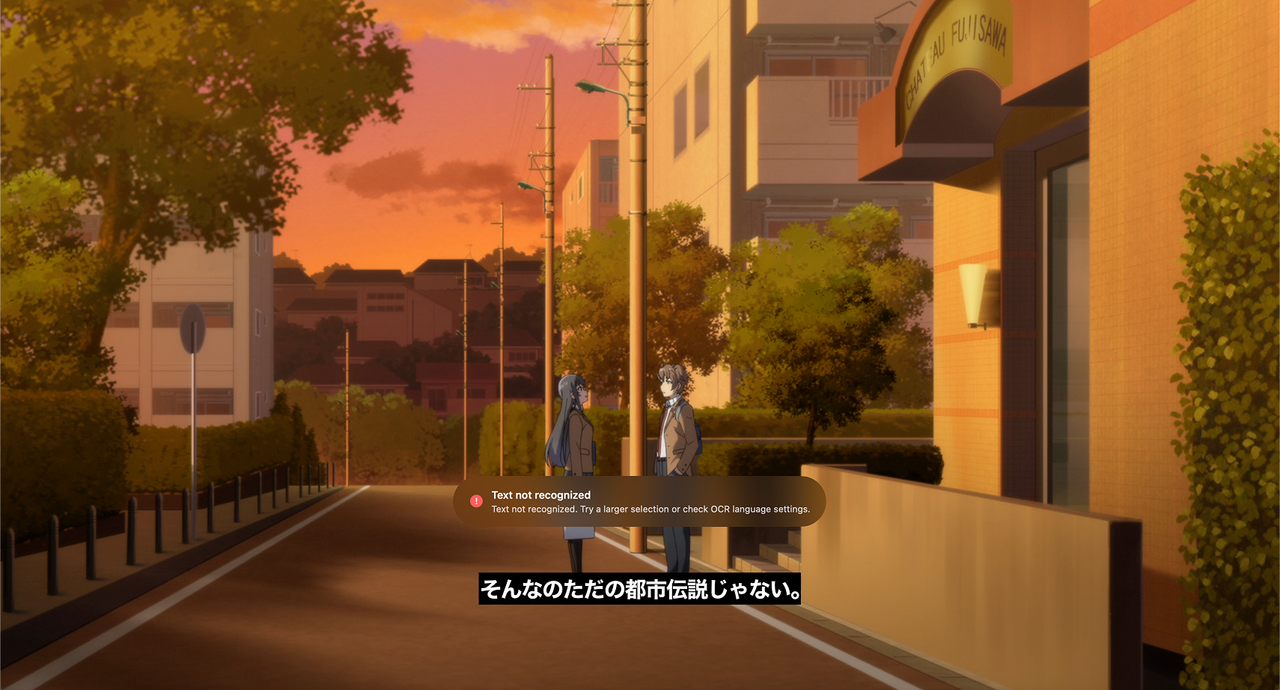
The example how OCR works with Japaneese

How to use it?
- Make sure that you filled in all required settings in Tools → Snap and installed AnkiConnect
- Start audio monitoring using the hotkey Shift + Cmd + ]. It monitors your on-screen subtitles and records audio for your card. It’s all automatic, you don’t have to “capture” audio by yourself
- Start watching the video.
- Take a screenshot of a word or phrase you don’t understand using Shift + Cmd + A (you can change it in the settings)
- That’s all. Check the cards later for any mistakes (set flag in the settings of snap for that)
Available settings:
- Language profiles: up to 3 language profiles, each with its own translation language and deck. (In theory, you can learn 3 languages using this tool)
- Use your own Note Type and specify name of each field
- Customise the prompt if you want
- Change hotkey to make screenshot of words
- Correct OCR errors using an LLM
- Set tags and a flag for newly created Anki cards.
- Disable the LLM and add translation manually if you prefer.
How does this work?
%%{init: {"flowchart": {"curve": "stepAfter", "nodeSpacing": 24, "rankSpacing": 38}}}%%
flowchart TB

    subgraph capture["01  ·  CAPTURE & CONTEXT"]
        direction LR
        A(["Hotkey<br/>Cmd + Shift + A"])
        B["Screen Capture<br/>SCK + screenshot"]
        C["Word Selection<br/>Apple Vision OCR"]
        D["Resolve Context<br/>Subtitle history / cache<br/>or fallback screenshot OCR"]

        A --> B --> C --> D
    end

    subgraph generation["02  ·  AUDIO & GENERATION"]
        direction RL
        E["Create Card Job<br/>Send audio SELECT"]
        F["audio.swift<br/>Circular buffer → audio clip"]
        G["card_queue<br/>Wait for audio or timeout"]
        H["Load Settings<br/>Language profiles"]
        I{"OCR Correction<br/>Enabled?"}
        J["Detect language if needed<br/>Correct OCR + generate card"]
        K["Unicode / profile selection<br/>Generate card directly"]

        E --> F --> G --> H --> I
        I -->|Yes| J
        I -->|No| K
    end

    subgraph export["03  ·  VALIDATION & EXPORT"]
        direction LR
        L["Validate Card<br/>Fields, tag, translation language"]
        M{"Valid output?"}
        N["Repair translation<br/>or reject job"]
        O["AnkiConnect<br/>Attach media + addNote"]
        P(["Anki<br/>Card Added notification"])

        L --> M
        M -->|No| N
        M -->|Yes| O --> P
    end

    capture --> generation
    generation --> export

    classDef input fill:#DBEAFE,stroke:#60A5FA,color:#1E3A8A,stroke-width:1.5px
    classDef process fill:#F1F5F9,stroke:#94A3B8,color:#1E293B,stroke-width:1px
    classDef decision fill:#FEF3C7,stroke:#D97706,color:#78350F,stroke-width:1.5px
    classDef ai fill:#EDE9FE,stroke:#8B5CF6,color:#4C1D95,stroke-width:1.5px
    classDef output fill:#DCFCE7,stroke:#22C55E,color:#14532D,stroke-width:1.5px
    classDef error fill:#FEE2E2,stroke:#F87171,color:#7F1D1D,stroke-width:1px

    class A input
    class B,C,D,E,F,G,H process
    class I,M decision
    class J,K ai
    class O,P output
    class N error
https://github.com/user-attachments/assets/66e97406-e0f7-4398-a40a-6c5de6095eee
Where are the settings?
Tools → Snap