AnkiWeb
- Votes
- 1 (👍 0 · 👎 1)
- Updated
- 2019-07-16
- Anki versions
- unknown
- License
- Apache-2.0 (from the GitHub repository)
- Description language
- en
AnkiWeb addon 1081479402
Batch-updates multiple fields across selected notes from a CSV file, with automatic field mapping, dry-run and diff previews, and change logging to SQLite for recovery.
Open on AnkiWeb GitHub Find alternatives
stale
| Min Anki | Max Anki | Updated |
|---|---|---|
| 2.1.0 | – | 2019-07-16 |
Loading…
Batch imports multiple Excel, CSV, TSV and TXT files into Anki, auto-creating filename-based decks and subdecks, with field mapping, configurable duplicate handling, and Excel text color support.
Batch-imports multiple .apkg deck packages from files or folders, with optional recursive scanning, zip support, automatic backups, collection-package skipping, progress reporting, and configurable Anki import options.
Imports CSV or pasted text into Anki with auto-detected delimiters and note types, searchable deck selection, quick imports, subdeck creation, tag handling, and session history browsing or deletion.
Automatically fills Anki note fields using multiple LLM providers, with customizable prompts, batch processing, selective retries, and encrypted backups.
Exports selected browser cards or notes, including visible columns, field HTML, and metadata such as interval and due dates, to CSV or XLSX, optionally using configurable field sets.
Generates AI-powered flashcard content such as definitions, translations, and explanations from multiple cloud or local providers, with reusable prompts, batch processing, and multi-field output.

 Performing the Update
You need to prepare a CSV file with the updates to be made. Most spreadsheet software such as Microsoft Excel and Google Sheets support CSV export.
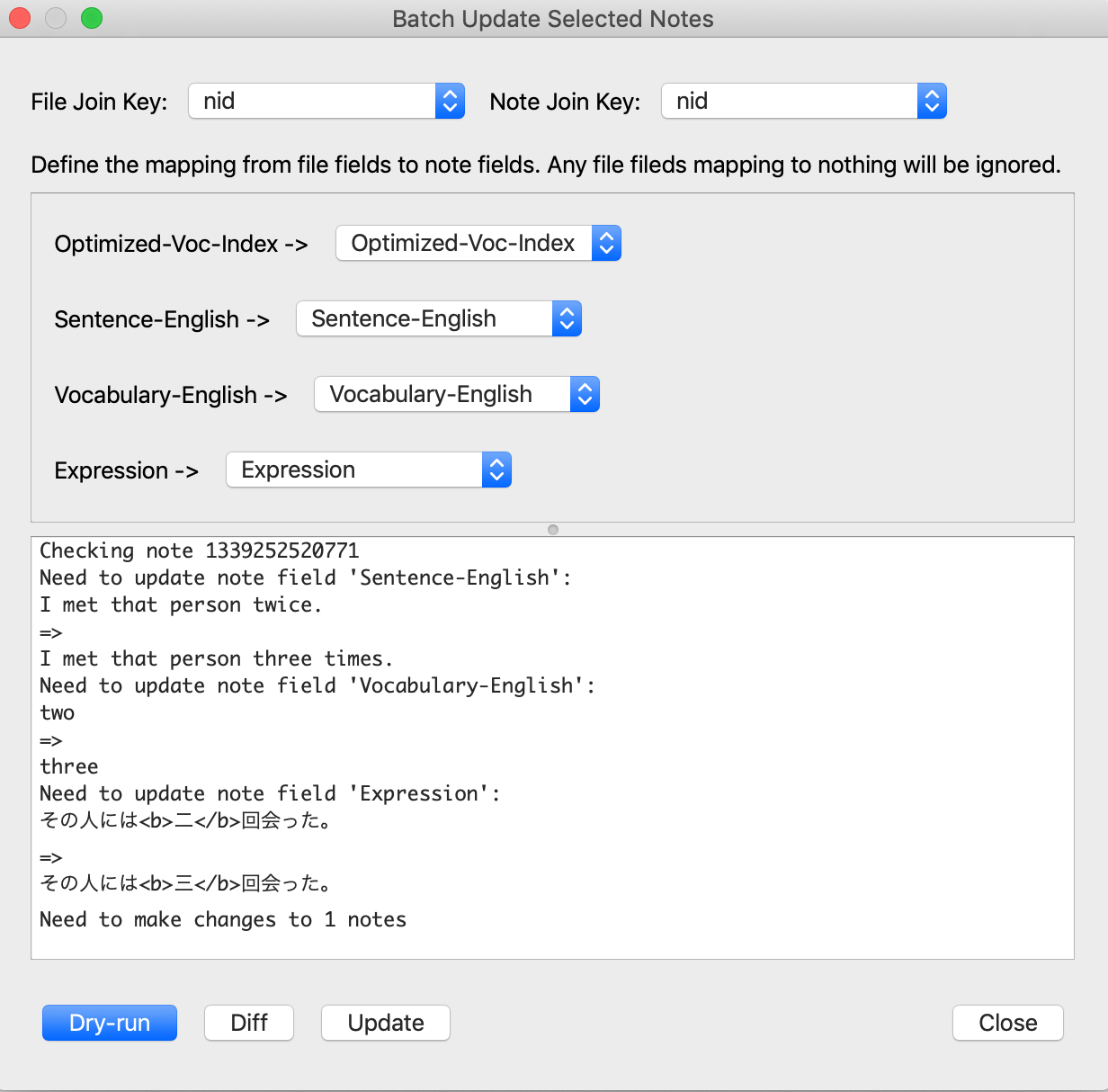
Then select the notes in the browser that you want to update. The plugin will only operate on notes that have been selected. If you want to update all notes in the current view then just use Select All. You can access the update dialog by clicking Browse to open the card browser and then clicking Edit -> Multi-field Batch Update -> Import CSV. The dialog requires you to select some cards first. These are the cards that will be updated.
You need to specify how to match rows in the CSV file with your notes so that the plugin knows which row to use to update each note. This is known as a join. The
File Join Key refers to a column in the CSV file. The Note Join Key corresponds to a field in the note. The plugin looks at the value File Join Key for each row and finds the note with the same value for its Note Join Key.
Below this you need to choose how to map the remaining columns in the CSV file to fields in the note. If you don't want to use a column from the CSV file then choose -Nothing- as the mapping. This column will be ignored during the update procedure.
For example, suppose you have a simple set of notes with only Front and Back and you want to update Back for a certain set of notes. You could create a two-column CSV file consisting of Front and Back columns. You would select Front for the File Join Key and Front for the Note Join Key as well. Below this you would have Back in the file map to Back in the notes. Front would map to -Nothing- because it is already been used as the join key.
The plugin actually automatically maps columns in the CSV file to fields in the note when they share the same name. So for the previous example you wouldn't have to make these selections because they would have already been selected for you.
Below this is a log the dialog uses to inform you of what its doing. Finally below this are the action buttons:
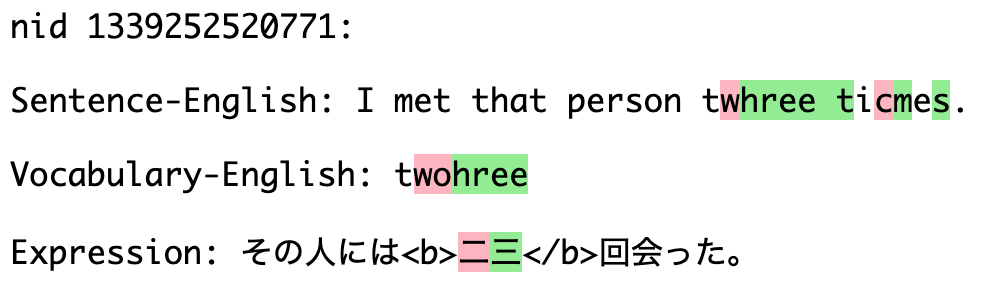
Dry-run action logs all changes that would be made without taking any action.Diff action produces a colorful HTML diff highlighting in green what will been added and in red what will be removed for each field that needs to be updated in each note.Update action actually performs the changes.nid). For this it's recommended to have an nid column in the CSV file with the Note ID. This is a more advanced feature, as you wouldn't typically have a CSV file with Note IDs unless you exported the data in some way. However, this feature means that you could use the exported change log CSV to restore previous values.
Safety Features
There are some features to guard against accidental changes or bugs in the plugin:


This is a plugin for Anki that enables you to perform updates to multiple fields across multiple notes in batch. The updates to perform are imported from a CSV (comma-separated value) file. This is similar to Anki's Import feature with the Update existing notes option selected. The key differences are that this plugin:
You need to prepare a CSV file with the updates to be made. Most spreadsheet software such as Microsoft Excel and Google Sheets support CSV export.
Then select the notes in the browser that you want to update. The plugin will only operate on notes that have been selected. If you want to update all notes in the current view then just use Select All. You can access the update dialog by clicking Browse to open the card browser and then clicking Edit -> Multi-field Batch Update -> Import CSV. The dialog requires you to select some cards first. These are the cards that will be updated.
You need to specify how to match rows in the CSV file with your notes so that the plugin knows which row to use to update each note. This is known as a join. The File Join Key refers to a column in the CSV file. The Note Join Key corresponds to a field in the note. The plugin looks at the value File Join Key for each row and finds the note with the same value for its Note Join Key.
Below this you need to choose how to map the remaining columns in the CSV file to fields in the note. If you don't want to use a column from the CSV file then choose -Nothing- as the mapping. This column will be ignored during the update procedure.
For example, suppose you have a simple set of notes with only Front and Back and you want to update Back for a certain set of notes. You could create a two-column CSV file consisting of Front and Back columns. You would select Front for the File Join Key and Front for the Note Join Key as well. Below this you would have Back in the file map to Back in the notes. Front would map to -Nothing- because it is already been used as the join key.
The plugin actually automatically maps columns in the CSV file to fields in the note when they share the same name. So for the previous example you wouldn't have to make these selections because they would have already been selected for you.
Below this is a log the dialog uses to inform you of what its doing. Finally below this are the action buttons:
Dry-run action logs all changes that would be made without taking any action.Diff action produces a colorful HTML diff highlighting in green what will been added and in red what will be removed for each field that needs to be updated in each note.Update action actually performs the changes.In addition to joining based on a field in the note, the plugin also supports joining using the unique Note ID (nid). For this it's recommended to have an nid column in the CSV file with the Note ID. This is a more advanced feature, as you wouldn't typically have a CSV file with Note IDs unless you exported the data in some way. However, this feature means that you could use the exported change log CSV to restore previous values.
There are some features to guard against accidental changes or bugs in the plugin:
Despite these safety features, it's a good idea to back up or export your collection before using this plugin just to be safe.
Copyright 2019 Matthew Hayes
Licensed under the Apache License, Version 2.0 (the "License"); you may not use this file except in compliance with the License. You may obtain a copy of the License at
http://www.apache.org/licenses/LICENSE-2.0
Unless required by applicable law or agreed to in writing, software distributed under the License is distributed on an "AS IS" BASIS, WITHOUT WARRANTIES OR CONDITIONS OF ANY KIND, either express or implied. See the License for the specific language governing permissions and limitations under the License.