Bulk Card Creator (Anki Add-on)
Create many Anki notes at once from JSON or CSV/TSV. Pick a note type, choose a deck (nested decks supported), add tags, validate, review warnings, then create notes in bulk.
Contribute / Source Code
Want to contribute, report issues, or suggest features?
GitHub repository: bulk card creator
Pull requests, issues, and feedback are welcome.
Installation
- Open Anki.
- Go to Tools > Add-ons.
- Click Get Add-ons.
- Paste the add-on code.
- Restart Anki.
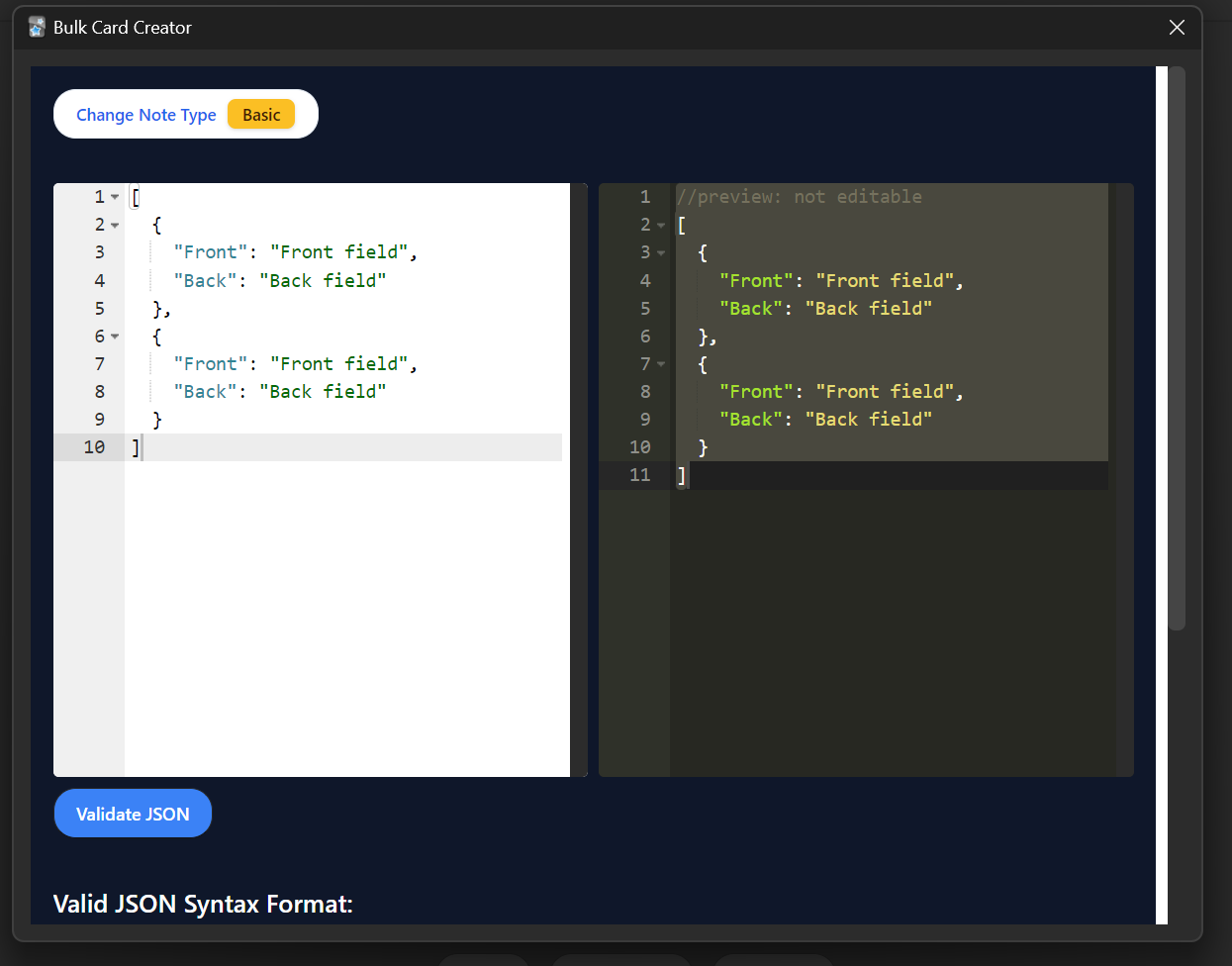
Open The Add-on
In Anki, go to:
Tools > Bulk Card Creator
The add-on remembers your last-used note type and deck.
Choose Deck, Note Type, and Tags
Deck
Enter the deck name in the Deck field.
Nested decks are supported using /.
Example:
Biology/Chapter 1/Cells
This creates/uses:
Biology::Chapter 1::Cells
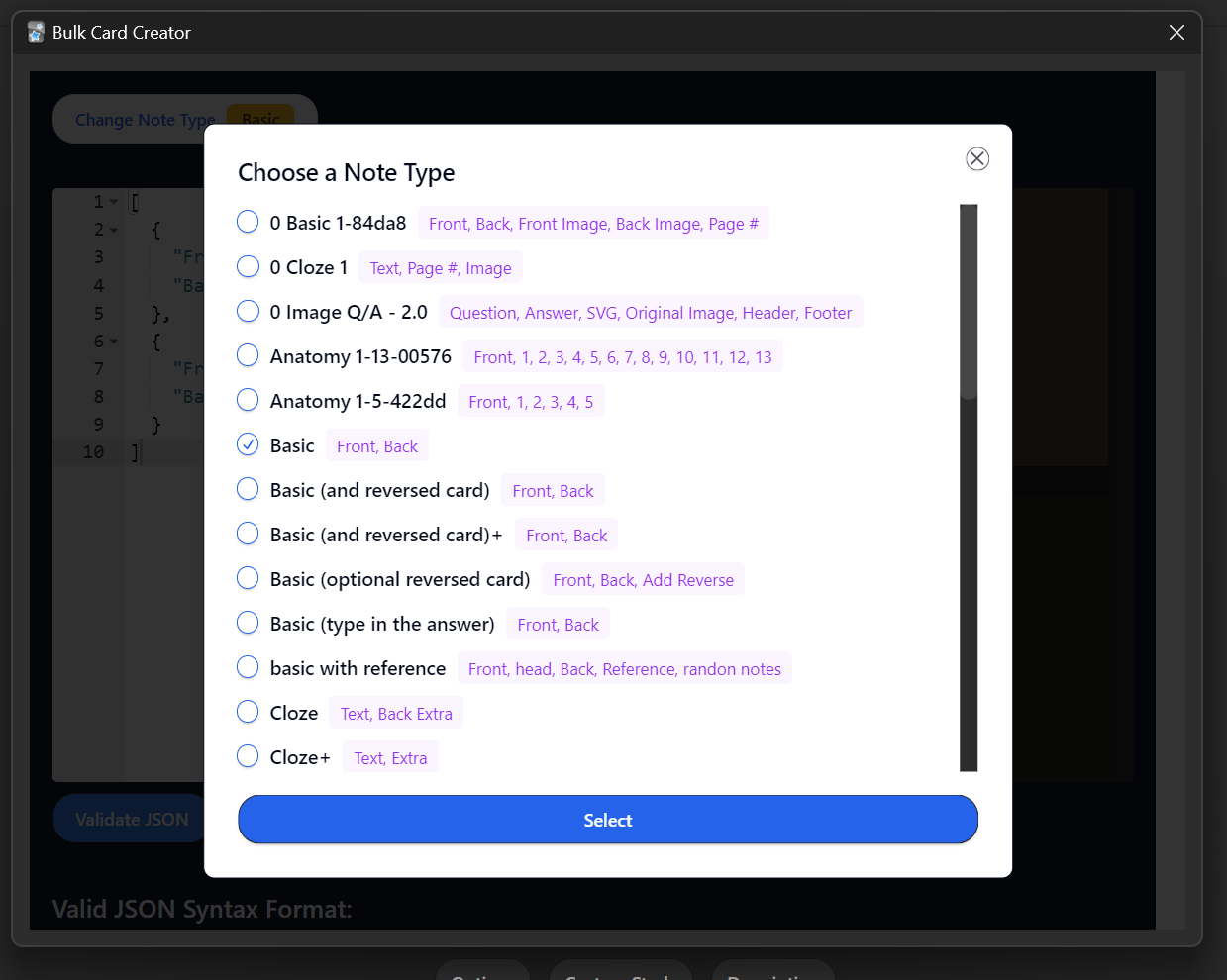
Note Type
Click Note Type and select the note type you want.
The note type determines:
- Which JSON keys are accepted
- Which CSV columns you should map to Anki fields
Tags
Enter tags in the Tags field.
You can separate tags by spaces or commas.
Example:
biology chapter_1 exam
All created notes in the current batch get these tags.
JSON Mode
Select JSON mode.
Format
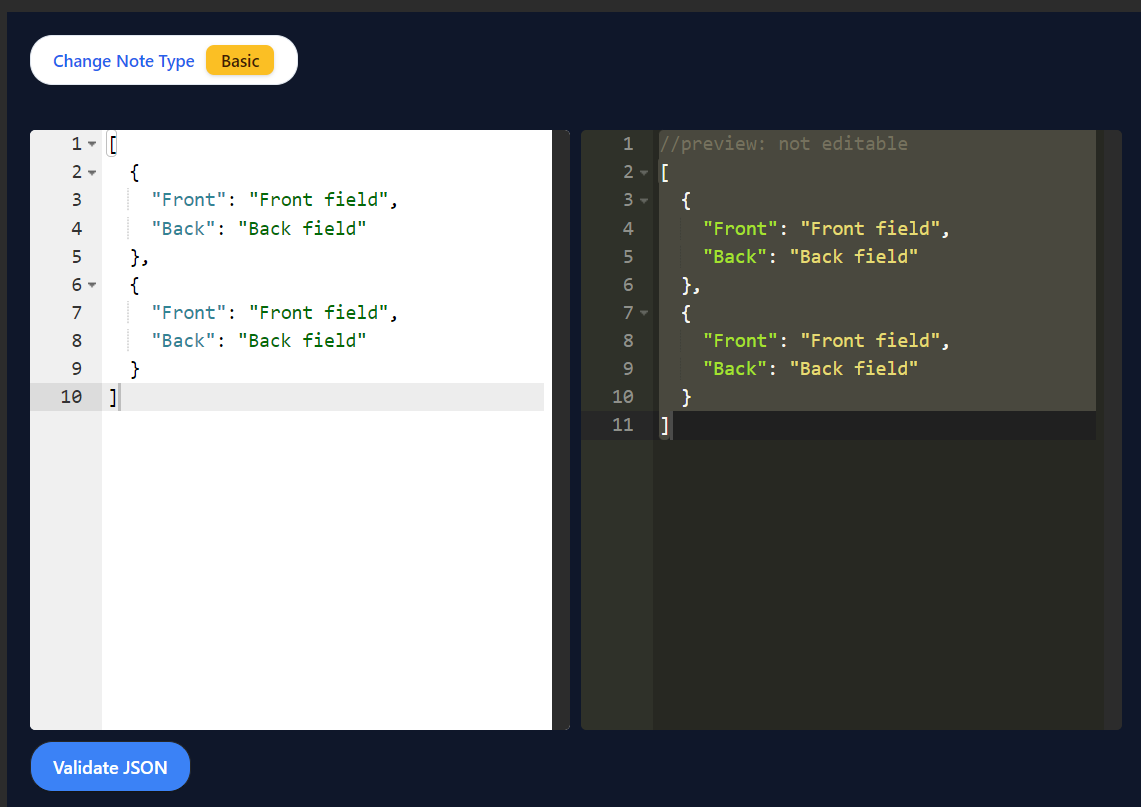
JSON must be an array of flat objects. Each object is one note. The keys must match the selected note type field names exactly.
Example:
[
  { "Front": "What is the capital of France?", "Back": "Paris" },
  { "Front": "What is the highest mountain?", "Back": "Mount Everest" }
]
Validate
Click Validate JSON.
- The editor shows an error marker in the gutter when JSON is invalid.
- Warnings are shown for missing/empty fields (these may still be editable before creation).
CSV/TSV Mode
Select CSV/TSV mode.
Paste Data
Paste comma-separated (CSV) or tab-separated (TSV) data.
Example CSV:
Front,Back
What is the capital of France?,Paris
What is the highest mountain?,Mount Everest
Example TSV:
Front	Back
What is the capital of France?	Paris
What is the highest mountain?	Mount Everest
Options
- Delimiter: Auto-detect, comma, or tab
- First row contains headers: Enable if your first row is column names
Map Columns to Fields
Use Field Mapping to map CSV/TSV columns to the selected note type fields.
Validate
Click Validate CSV/TSV to generate cards and see warnings/errors.
Review and Create
After validation:
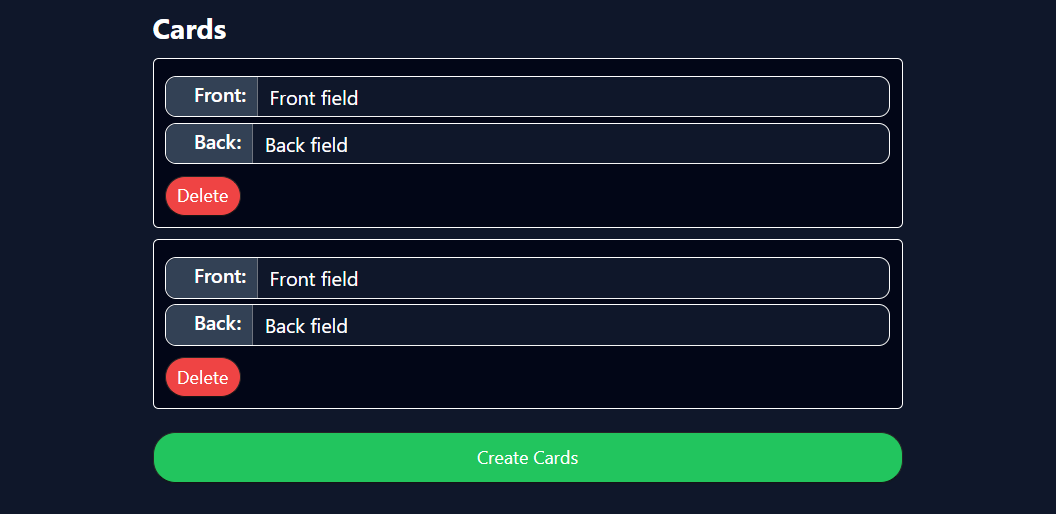
- Review the summary (deck, note type, tags, counts).
- Review warnings/errors.
- Edit any generated cards (and delete any you don’t want).
- Click Create Cards.
After creation, you’ll see a creation report with:
- Requested vs created counts
- Failed card count (if any)
- Error details for failed cards
FAQ
Can I use custom fields?
Yes. Select the note type, then use those field names as JSON keys or map CSV columns to them.
Are nested JSON objects supported?
No. Each card must be a flat object (field name -> value).
Can I create notes in nested decks?
Yes. Use / in the deck name (example: Parent/Child).
Do settings persist?
Yes. The add-on stores the last-used note type and deck using Anki add-on config.
Troubleshooting
JSON shows an error marker
Fix the JSON syntax on the highlighted line, then validate again.
Cards show missing-field warnings
One or more cards have empty/missing fields for the selected note type. Edit the generated cards before creating them.
CSV values go into the wrong fields
Check the Field Mapping section and map each field to the correct CSV/TSV column.
Notes are created in the wrong deck
Check the Deck field. Use / for nested decks.