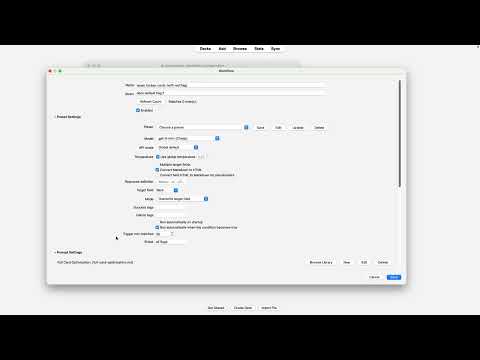
AI Automation


AI Automation is an Anki add-on for updating note fields with OpenAI from the Browser or from saved workflows. It is intended for batch cleanup, rewriting, tagging, transformation, and field generation tasks where the input can be rendered from note data.
What It Does
- runs AI-powered note transformations from Browser selections
- saves reusable workflows for repeated collection queries
- supports single-field and multi-field output targets
- includes prompt, preset, and workflow management dialogs
- supports startup and query-based workflow triggers
Typical Uses
- rewrite or clean imported note fields
- generate new content from existing fields
- append AI output into dedicated target fields
- standardize note formatting across a deck
Installation
Install the add-on from AnkiWeb if a release is available, or install it manually from a packaged .ankiaddon file.
This add-on requires your own OpenAI API key.
Related Add-ons
If you want a more polished and consistent look across my add-ons, you can also install my Global Styling add-on. It lets you apply a shared design on top of supported add-ons without changing their functionality.
Links
- Demo video: https://youtu.be/80O47uk6LCI
- AnkiWeb: https://ankiweb.net/shared/info/1186735228
- Technical details: ARCHITECTURE.md
ai-automation/
├── __init__.py
├── addon.py
├── core/
│   ├── config.py
│   ├── config_models.py
│   ├── config_parsing.py
│   ├── config_prompt_library.py
│   ├── automation_files.py
│   ├── processing.py
│   ├── processing_models.py
│   ├── processing_support.py
│   ├── processing_text.py
│   ├── prompt_files.py
│   ├── prompting.py
│   ├── usage_stats.py
│   ├── workflow_engine.py
│   └── workflow_triggers.py
├── services/
├── scripts/
├── prompt_library/
├── ui/
├── docs/
├── tools/
├── user_data/
└── CHANGELOG.md
Installation
- Install the add-on folder into Anki's add-ons directory.
- Install the official OpenAI client into Anki's Python environment.
- Open Anki, go to
Tools -> Add-ons -> AI Automation -> Config, and use the settings window to set your API key, choose a model, and open the dedicated Browser and workflow settings dialogs.
To run reusable query-based rules, open Tools -> AI Automation: Workflow Configuration.
If you need to install the dependency manually, use Anki's bundled Python. The exact path varies by platform, but the command is equivalent to:
/path/to/anki/python -m pip install openai
Configuration
The add-on is configured through config.json or Anki's built-in add-on config storage.
In Anki itself, clicking Config opens a structured core settings dialog instead of raw JSON. From there, you can jump into the dedicated Browser settings and workflow settings windows.
The model selector in that dialog loads a curated flashcard-writing shortlist from OpenAI's GET /v1/models endpoint using your API key and labels models with rough cost tiers such as Very cheap, Cheap, Moderate, Expensive, and Very expensive.
The note type rules are edited in a small dedicated UI instead of a raw field_mappings JSON block.
Important keys:
openai_api_key: your OpenAI API keyuse_chat_completions_api: toggles Chat Completions vs Responses API for generationmodel: the default model used for generationprompt_template: the default user prompt with placeholders like {{Front}}system_prompt: the default system promptfield_mappings: per-note-type input and output field rulesmax_retries and request_timeout_seconds: safety controls for batch processingbatch_size: how many notes are processed per outer batchmax_parallel_requests: limits how many note requests can run at the same timeshow_tooltips: enables or disables hover help across the UIshow_estimate_before_sending: enables the confirmation popup with estimated tokens and costestimated_output_tokens_per_note: used to forecast output tokens before the request is sentmodel_pricing: optional overrides for cost estimation when you use a model not covered by built-in pricingsaved_prompts, saved_system_prompts, processing_presets: reusable building blocks for Browser runs and workflowsworkflows, workflow_groups: reusable automations and group organization
Example mapping:
{
  "note_type": "Basic",
  "output_fields": ["Back"]
}
The prompt can reference any field that exists on the note, plus {{NoteType}}. If a referenced field does not exist on a selected note, the add-on will show a clear error for that note instead of sending a broken request.
How It Works
- Select cards or notes in the Anki Browser.
- Right-click and choose
Transform with AI.
- The add-on resolves the selected rows to note IDs, then lets you choose a target field or preset, prompt/system prompt, and write mode.
- A prompt is rendered from the note fields and sent to OpenAI.
- Returned content is written back to the chosen field or fields and saved to the collection.
For rule-based runs:
- Open
Tools -> AI Automation: Workflow Configuration.
- Create workflows with a name, optional Anki query, prompts, target field settings, optional presets, groups, and optional trigger conditions.
- Use
Refresh Count while editing to preview how many notes the query currently matches.
- Run one workflow or an entire group in the stored execution order, or launch them directly from the Browser on the current selection.
Open Tools -> AI Automation Usage to review tracked totals and recent runs. These spend figures are local add-on estimates based on model pricing, not billing-invoice truth.
The same menu also attempts to fetch official OpenAI spend for today, last 7 days, and this month through OpenAI's organization Costs API. That endpoint typically requires an organization admin key; regular project API keys may not have access.
Packaging
To build a .ankiaddon archive manually:
python3 tools/package_ankiaddon.py
The packaging script excludes local user_data, meta.json, and all files under prompt_library/user_prompts/, while still creating an empty prompt_library/user_prompts/ directory inside the archive.
Docs