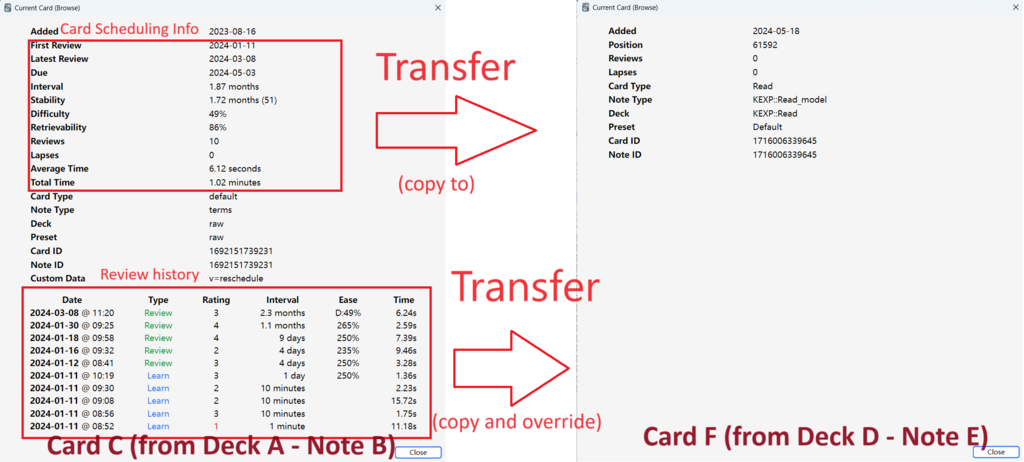
Transfer Scheduling Advanced
an anki add-on to transfer scheduling info from cards to cards in batch.
Changelog
2024.8.2 fix not work when deck name has whitespace.
2024.7.27 fix crash; support long comparing field; during comparing sth-somthing and sb-somebody would be no difference.
Demo

Download
Supported Anki Versions
2.1.54 - 24.04.1+
To download this add-on, please copy and paste the following code into Anki:
1249258442
If you were linked to this page from the internet, please open Anki on your computer, go to the Tools->Add-ons menu item, then click on Get Add-ons and paste in the code.
Usage
0. Back up your decks
1. Open this tool from Anki dropdown menu. Tools - Transfer Scheduling Data
UI

2. Choose Deck
- choose the source deck containing the source cards.
- choose the target deck containing the target cards.
3. Add more detail
in the first transfer group,
- choose the note type of source card and target card.
if you don't know what note type it is
a) click the Browser button located at the top of Anki.
b) switch to card view by clicking a blue/green switch, make sure it shows "Cards".
c) find the source card you want to transfer from.
d) right-click the card, click Info....
e) in the pop-up window, Check the Note Type field.
- choose a field from source card and target card for comparing. Transfer only occurs in two cards that has matched field.
- choose the card template of source card and target card.
4. (optional) Click Add Group button if you have more transfer type
5. (optional) Check "Transfer Revision History" if you also want the revision history of source card be transferred.
Warning. the revision history of target card will be overridden.
6. Click Start button
Note
- If a source card is new(hasn't been studied before), it will be skipped.