Note Comparer Anki
An anki addon for 2.1 for comparing notes for duplicates.
What to use Note Comparer for?

The purpose of the addon is to compare notes for duplicates. You can group notes based on their deck, note type or tag(s) or select them from the browser (see the point 'Select notes from browser' below for more information). You can then compare notes between the groups by specifying fields that need to match or by entering manual conditions yourself. Notes with either matching fields or fulfilling the conditions are seen as duplicates and you can then perform separate actions on them such as delete, (un)suspend and tagging and replacing a field for another:
Important to know
- You can find the program under Tools -> Note Comparer
- Please backup your notes/decks! When you make a mistake it could potentially alter/delete your notes!
- It can take a while to show a lot of duplicates after they have been found.
Select notes from browser
When choosing the option 'Browser' to group notes by, the browser opens up and you can then add notes to a group by selecting them, right clicking and choosing 'Add notes to group X'. This saves the current selection of notes as 'Selection X' and automatically selects it, but you can always select it later whenever 'Browser' is selected as the first option.
Manual conditions

When enabling 'Advanced mode', you can manually specificy conditions which determine whether notes from different groups are seen as duplicates.
To that end, you have to specify which (parts of) fields much match in order for the notes to be seen as duplicates (field values = fields, in this context):
-
Any field can be specified as '
GxFy' where 'x' and 'y' indicate the group number and field number respectively.
Example: 'G1F1' means field 1 of group 1.
Instead of a field you can also specify any text by surrounding it with single quotes (f.e. 'example').
-
Any pair of fields can be compared as 'GxFy [operator] GaFb' (now referred to as a 'condition').
Possible operators are:
- '
=': This means that both fields must exactly match for the condition to be seen as 'True'. Text in quotes must be on the right side.
- '
in': This means that the field left from the [operator] must be present somewhere in the field to the right for the condition to be 'True'.
If the left field is a single word it must also be present as a single word in the right field. Text in quotes must be on the left.
- '
>': This means the same as in, but the left field doesn't have to be present as a single word in the right field, but can also be part of a word.
Example 1: 'G1F1 in G2F1' means that field 1 of group 1 needs to be present in field 1 of group 2.
Example 2: 'G1F1 = 'ball'' means that field 1 of group 1 match exactly match 'ball'.
Example 3: ''ball' > G1F1' means that the letters 'ball' need to be present in field 1 of group 1, so it can match either 'football' or 'basketball'.
- Any number of conditions can be strung together by using:
- '
and': This means that the conditions left and right from 'and' must be 'True' for this 'group condition' to also be
'True'.
- '
or': This means that one of both conditions must be 'True'.
Example: 'G1F1 = G2F1 and 'ball' in G1F2' means that the first field of both groups must match
AND that the word 'ball' must be present in field 2 of group 1. However, it is important to note that conditions are evaluated from left to right,
so if let's say you have three conditions with the following values in succession 'True and False or True',
the first two conditions 'True and False' are together 'False' so the whole thing now reads 'False or True'. Following that, it is then interpreted as 'True'.
- Any number of conditions can be given precedence by using parentheses.
Example: '(G1F1 = G2F1 and G1F2 = G2F2) or (G1F3 = G2F3 and G1F4 = G2F4)' means that either fields 1 and 2 must match OR fields 3 and 4
in order for all of these conditions together to be seen as 'True' and the notes to be seen as duplicates.
Regular expression capture and conditions

If 'RegEx capture' has been enabled, you will be able to specify part(s) for each field instead of the whole field
by entering a regular expression in the 'RegEx' boxes and capturing certain parts in parenthesis.
Any captured group of a field can then be referenced in the conditions box (see the point above) as 'GxFyRz' where 'z' is the captured group number.
If you don't know how regular expressions work, please read about them somewhere in order to use this program's capabilities to the fullest.
Example 1: Let's say I have entered the regular expression '\d{2}-\d{2}-\d{4}' in order to capture the day, month and year field 1 of group 1 called 'date'.
I can then reference the day, month and year using 'G1F1R1', 'G1F1R2' and 'G1F1R3' respectively.
You can also use an regular expression in the place of a quoted text (even when this option is disabled). You just have to use a forward slash instead of quotes (f.e. /regex/).
When used in conjuction with the '=' or 'in' operators the other field has to match the regular expression either entirely or partly respectively.
Example 2: '/\d/ in G1F1 or G1F2 = /\w/' means that there must be at least a single digit in field 1 or field 2 must be exactly one letter.
Replace Action
When the 'Replace with...' action is selected, you can enter a replacement for the first selected field
of any notes in that group. The replacement for the first selected field can either be normal text or a reference to a field value.
This is of the form 'GxFy(Rz)', where 'x' is the group,
'y' the field and 'z' the optional captured group (without parentheses).
(Please see the points above about 'Manual conditions' and 'Regular expressions' for more information on how to construct a reference to a field value).
Actions

After comparison you can also change the actions you want to perform on each note separately.
Future additions
- Add an action to transfer card statistics.
Contact
For (future) suggestions or bugs you can either make a issue here on github or contact me via my email ramonamerong@live.nl.
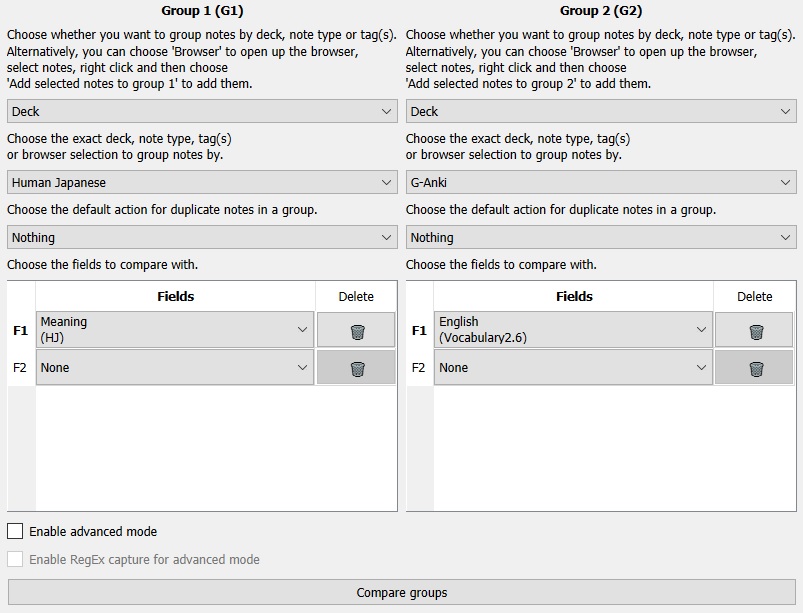 It is even possible to use regular expressions! For more explanations on the manual conditions and regular expressions, please see my GitHub page or have a look at the explanations in the program itself.
Important things to know:
- You can find the program under Tools -> Note Comparer
- Please backup your notes/decks! When you make a mistake it could potentially alter/delete your notes!
- It can take a while to show a lot of duplicates after they have been found.
Also if you have found bugs / have suggestions, please mention them on my GitHub or contact me via email: ramonamerong@live.nl (or otherwise mention them below).
Releases:
- Added license V1.4 (17-9-2021)
- Added browser selection support for grouping notes V1.3 (6-3-2021)
- Added browser selection support for grouping notes V1.3 (6-3-2021)
- Added replace functionality V1.2 (6-3-2021)
- Added hierarchical deck support V1.1 (22-2-2021)
- Initial release V1.0 (21-2-2021)