Anki Global Kit README

Anki Global Kit is an Anki Desktop add-on for creating reusable card templates, formatting typed answers with Markdown, highlighting code, comparing answers, and customizing the Desktop editor.
Requires Anki Desktop 26.05 or later.
Install and configure the kit on Desktop, then sync your collection and media to use its card features in AnkiWeb, AnkiMobile, and AnkiDroid. Editor tools and the settings panel run on Desktop.
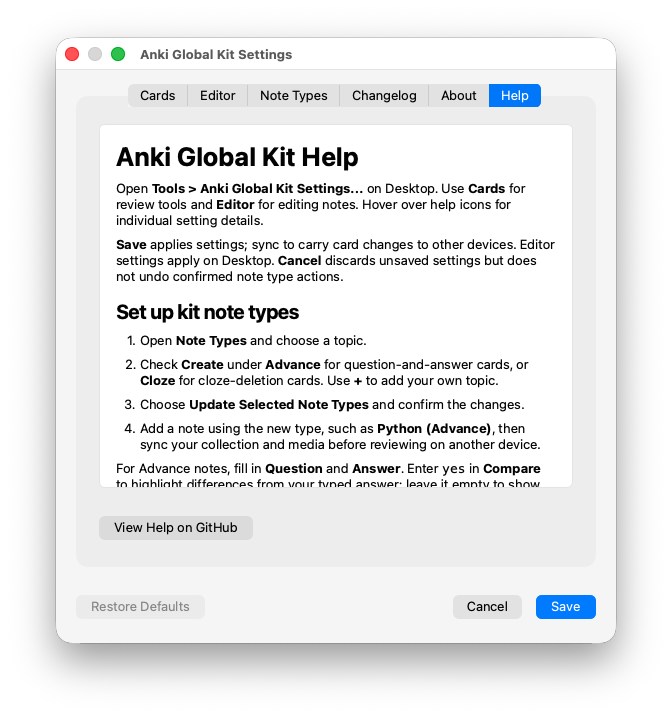
For setup details, shortcuts, customization, and troubleshooting, read the user guide (HELP.md). The same guide is available in the Anki Global Kit Settings panel's Help tab.
Features
Card presentation
- Responsive layouts for questions, answers, comparison panels, cloze deletions, hints, bonus sections, and notes.
- Shared typography and light/dark palettes, including distinct comparison colors.
- Topic accent colors and customizable card styling through the note type stylesheet.
- AnkiWeb study menu layout adjustments.
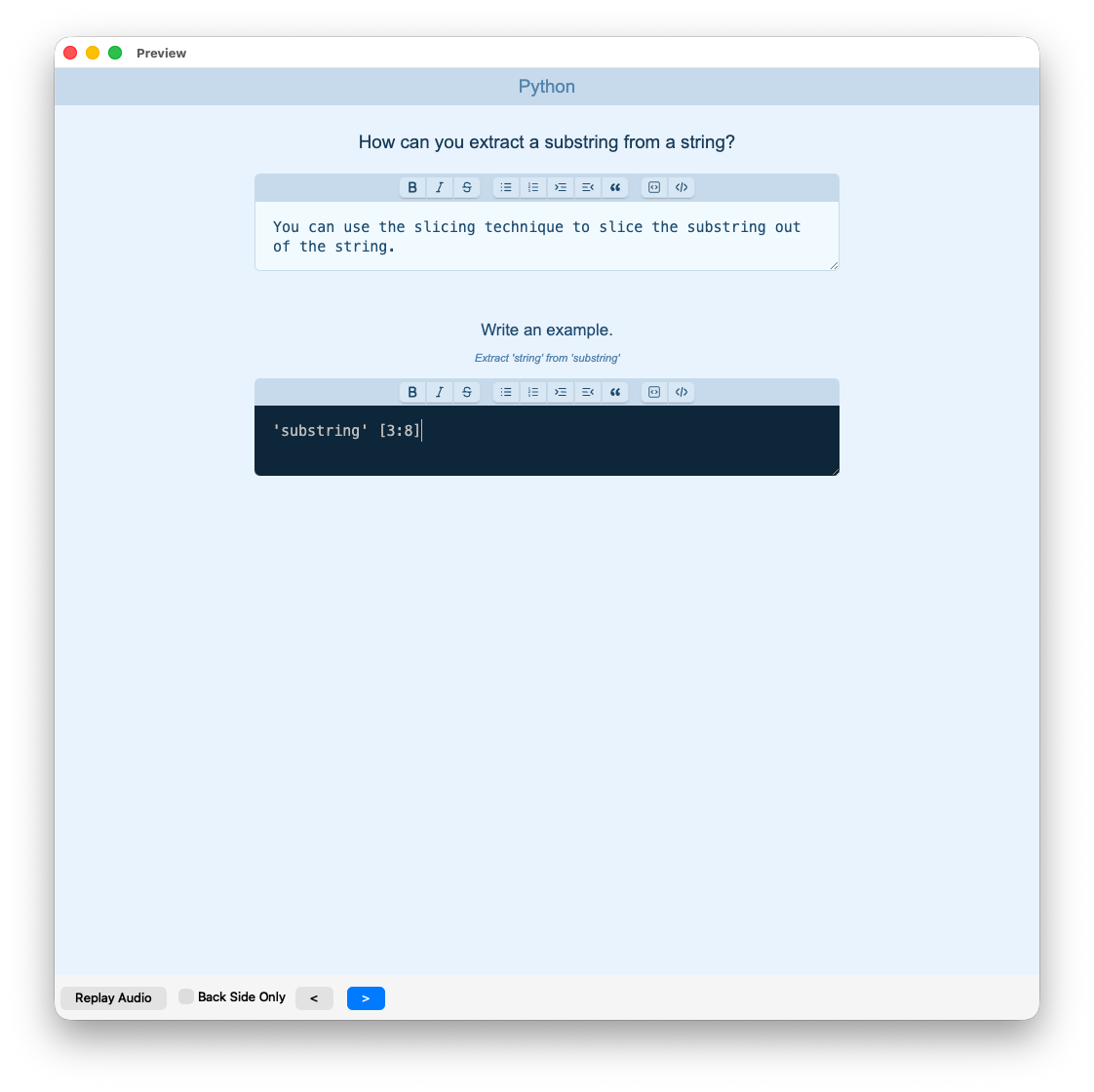
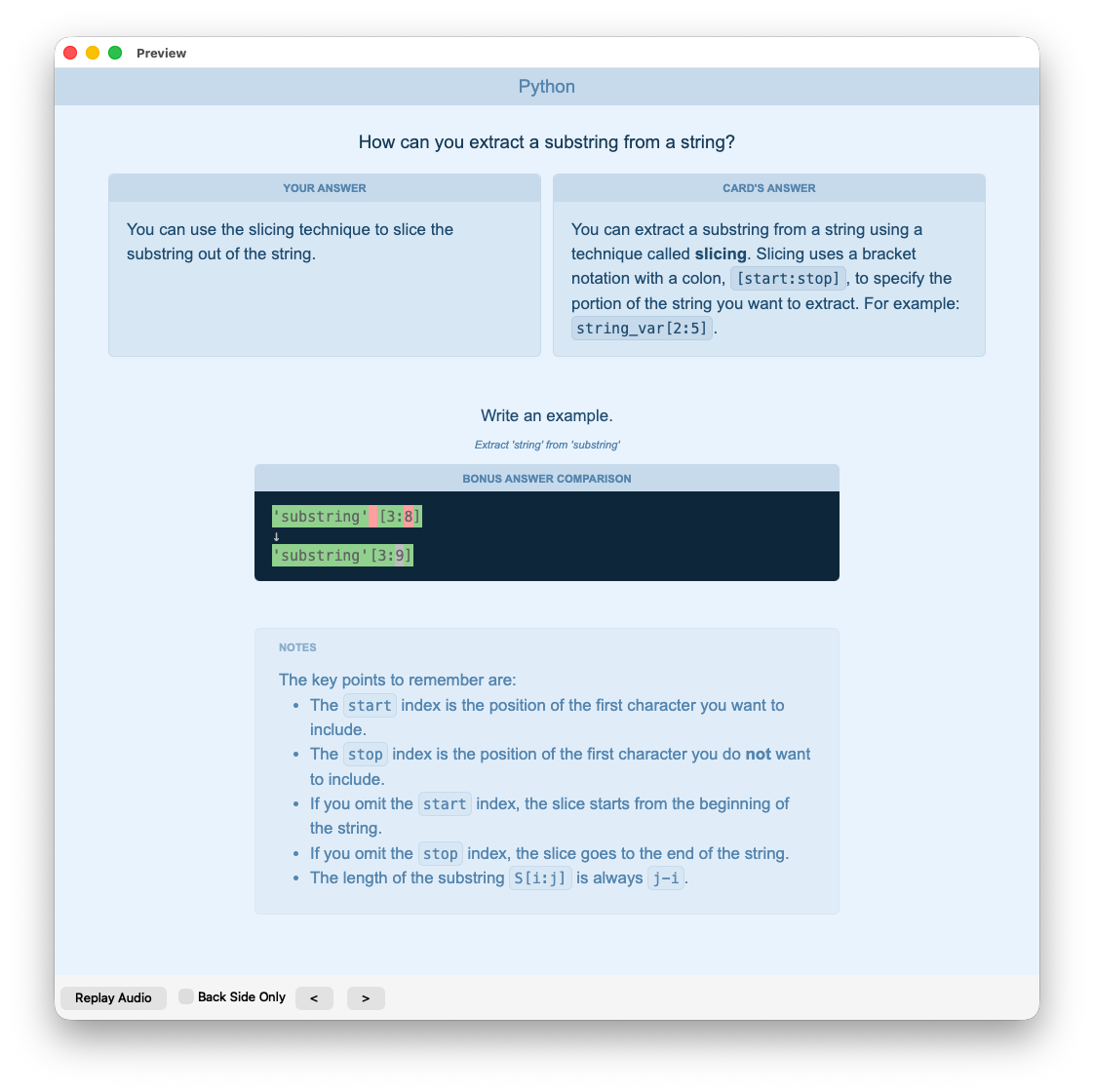
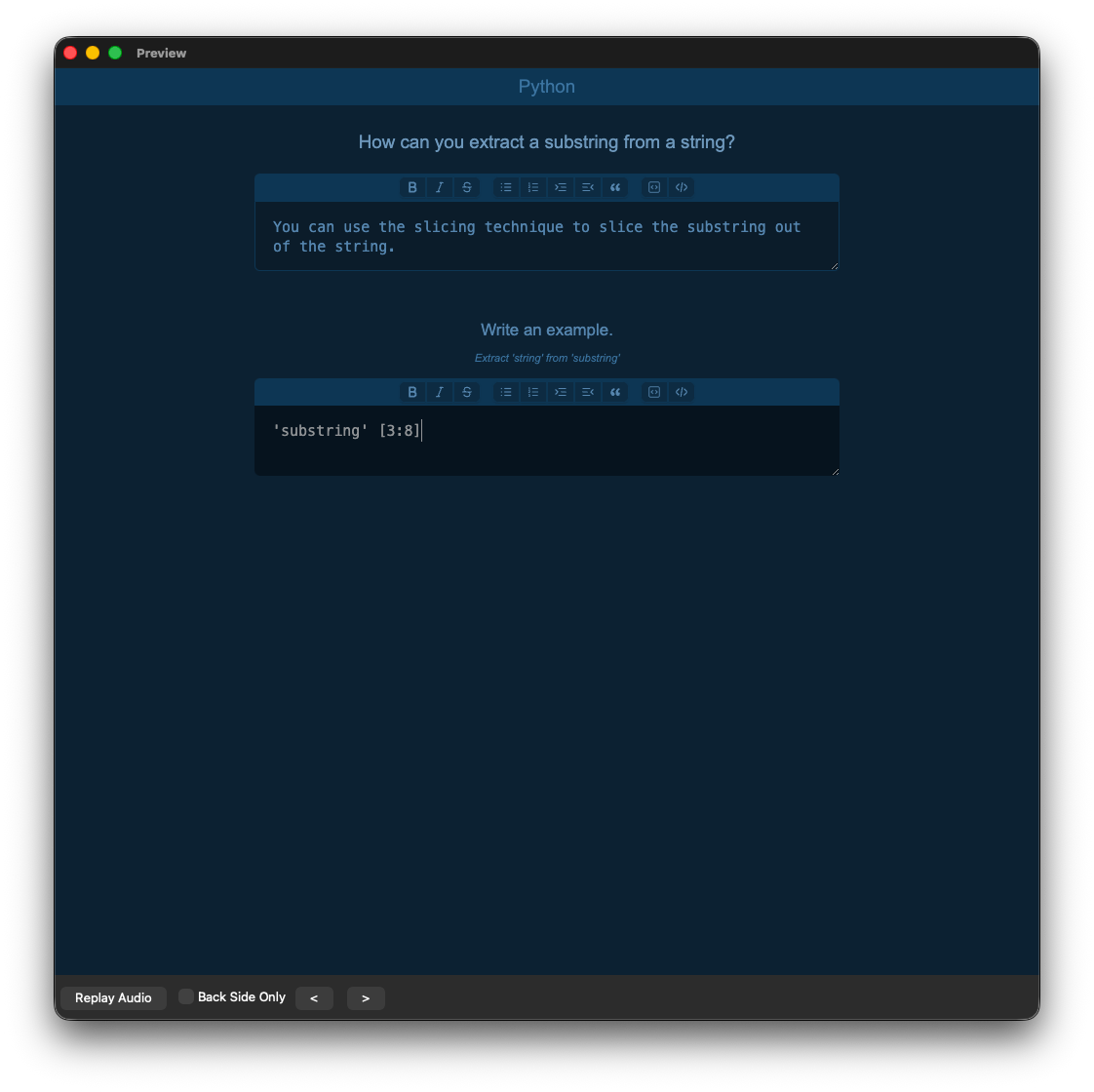
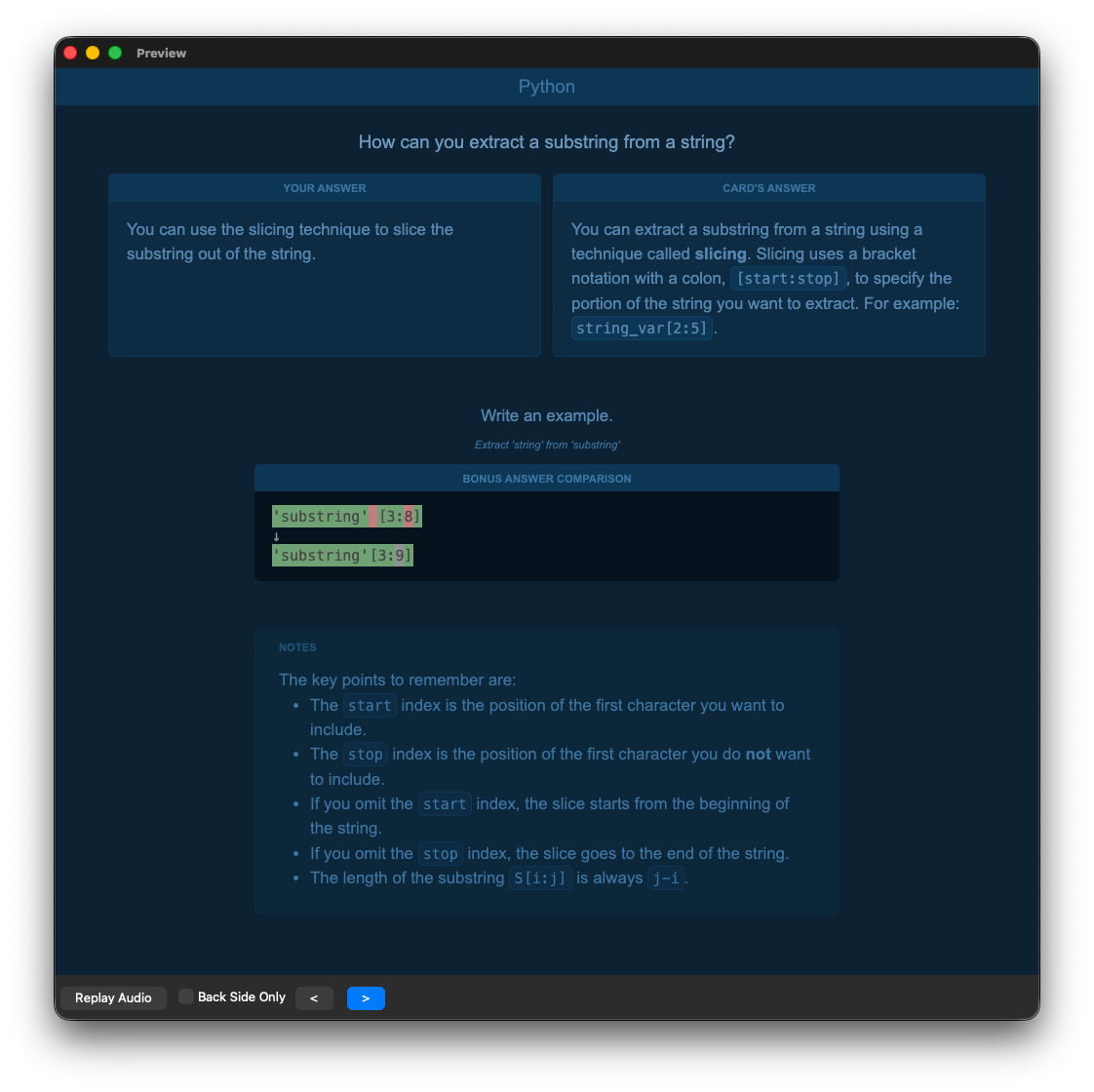
The front shows the question, typed answer fields, formatting toolbar, and optional hint. On the back, the typed answer appears alongside the card's answer; bonus comparison and notes can appear below. These examples use a Python Advance note in light and dark themes.
| Card preview |
| Light theme — front of card |
 |
| Light theme — back of card |
 |
| Dark theme — front of card |
 |
| Dark theme — back of card |
 |
Typed answers and comparison
- Multiline answer inputs, optional bonus questions, type hints, and notes.
- Typed answers retained for display on the card back, including AnkiDroid's review flow.
- Character-by-character answer comparison showing matching text, mistakes, and omissions, with Unicode characters kept intact. Comparison is validated with up to 10,000 characters in each answer and preserves shared text without a fixed answer-length cutoff. Difficult comparisons use a one-second processing budget and may show coarser differences.
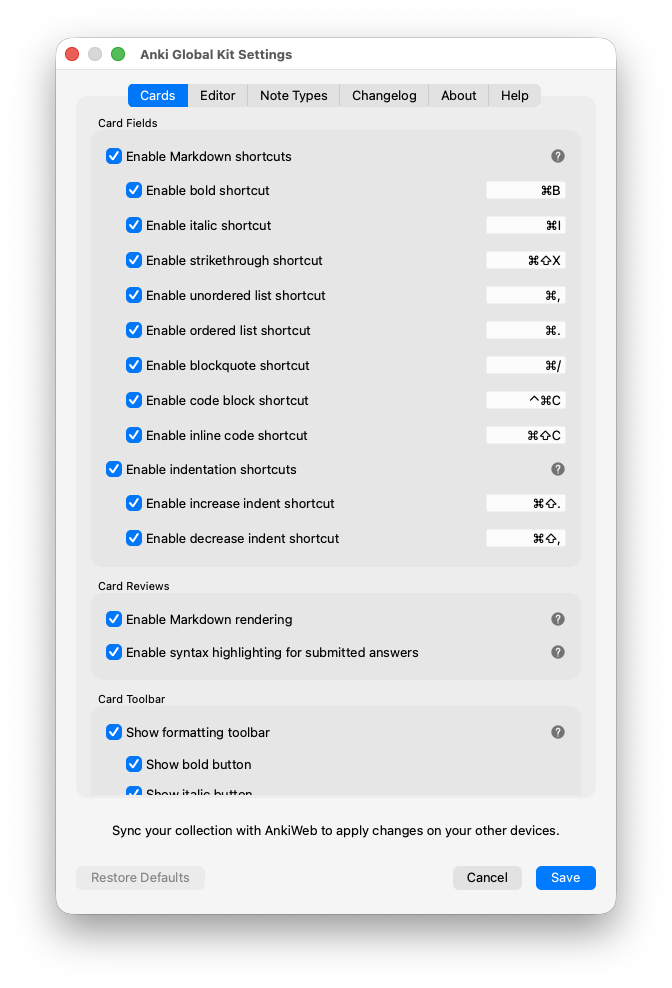
- ⌘+Shift+. to indent Markdown list items and ⌘+Shift+, to unindent on macOS; use Ctrl+Shift+. and Ctrl+Shift+, on Windows and Linux. Customize or disable each under Cards → Card Fields → Enable indentation shortcuts. Increase indent adds four spaces for Python topics and two otherwise; decrease indent removes leading indentation. Tab and Shift+Tab retain native focus navigation.
- Reveal answers with Control+Enter on Windows/Linux Desktop and AnkiWeb, or Command+Enter on macOS Desktop.
Markdown and code
Submitted answers can render headings, paragraphs, line breaks, nested lists, blockquotes, fenced code blocks, inline code, bold, italics, strikethrough, and HTTP(S) links. Ordered lists preserve their starting number, including nested lists.
Use the optional formatting toolbar above card inputs or configure shortcuts in Cards. Increase indent and decrease indent buttons appear after the ordered list button and before blockquote; they work independently of their shortcut enable switches. Each shortcut and toolbar button can be enabled individually. Press Shift+Tab from an input to reach its toolbar, use Left/Right, Home, or End to choose a button, then Enter or Space to apply it. Escape returns to the input. Word formatting applies to selected text or the word at the caret; applying it again removes the markers. List conversion preserves nested items' indentation and list styles. With Markdown shortcuts enabled, Enter continues list items; inside fenced code blocks, it inserts a normal newline.
Code blocks use the language written after the opening backticks, such as python, or infer a language from the topic. Supported languages and aliases include Python, JavaScript/Node, TypeScript, Java, C, C++, C#, SQL, Bash/shell, JSON, Ruby, Go, Rust, and PHP. SQL keywords and built-in names are highlighted regardless of letter case. Comparison and syntax highlighting are bundled with the kit.
The Cards settings tab controls review-time Markdown formatting shortcuts and indentation behavior.

Desktop editor
- Inline-code formatting through a configurable shortcut and optional toolbar button. Toggling a selected part of a code span removes formatting only from that selection.
- Indentation, inline-code space normalization, source HTML copying, and rich-text paste cleanup.
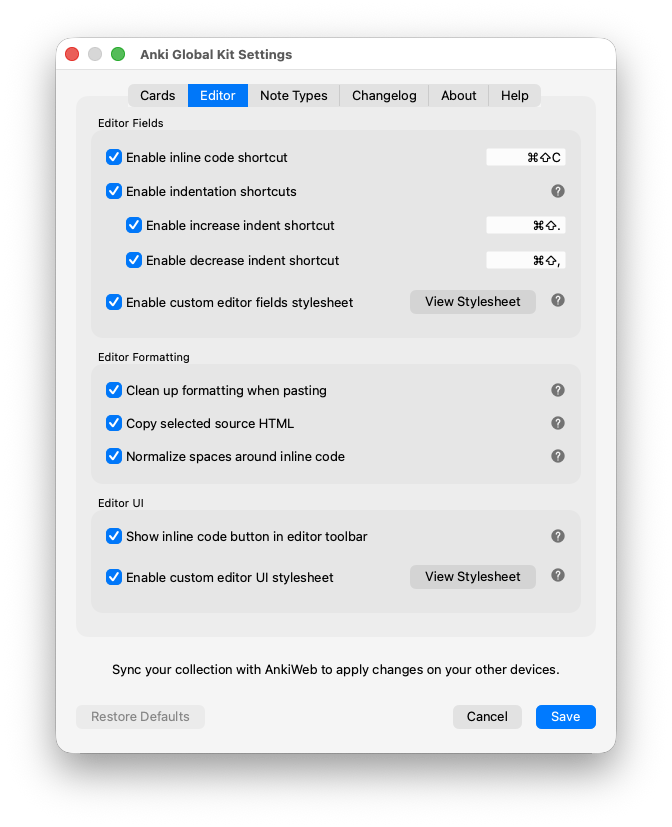
- List buttons and shortcuts change only the outermost selected list level, preserving child styles and indentation. Plain indented rows become nested lists. ⌘+Shift+. and ⌘+Shift+, indent and unindent list items by default on macOS; use Ctrl+Shift+. and Ctrl+Shift+, on Windows and Linux. Under Editor → Editor Fields → Enable indentation shortcuts, enable, disable, or customize these shortcuts separately. In plain text, increase indent adds four leading spaces to the current or selected rows and decrease indent removes leading indentation. The caret stays with the original text. Tab and Shift+Tab retain native focus navigation.
- Fixed shortcuts for unordered lists (Command+, on macOS; Control+, on Windows/Linux), ordered lists (Command+. / Control+.), and blockquotes (Command+/ / Control+/). The blockquote action adds or removes a quote at the current indentation level. Configurable inline-code and indentation shortcuts cannot reuse these keys.
- Physical Control+Shift+C for Cloze on macOS, leaving the default Command+Shift+C shortcut available for inline code.
- Separate custom stylesheets for editor fields and the surrounding UI. Use View Stylesheet in the Editor tab to open
user_files/editor-fields.css or user_files/editor-ui.css, then restart Anki after editing. These files are preserved during add-on upgrades.
The Editor settings tab controls inline code and indentation shortcuts, paste cleanup, source HTML copying, and custom editor styling. Saving settings refreshes shortcuts and inline-code shortcut tooltips in open editors. List, blockquote, and inline-code formatting support native undo and redo.

Setup
- Install Anki Desktop 26.05 or later. Install the kit using its AnkiWeb download code through Tools > Add-ons > Get Add-ons, or download
anki-global-kit.ankiaddon from GitHub Releases and choose Install from file. Restart Anki after installation. See the Anki add-on instructions; to build a package from this repository, see Development below.
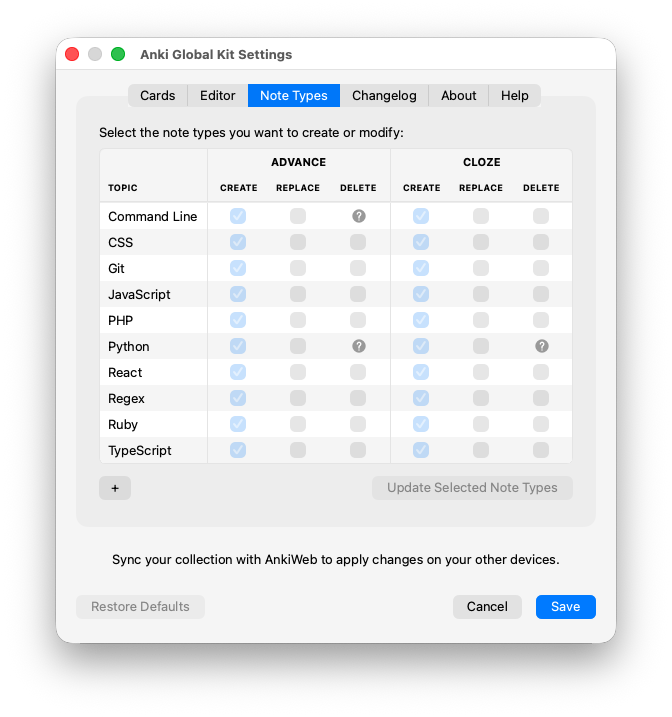
- Open Tools > Anki Global Kit Settings... > Note Types. Check Create for the topics and formats you want: Advance for question-and-answer cards or Cloze for cloze-deletion cards. Use + to add a custom topic.
- Choose Update Selected Note Types and confirm. Add a note using a new type, such as Python (Advance) or CSS (Cloze).
- Adjust review tools in Cards and Desktop editing tools in Editor, then choose Save.
- Sync the collection and media from Desktop, then sync your other devices before reviewing there.
The add-on automatically installs or refreshes its managed card scripts, stylesheets, font, and combined font license notice in the active profile when it opens, when you switch profiles, and when you save settings. You do not need to copy media files or card templates manually for newly created kit note types.
Create and update note types
Built-in topics include Command Line, CSS, Git, JavaScript, PHP, Python, React, Regex, Ruby, TypeScript, Vocabulary, and WordPress. Custom topics use the kit's default styling.
- Create adds a missing note type. Existing types are detected and checked automatically.
- Replace updates an existing type's first card template and styling after explicit selection and confirmation. Notes and fields are kept, and missing kit fields are added. For standard note types, additional card templates and their associated cards are removed, including those cards' scheduling. The confirmation lists the affected note types, additional template names, and template and card removal counts.
- Replacement requires the existing type to match the selected format: a standard note type for Advance, or a Cloze note type for Cloze. A type's name alone does not determine its format.
- Delete removes an empty note type or an uncreated custom topic. Types containing notes cannot be deleted through this panel.
Choose Update Selected Note Types to apply these actions. The kit rechecks the active collection, selected note types, and template and card removal counts after confirmation. If they have changed, it stops and asks you to review and confirm again. Anki refreshes after applied note type changes. Save applies settings separately; Cancel does not undo confirmed note type changes. Pending action checkboxes are not retained across restarts, while custom topics remain available.
The Note Types tab lists the available topics and lets you choose which Advance or Cloze types to create, replace, or delete. Use + to add a custom topic.

Sync all devices before replacing or deleting note types. If Anki requests a full sync afterward, choose Upload on the Desktop where you applied the changes, then Download on your other devices. See Anki's sync conflict guidance for details.
Add your first note
For an Advance note, fill in Question and Answer. Enter yes in Compare to highlight differences between your typed answer and the reference; leave it empty to display the answers separately. Type Hint, bonus question and answer fields, and Notes are optional. Bonus Compare enables comparison for the bonus answer.
For a Cloze note, use Cloze Question and Anki's cloze-deletion tools. The primary typed answer is compared automatically; bonus fields and notes are optional.
After an add-on update
Restart Anki Desktop so the updated card assets are installed, then sync the collection and media. Existing note templates are not updated automatically. If you want to apply the latest kit templates, select Replace for the relevant types in Note Types and confirm.
Updates keep your saved shortcuts. To adopt the new Command+Shift+. / Command+Shift+, indentation defaults on macOS (Ctrl+Shift+. / Ctrl+Shift+, on Windows/Linux), use the individual RESET links under Cards → Card Fields and Editor → Editor Fields, then choose Save. Restore Defaults resets all card and editor settings in the panel. Sync after saving card settings.
The shared font now installs as _meslolgl-nf.woff2 to match Anki's media naming. The kit stylesheets use this filename. If custom CSS or templates reference the old _mesloLGL-NF.woff2 filename directly, update those references to the lowercase filename, then sync the changes.
Custom topic headings now display braces as literal text. For existing kit note types whose topic names contain {{…}}, select Replace for the relevant types and confirm to refresh their headings, then sync the collection and media.
Templates
The add-on assembles topic-specific note types from packaged HTML, script, and styling parts. See the template guide and template parts to inspect or adapt them. Use the settings panel to create note types without assembling templates manually.
Development
Development supports Node.js 22.22.2 or later in the 22.x series, 24.15.0 or later in the 24.x series, and 26.0.0 or later. Node.js 24.15+ and Python 3.13 are the recommended toolchain and match CI. Run these commands from the repository root to install dependencies, build the card and editor assets and combined font notice, check asset paths, and create an installable package:
npm install
npm run build:addon
npm run check:assets
npm run package:addon
Install dist/anki-global-kit.ankiaddon through Anki Desktop's Tools > Add-ons > Install from file, then restart Anki. Use npm run watch to rebuild assets while editing; rebuild the package when reinstalling changes.
For development directly from this checkout, run npm run link:addon after building. This creates anki-global-kit-dev in Anki's addons21 folder, linked to this repository's addon/ folder (a directory junction on Windows). The separate folder name keeps the development link separate from the package installed from a local file. Disable the packaged copy in Anki's add-on manager when using the development copy, or disable the development copy when testing the package, then restart Anki so only one copy runs.
The link command uses the standard Anki data location for macOS, Windows, or Linux, including ANKI_BASE and Linux's XDG_DATA_HOME overrides. For a custom installation or Flatpak, pass the add-ons folder explicitly: npm run link:addon -- "/path/to/Anki2/addons21". Repeating the command is safe; it refuses to overwrite an existing folder or a link to another checkout. Use npm run watch while editing assets, and restart Anki to load Python changes.
Run npm test for the JavaScript and Python suites, or npm run test:scripts and npm run test:python separately. GitHub Actions runs both suites on pushes, pull requests, and manual workflow runs using Node.js 24 and Python 3.13. The suites use Node/jsdom and isolated Anki/Qt stand-ins. They cover card and editor shortcuts, note type creation and replacement, deletion safeguards, removal confirmations, changed-plan rejection, and managed media installation and failed-write recovery. Live Anki and cross-client release checks are described in the publishing guide.
Desktop Python code lives under addon/desktop, card sources under src/cards, editor sources under src/editor, and shared sources under src/shared. Runtime note type parts live under addon/templates/note-types/parts.
Merging a new version from dev into main automatically publishes a GitHub release after CI passes. The workflow reads the newest dated version section in CHANGELOG.md, excluding Unreleased and older sections, and checks that the manifest and package versions match. If that version already has a published release, publication is skipped.
GitHub Actions builds the installable archive from the merged repository code by running npm ci, npm run build:addon, and npm run package:addon. The packaging script creates dist/anki-global-kit.ankiaddon from the addon/ files, including the freshly built card and editor assets, plus the root changelog and license. The workflow attaches this archive to the GitHub release, uses the changelog section as its notes, and creates a vX.Y.Z tag at the exact merged commit. GitHub builds and uploads the archive automatically; updating the AnkiWeb listing still requires a manual upload. See publishing instructions for version preparation, packaging, and AnkiWeb release steps.
See development dependency notes for patched transitive dependency overrides and the remaining braces advisory.
Help and feedback
If a shortcut does nothing, check both its group and individual enable switches and resolve any conflicts in settings. Click a shortcut field to capture a new key combination; Escape cancels capture. If submitted answers remain plain text, select Enable Markdown rendering and Enable syntax highlighting for submitted answers under Cards → Card Reviews and check that code fences have matching opening and closing lines.
Read HELP.md for settings guidance and common problems, or open the Help tab in Anki Global Kit Settings.... For an unresolved problem, report an issue with your Anki version, device, and steps to reproduce it. See the changelog for release notes.

License
MIT
The card bundle includes Diff Match Patch under the Apache License 2.0. Its attribution and full license are also embedded in the script that syncs to other clients.
The bundled MesloLGL Nerd Font uses Nerd Fonts v3.5.1 and incorporates upstream works with separate terms. See its source, conversion instructions, attribution, and license notices.