Audio Waveform Trimmer

AnkiWeb addon 547478812

Adds a waveform-based audio trimmer to the card editor, letting users drag boundaries, preview selections, and losslessly trim the first sound file in a configured field.
AI-generated summary; may contain mistakes.

note-management

Open on AnkiWeb GitHub Find alternatives

AnkiWeb

Votes
1 (πŸ‘ 1 Β· πŸ‘Ž 0)
Updated
2026-06-25
Anki versions
unknown
License
AGPL-3.0 (from the license file in the package)
Virus scan
No ClamAV match A match does not prove malware. No match does not prove that the code is safe.
Languages
Python, JSON
Description language
en

Maintenance

active

  • Last update or commit: 2026-06-25 (129 days before the snapshot).
  • Test files: 1.
  • Commits in the last year: 5.
  • Issues: 0 open, 0 closed.
  • Pull requests: 0 open, 0 merged.

Will it work on my Anki?

Version branches
Min AnkiMax AnkiUpdated
2.1.0–2026-06-25
History across monthly snapshots

Loading…

Similar addons

Anki Image Reshaper

Automatically resizes and aligns images pasted or drag-dropped into Anki's editor using configurable strategies, with deck-specific defaults and toolbar controls.

card-creationformattingappearance

1 votes 21% approval πŸ‘ 1 Β· πŸ‘Ž 0 ⭐ 0 Anki 2.1.66~ Updated 2025-12-28

Description

Audio Waveform Trimmer

An Anki 2.1 add-on that adds a built-in waveform trimmer for audio files in your cards.

screenshot

Features

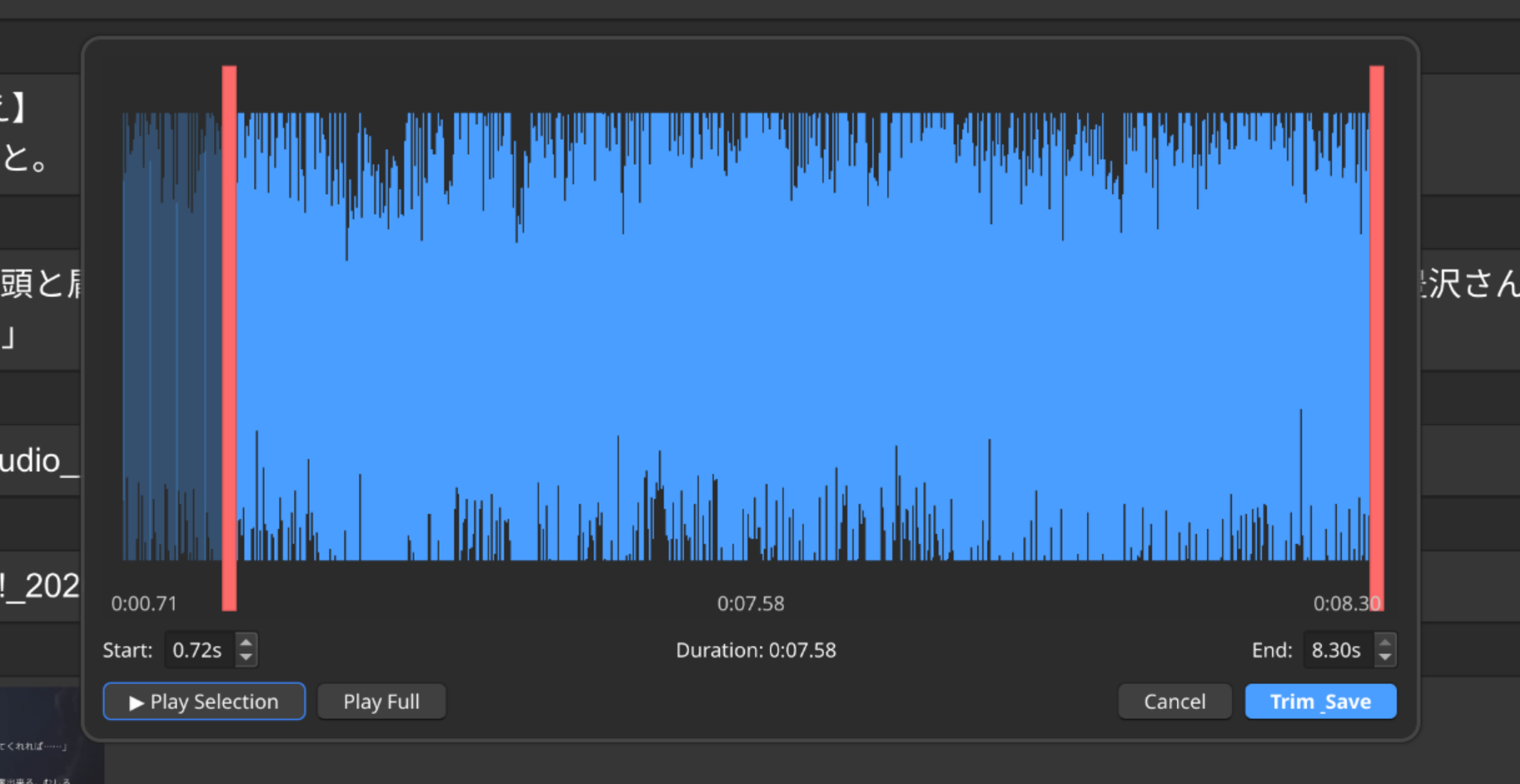
  • Waveform viewer β€” click the Audio button or press Ctrl+E in the card editor
  • Drag handles β€” set left and right trim boundaries directly on the waveform
  • Precise input β€” spinboxes for second-by-second time control
  • Preview playback β€” hear the trimmed result before committing, using ffplay
  • Lossless trim β€” commits with ffmpeg -c copy (fast, no re-encoding)
Only the first [sound:...] in the configured field is edited; additional audio files are left untouched.

Requirements

  • Anki 2.1 (tested on Anki 24.04+)
  • ffmpeg, ffprobe, and ffplay installed and available in PATH

Configuration

Via Tools β†’ Add-ons β†’ Audio Waveform Trimmer β†’ Config:

  • | Key | Default | Purpose |
  • | shortcut | "Ctrl+E" | Keyboard shortcut in the editor |
  • | audio_field_name | "Audio" | Field name with [sound:...] tags |

Usage

  1. Open the card editor (Add or Browse)
  2. Click the Audio toolbar button or press Ctrl+E
  3. Drag the red handles on the waveform to set trim boundaries
  4. Click Play Selection to preview the trimmed audio
  5. Click Trim & Save to commit (replaces the file in-place)

Editing is non-destructive until you hit Trim & Save.

Diagnostics

Run Tools β†’ Edit Audio: Run Diagnostics to verify ffmpeg, media paths, and field configuration.

License

GNU Affero General Public License v3.0 or later.

URL

https://github.com/WilsonNet/anki-audio-waveform-trimmer

README

Audio Waveform Trimmer

An Anki 2.1 add-on that adds a built-in waveform trimmer for audio files in your cards.

Features

  • Waveform viewer β€” click the Audio button or press Ctrl+E in the card editor
  • Drag handles β€” set left and right trim boundaries directly on the waveform
  • Precise input β€” spinboxes for second-by-second time control
  • Preview playback β€” hear the trimmed result before committing, using ffplay
  • Lossless trim β€” commits with ffmpeg -c copy (fast, no re-encoding)

screenshot

Only the first [sound:...] in the configured field is edited; additional audio files are left untouched.

Requirements

  • Anki 2.1 (tested on Anki 24.04+)
  • ffmpeg, ffprobe, and ffplay installed and available in PATH

Installation

  1. Download the .ankiaddon file
  2. In Anki, go to Tools β†’ Add-ons β†’ Install from file
  3. Select the downloaded file

Alternatively, copy the edit_audio_external folder into your addons21 directory.

Configuration

Via Tools β†’ Add-ons β†’ Audio Waveform Trimmer β†’ Config:

Key Default Purpose
shortcut "Ctrl+E" Keyboard shortcut in the editor
audio_field_name "Audio" Field name with [sound:...] tags

Usage

  1. Open the card editor (Add or Browse)
  2. Click the Audio toolbar button or press Ctrl+E
  3. Drag the red handles on the waveform to set trim boundaries
  4. Click Play Selection to preview the trimmed audio
  5. Click Trim & Save to commit (replaces the file in-place)

Editing is non-destructive until you hit Trim & Save.

Diagnostics

Run Tools β†’ Edit Audio: Run Diagnostics to verify ffmpeg, media paths, and field configuration.

License

GNU Affero General Public License v3.0 or later.