Anki Explorer
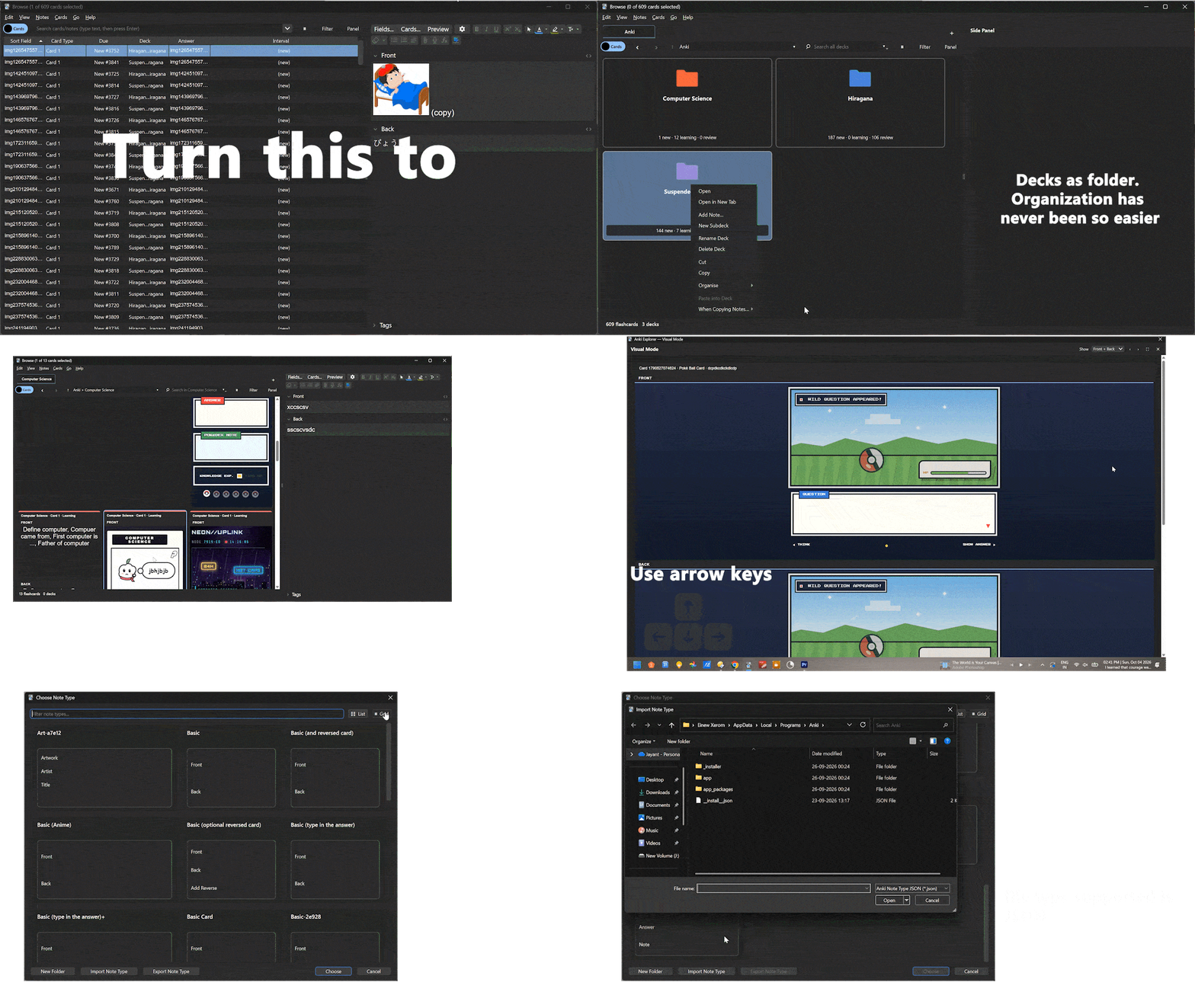
Anki Explorer is a visual productivity and organization add-on for Anki.
It enhances two major parts of Anki:
- The Browser
- The Choose Note Type / Note Type management interface
It adds visual Browser layouts, zoom controls, Explorer-style navigation, tabs, drag-and-drop organization, coloured folders, a visual Note Type Grid, nested note-type folders, note/card statistics, quick template editing, and JSON note-type import/export.
The current Browser implementation also includes root-folder navigation, deck-aware address history, an F7 side-panel toggle, Anki-style rendered audio controls, and keyboard navigation across Gallery and Visual Mode cards.
Browser Features
Multiple Browser Views
The Browser can be displayed using different visual layouts:
- List View
- Grid View
- Gallery View
- Compact-style views
Changing the visual layout does not modify your underlying cards, notes, or decks.
Browser Zoom
Resize Browser content using:
- Ctrl + Mouse Wheel
- Trackpad / pinch gestures where supported
Zoom can resize visual Browser elements such as thumbnails, cards, text, and other supported content.
The selected zoom level can persist between Anki sessions.
Explorer-Style Navigation
The Browser includes navigation inspired by desktop file managers.
- Back navigation
- Forward navigation
- Breadcrumb / address-style navigation
- Decks displayed visually like folders
- Easier navigation through nested deck structures
Root Deck Folders
At the Anki root, visual Browser modes show deck folders instead of displaying cards from every deck together. Open a folder to see the cards in that deck. Child decks appear inside their parent deck, so the root behaves like a normal folder navigator.
The separate Show deck folders switch has been removed. Root folders are always shown by default, while cards appear after entering a deck or applying a search.
Address Bar and Deck Path Controls
When Browse is opened from a selected deck, the address bar follows that deck automatically and displays its complete path, for example:
Anki > Languages > Japanese > Advanced Hiragana
- Back and Forward buttons preserve deck navigation history
- An Up button moves to the parent deck
- The address menu jumps directly to Anki root or any parent level
- Browse can reopen on the currently selected Overview deck
- Alt+Left, Alt+Right, Alt+Up, and Alt+Home provide keyboard navigation
Browser Tabs
Open multiple Browser locations using tabs.
- Open locations in a new tab
- Keep several deck locations open at once
- Switch between locations without losing navigation context
- Use drag-and-drop with supported tab views
Browser Drag and Drop
Decks can be visually organized using drag and drop.
For example:
Japanese
├── Vocabulary
├── Grammar
└── Kanji
A deck can be dragged into another deck where supported, making deck organization feel more like a normal file manager.
Browser Selection
Supports familiar selection behavior such as:
- Ctrl+A
- Ctrl+Click
- Multi-selection
- Dragging selected items where supported
Browser Context Menu Improvements
Additional right-click actions are available depending on the current item and view.
- New Card
- New Deck
- Cut
- Copy
- Paste
- Open in New Tab
- Organization controls
Side Panel
The Browser side panel can be toggled globally with F7. The Panel menu also includes Show panel (F7), along with the available editor, rendered preview, and card-details modes.
The panel follows the selected card and can show the editor, a rendered Front/Back preview, or card details. When disabled, the Browser returns to its full-width layout.
Rendered Audio Controls
Audio in rendered previews, Gallery cards, and Visual Mode uses Anki-style play buttons instead of oversized placeholder shapes. Clicking a button routes playback through Anki's audio player, including audio inside card templates and isolated rendered card frames.
Gallery and Visual Mode Navigation
Gallery remains a continuous card workspace while using pages internally to keep large collections responsive. The Previous and Next controls change rendered pages; arrow keys move between individual cards and continue across page boundaries.
- Left / Right move to the previous or next card
- Up / Down move by the visible Gallery row
- Arrow keys continue working when focus is inside a rendered card
- Text-entry fields keep their normal arrow-key behavior
- Visual Mode opens the complete current result set when started from one selected card
- Left / Right and Up / Down move through Visual Mode cards
Folder Colours
Deck/folder entries can be assigned custom colours.
Right-click a supported deck/folder and choose:
Organise → Folder Colour
Available options include:
- Preset colour palette
- Custom colour picker
- Reset colour
The interaction is inspired by the folder-colour workflow used in services such as Google Drive.
Folder colours persist between sessions.
Anki Explorer Note Type Manager
The add-on also enhances Anki's Choose Note Type interface.
Two main viewing modes are available:
List View
List View intentionally remains close to Anki's normal note-type interface.
- Simple note-type names
- Standard selection behaviour
- Minimal additional UI
This view is intended for users who prefer Anki's traditional compact note-type chooser.
Grid View
Grid View provides a more visual interface for browsing and managing note types.
Each note type appears as a tile.
Unselected tiles remain clean and minimal.
Additional information and controls appear only after the note type is selected.
Selection-Based Note Type Details
When a note type is selected, its tile can reveal:
- Notes count
- Flashcards count
- Field information
- Card-template information
- Fields button
- Cards button
- Styling button
This keeps the Grid uncluttered when you are browsing a large number of note types.
Notes Counter
The selected note type displays how many notes currently use that note type.
Example:
Notes: 1,284
Flashcards Counter
The selected tile also displays how many actual Anki cards are generated from those notes.
Example:
Flashcards: 2,568
Notes and Flashcards are intentionally shown separately because a single Anki note can generate multiple cards.
Card Template Information
The note-type interface can also show information about the card templates belonging to that note type.
For example:
2 Card Templates
This is different from the Flashcards count.
A note type may contain two card templates while those templates generate thousands of actual cards.
Quick Fields Button
Selecting a note type reveals a Fields button.
Clicking it opens that note type's Fields editor directly.
This reduces the need to repeatedly navigate through Manage Note Types.
Quick Cards Button
The Cards button opens the selected note type's Card Templates editor directly.
This provides quick access to:
- Front Template
- Back Template
- Card templates
- Template configuration
Quick Styling Button
The Styling button provides quick access to the card template styling / CSS editor.
This makes it faster to modify the visual appearance of a note type without navigating through multiple Anki dialogs.
Note Type Folders
Note types can be organized into visual folders.
For example:
Languages
├── Japanese
├── Sanskrit
└── Latin

University
├── Literature
├── Linguistics
└── Psychology
These folders are organizational metadata used by the add-on.
They do not rename or modify the underlying Anki note types.
Nested Note Type Folders
Folders can contain other folders.
For example:
Languages
└── Japanese
    ├── N5
    │   ├── Vocabulary
    │   └── Grammar
    └── N4
This makes it possible to organize large note-type collections into meaningful hierarchies.
Folder Navigation
Nested folders support breadcrumb-style navigation.
For example:
All Note Types > Languages > Japanese > N5
The breadcrumb allows you to quickly return to previous levels.
Creating Folders
Folders can be created directly from the Note Type interface.
If you create a folder while already inside another folder, the new folder becomes part of that hierarchy.
The interface simply uses:
New Folder
rather than separating the concepts of "folder" and "subfolder."
Note Type Multi-Selection
Grid View supports selecting several note types at once.
- Click to select a note type
- Ctrl+Click to add or remove note types from the current selection
Selected note types can then be organized together.
Note Type Drag and Drop
Note types can be dragged directly into organizational folders.
If several note types are selected, dragging one of the selected tiles can move the entire selected group.
Nested folders can also be used as drop destinations.
Blank-Area Deselection
Clicking an empty area of the Note Type window clears the current selection.
This provides behavior similar to a desktop file manager.
Note Type Grid Zoom
Grid View supports visual resizing.
Use:
- Ctrl + Mouse Wheel
- Trackpad / pinch gestures
Zooming can adjust:
- Note-type tile size
- Icons
- Grid spacing
- Grid density
- The number of tiles visible on screen
The selected Grid zoom level persists between sessions.
Zooming is intentionally silent, with no distracting size-percentage popup.
Note Type JSON Import / Export
Individual note types can be imported and exported as standard .json files.
Export Note Type
A note type can be exported using:
- The Export Note Type button in Grid View
- Right-click a note type → Export Note Type
Example filename:
Japanese Vocabulary.json
Import Note Type
Use Import Note Type to recreate a compatible note-type definition from a JSON file.
If a note type with the same name already exists, the importer avoids silently overwriting the existing note type.
What the JSON Can Store
The exported JSON represents the reusable definition of the note type.
It can include:
- Note-type name
- Note-type kind
- Fields
- Field names
- Field properties
- Sort-field configuration
- Card templates
- Card-template names
- Front templates
- Back templates
- Browser templates where available
- Styling / CSS
- Cloze-related information
- Relevant LaTeX settings
- Template configuration
Source Statistics
The JSON can also contain informational metadata describing the original note type.
For example:
{
  "source_stats": {
    "notes": 1284,
    "flashcards": 2568,
    "field_count": 5,
    "template_count": 2
  }
}
These statistics describe the source collection only.
They do not recreate those notes or cards when the note type is imported.
What the JSON Does NOT Store
JSON note-type export is intended for sharing the note-type design, not complete study data.
It does not export:
- Actual note content
- Actual cards
- Review history
- Scheduling information
- Due dates
- Ease values
- FSRS state
- Learning history
- Deck membership
Use Anki's normal .apkg or collection export tools when you need to transfer decks and study data.
Why JSON?
The add-on deliberately uses ordinary .json files instead of introducing another custom file extension.
Benefits include:
- Human-readable
- Easy to inspect
- Easy to edit
- Easy to debug
- Easy to version-control with Git
- Easy for developers to work with
- Compatible with standard JSON tools
- Clearly separate from full deck exports
Persistent Preferences
Where appropriate, the add-on remembers supported interface preferences between Anki sessions.
Examples include:
- Browser zoom
- Note Type Grid zoom
- Folder colours
- Visual organization information
- View preferences
Designed Around Anki
The add-on is designed to enhance Anki's interface rather than replace Anki's underlying data model.
- Note types remain normal Anki note types
- Decks remain normal Anki decks
- Note Type folders are visual organizational metadata
- List View remains close to native Anki
- Grid View provides optional richer functionality
- JSON exports do not modify the original note type
- Anki's normal deck export system remains available
Main Features at a Glance
Browser
- List View
- Grid View
- Gallery View
- Compact views
- Pinch zoom
- Ctrl+Wheel zoom
- Persistent zoom
- Back / Forward navigation
- Breadcrumb navigation
- Explorer-style deck navigation
- Root deck folders shown by default
- Cards hidden at the root until a deck is opened
- Parent/root address menu
- Deck-aware Browse reopening
- Tabs
- Open in New Tab
- Drag-and-drop deck organization
- Multi-selection
- Ctrl+A
- Cut / Copy / Paste
- Folder colours
- Custom folder colours
- Improved context menus
- F7 side-panel toggle
- Panel menu with editor, preview, and details modes
- Anki-style rendered audio buttons
- Gallery arrow-key navigation across pages
- Visual Mode arrow-key navigation
Anki Explorer Note Type Manager
- Native-style List View
- Visual Grid View
- Note-type tiles
- Selection-based details
- Notes counter
- Flashcards counter
- Field information
- Card-template information
- Quick Fields editor
- Quick Cards editor
- Quick Styling editor
- Ctrl multi-selection
- Drag-and-drop organization
- Nested folders
- Breadcrumb navigation
- Blank-area deselection
- Pinch zoom
- Ctrl+Wheel zoom
- Persistent Grid zoom
- Silent zooming
- JSON Note Type Import
- JSON Note Type Export
- Right-click Note Type Export
- Portable note-type definitions
- Source statistics metadata
Feedback and Bug Reports
If you encounter a bug, please include:
- Your Anki version
- Your operating system
- The full error / traceback if one appears
- The steps required to reproduce the problem
Feedback and feature suggestions are welcome.
Anki Explorer
A more visual, organized, and flexible way to work with Anki's Browser and note types.