Drag Drop

AnkiWeb addon 172454001

Creates interactive drag-and-drop flashcards where you label images or sort items into categories, with instant feedback, shuffling, theme and layout options, across Anki Desktop, AnkiDroid and AnkiMobile.
AI-generated summary; may contain mistakes.

card-creationappearancecard-templatesquizmobile-compatible

Open on AnkiWeb GitHub Find alternatives

AnkiWeb

Votes
3 (πŸ‘ 3 Β· πŸ‘Ž 0)
Updated
2026-10-02
Anki versions
25.07~
License
MIT (from the license file in the package)
Virus scan
No ClamAV match A match does not prove malware. No match does not prove that the code is safe.
Languages
Python, CSS, HTML, TSV, JSON
Description language
en

Maintenance

active

  • Last update or commit: 2026-10-02 (30 days before the snapshot).
  • Commits in the last year: 8.
  • Issues: 0 open, 0 closed.
  • Pull requests: 0 open, 0 merged.

GitHub

Repository
doummar/drag_drop Β· more by doummar
Stars
⭐ 1 · forks 0 · open issues 0
Last commit
2026-09-26
License
MIT
Languages
Python, HTML, CSS
Tests
0

Will it work on my Anki?

Version branches
Min AnkiMax AnkiUpdated
23.0925.07+2026-10-02
History across monthly snapshots

Loading…

Similar addons

Accelerate Image Drag And Drop

Widens the editor's first field and adds focus-independent shortcuts for previewing next or previous notes and opening an image-search link, speeding intensive image drag-and-drop.

card-creationshortcutsappearance

2 votes 34% approval πŸ‘ 2 Β· πŸ‘Ž 0 ⭐ 6 Updated 2018-12-26
Anki Image Reshaper

Automatically resizes and aligns images pasted or drag-dropped into Anki's editor using configurable strategies, with deck-specific defaults and toolbar controls.

card-creationformattingappearance

1 votes 21% approval πŸ‘ 1 Β· πŸ‘Ž 0 ⭐ 0 Anki 2.1.66~ Updated 2025-12-28

Description

Drag Drop turns your Anki cards into interactive drag-and-drop flashcards. Instead of only looking at an image or reading a question, you can actively recall the answer by dragging labels to the correct place or sorting items into the right categories.

It is especially useful for diagrams, anatomy, maps, charts, processes, illustrations, and category-based questions, but you can use it for many different subjects and types of study.

The add-on is designed to make visual learning and active recall more interactive while keeping the card simple and easy to use.

Preview

Drag labels to the correct places on an image
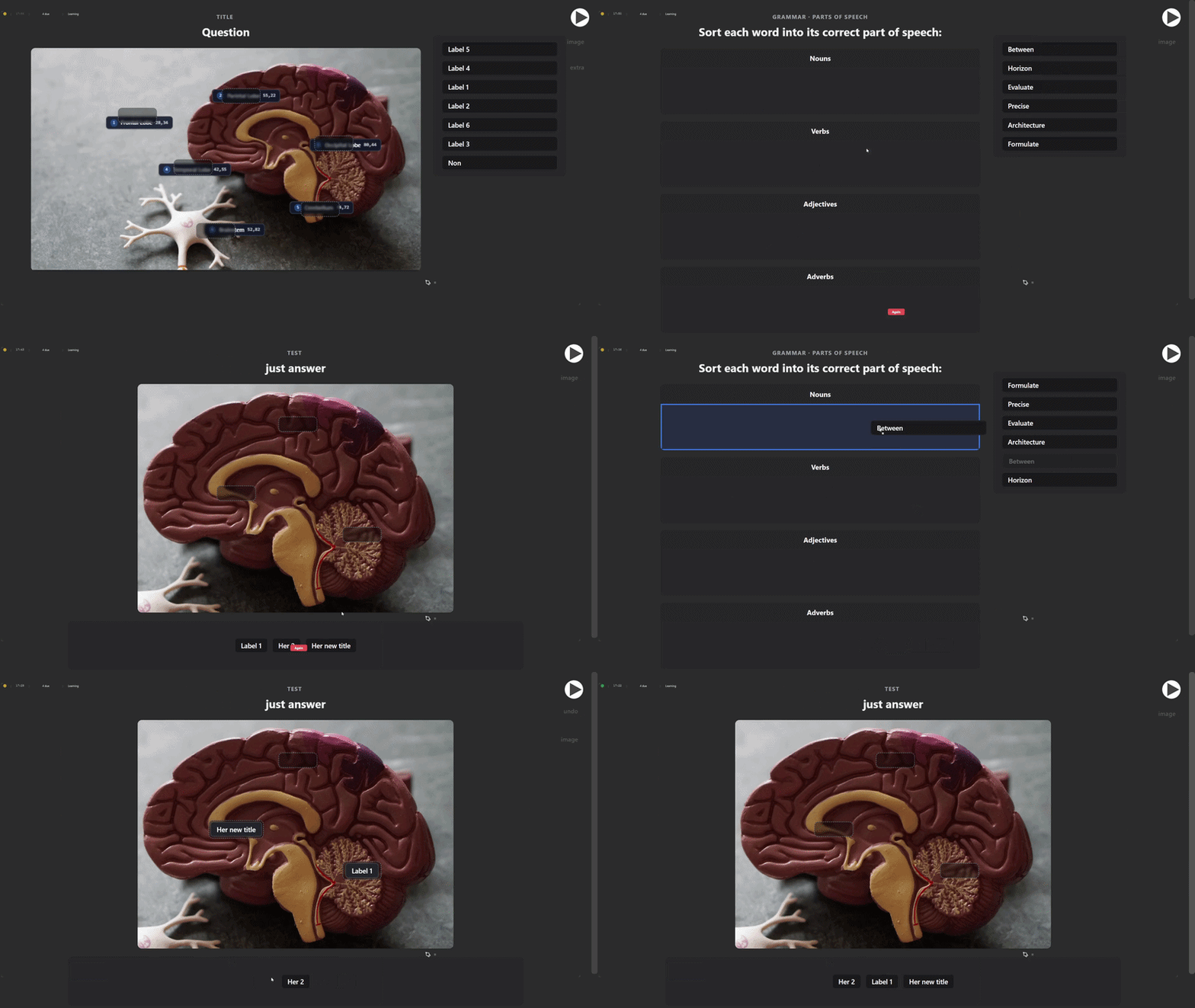
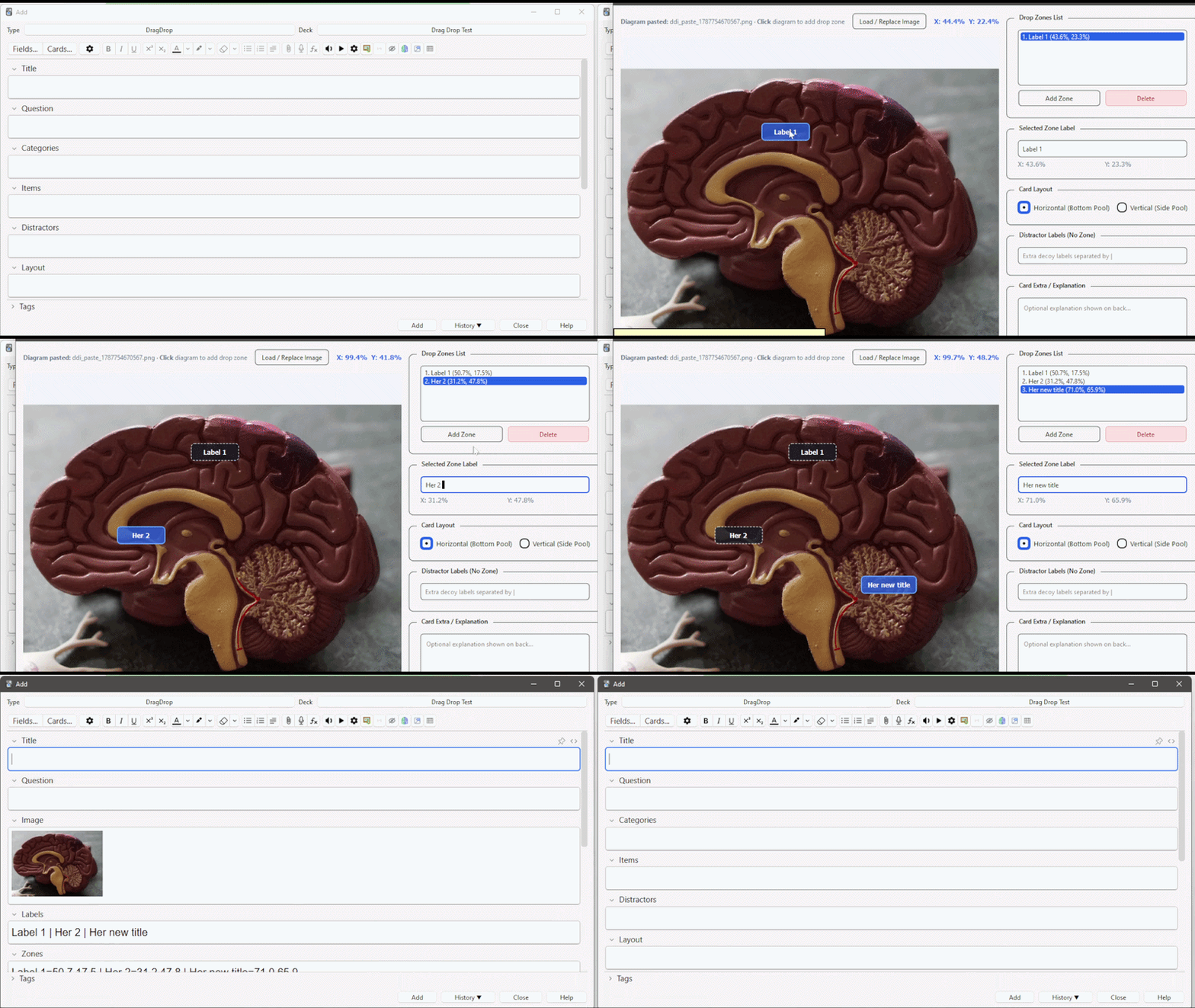
Create visual image-labeling cards

Drag labels to the correct places on an image
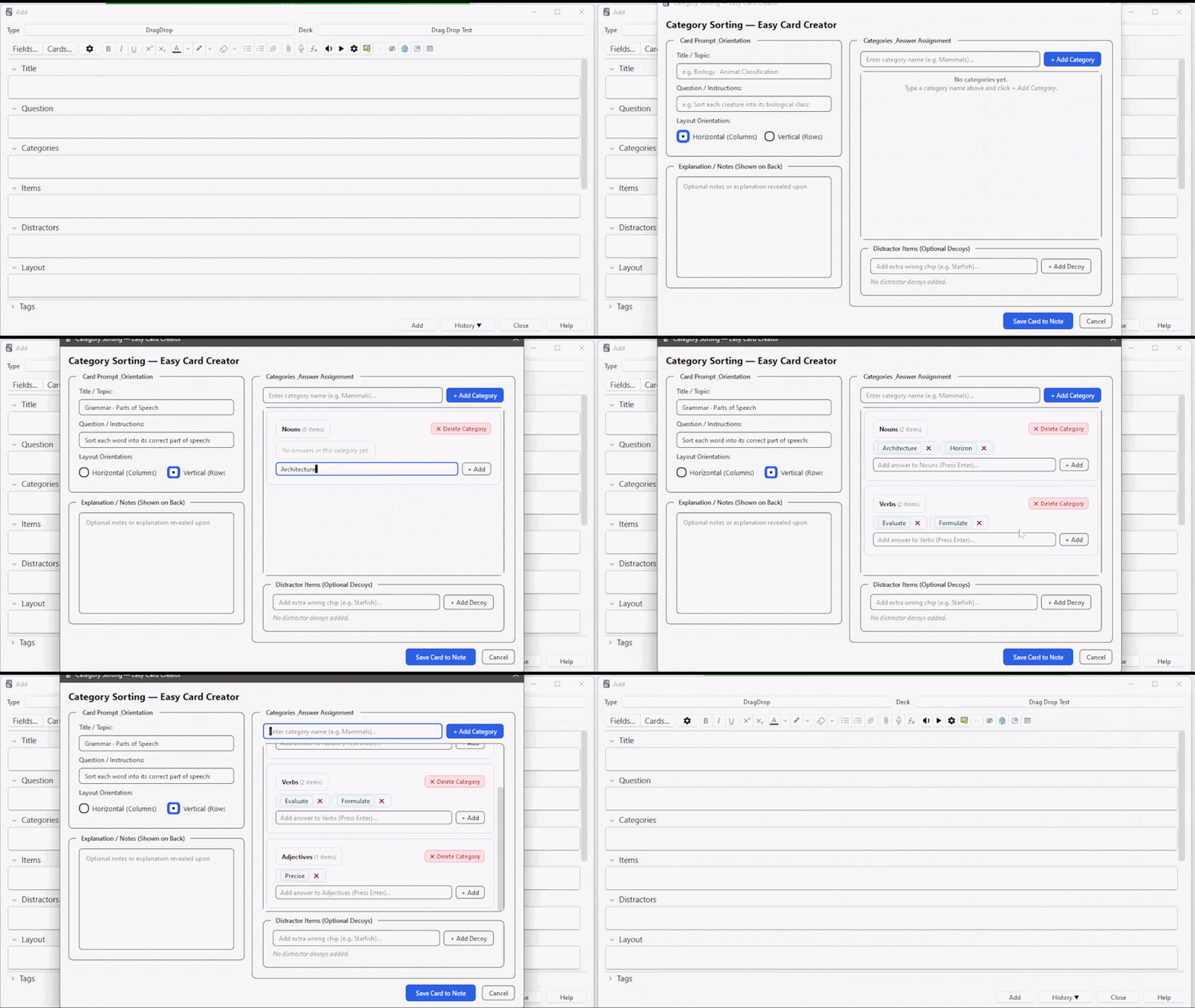
Sort items into the correct categories
Interactive cards with instant feedback

Two ways to use Drag & Drop

Image Labeling

Place labels on an image and create drop zones for the correct answers. This works well for anatomy, biology, geography, diagrams, charts, maps, objects, and other visual subjects.

Category Sorting

Create categories and drag answers into the correct category buckets. You can also add incorrect answers or distractors to make the exercise more challenging.

Features

  • Interactive drag-and-drop flashcards
  • Image labeling and visual diagrams
  • Category sorting cards
  • Drag labels to image drop zones
  • Sort answers into categories
  • Visual feedback for correct and incorrect answers
  • Optional score display
  • Automatic shuffling of labels
  • Optional click-to-place for image labels
  • Smooth animations
  • Adjustable card layout and size
  • Light, Dark, and automatic theme
  • Works on Anki Desktop, AnkiDroid, and AnkiMobile

How to create cards

Open Add in Anki and choose the Drag_Drop note type.

For image labeling, use the Visual Placement Studio to place and resize the correct drop zones directly on your image.

For category sorting, use the Easy Card Creator to create categories, answers, and optional distractors.

Settings

Open Tools β†’ Drag Drop to customize the add-on.

  • Light / Dark / Automatic theme
  • Horizontal or vertical layout
  • Font and card size
  • Card width and image height
  • Automatic label shuffling
  • Score display
  • Click-to-place
  • Correct and incorrect feedback
  • Smooth animations
  • Drop-zone highlighting
  • Automatic score evaluation
  • Item reordering

Good for

  • Anatomy and biology
  • Maps and geography
  • Diagrams and charts
  • Processes and workflows
  • Language learning
  • Vocabulary categories
  • Classification and taxonomy
  • Visual memory
  • Active recall
  • Exam preparation

DragDrop is made for active recall. Instead of simply recognizing the answer on a card, you have to place, move, and sort the information yourself.

I created this add-on because I wanted a more visual and interactive way to study certain topics in Anki. I hope it can also be useful for other subjects and study methods.

If you use it in a way I didn't think of, or find something that could make it better, feel free to share it.

Report an issue or suggest a feature on GitHub


Related Add-on:


A companion add-on for: FocusFlow.

A companion add-on for: Sequential Cloze.

A companion add-on for: Mouse Buttons as Review Shortcuts.

README

Drag Drop β€” Anki Add-on

Interactive visual drag-and-drop flashcards for Anki Desktop (Windows, macOS, Linux), AnkiDroid, and AnkiMobile.

Overview

Drag Drop turns static diagrams, anatomical charts, process maps, labeled illustrations, and multi-category taxonomies into engaging interactive learning cards. Test your active recall by dragging labels to their designated drop zones or sorting items into category buckets.


Installation

Via Anki Add-on Package (.ankiaddon)

  1. Open Anki.
  2. Go to Tools β†’ Add-ons (or press Ctrl+Shift+A / Cmd+Shift+A).
  3. Click Install from file... and select drag_drop.ankiaddon.
  4. Restart Anki when prompted.

How to Create Cards

  1. In Anki's main screen, click Add (or press A).
  2. Click the Drag Drop toolbar icon or select Drag drop Image / DragDrop note type.
  3. Fill out the fields or use the visual interactive editors:
    • Image Labeling: Use the Visual Placement Studio to place and size target drop zones directly on your image.
    • Category Sorting: Use the Easy Card Creator to quickly define categories, answers, and decoy distractors.

Settings & Customization

Open Tools β†’ Drag Drop (or Tools β†’ Add-ons β†’ select Drag Drop β†’ Config) to access the clean settings panel:

  • General: Theme mode (Auto / Light / Dark), Default Layout (Horizontal / Vertical), Font (System Default / Sans-serif / Serif), and Size (Small / Medium / Large).
  • Image Labeling: Center card on screen, Max card width, Max image height, Auto-shuffle labels, Show score badge, Enable click-to-place, and Use colored feedback.
  • Category Sorting: Show βœ“ / βœ— symbols, Smooth animations, Highlight drop zones, Equal height columns, Auto-evaluate score, and Allow reordering items.
  • Support: User guide, GitHub issue reporting, and 1-click restore defaults.

License

This project is licensed under the MIT License β€” see the LICENSE file for details.

Copyright (c) 2026 Adel Aitah