AnkiWeb
- Votes
- 2 (👍 2 · 👎 0)
- Updated
- 2018-12-26
- Anki versions
- unknown
- License
- Not found (this does not mean that the addon has no license)
- Description language
- en
AnkiWeb addon 283563795
Widens the editor's first field and adds focus-independent shortcuts for previewing next or previous notes and opening an image-search link, speeding intensive image drag-and-drop.
Open on AnkiWeb GitHub Find alternatives
abandoned
| Min Anki | Max Anki | Updated |
|---|---|---|
| 2.1.0 | – | 2018-12-26 |
Loading…
Creates interactive drag-and-drop flashcards where you label images or sort items into categories, with instant feedback, shuffling, theme and layout options, across Anki Desktop, AnkiDroid and AnkiMobile.
Creates mind maps inside Anki and links them bidirectionally to flashcards, enabling visual organization, node editing, and navigation between maps and review cards.
Automatically resizes and aligns images pasted or drag-dropped into Anki's editor using configurable strategies, with deck-specific defaults and toolbar controls.
Displays the note editor in multiple columns using automatic, manual, or custom grid-area layouts, with shortcuts to toggle modes and temporarily widen a field.
Shuffles words in marked plain text on cloze cards and lets you restore their order by dragging and dropping or clicking the next word.
Adds visual Browser layouts, tabs, zoom, explorer-style navigation, drag-and-drop organization, folder colours, and a grid-based note-type manager with counters, quick editors, nested folders, and JSON import/export.
 ## What's this?
This Anki add-on is not for daily use, instead, it helps a very specific situation where you add images to a bunch of notes intensively for a specific period.
This add-on provides following features which hopefully make drag&drop of an image from browser far easier.
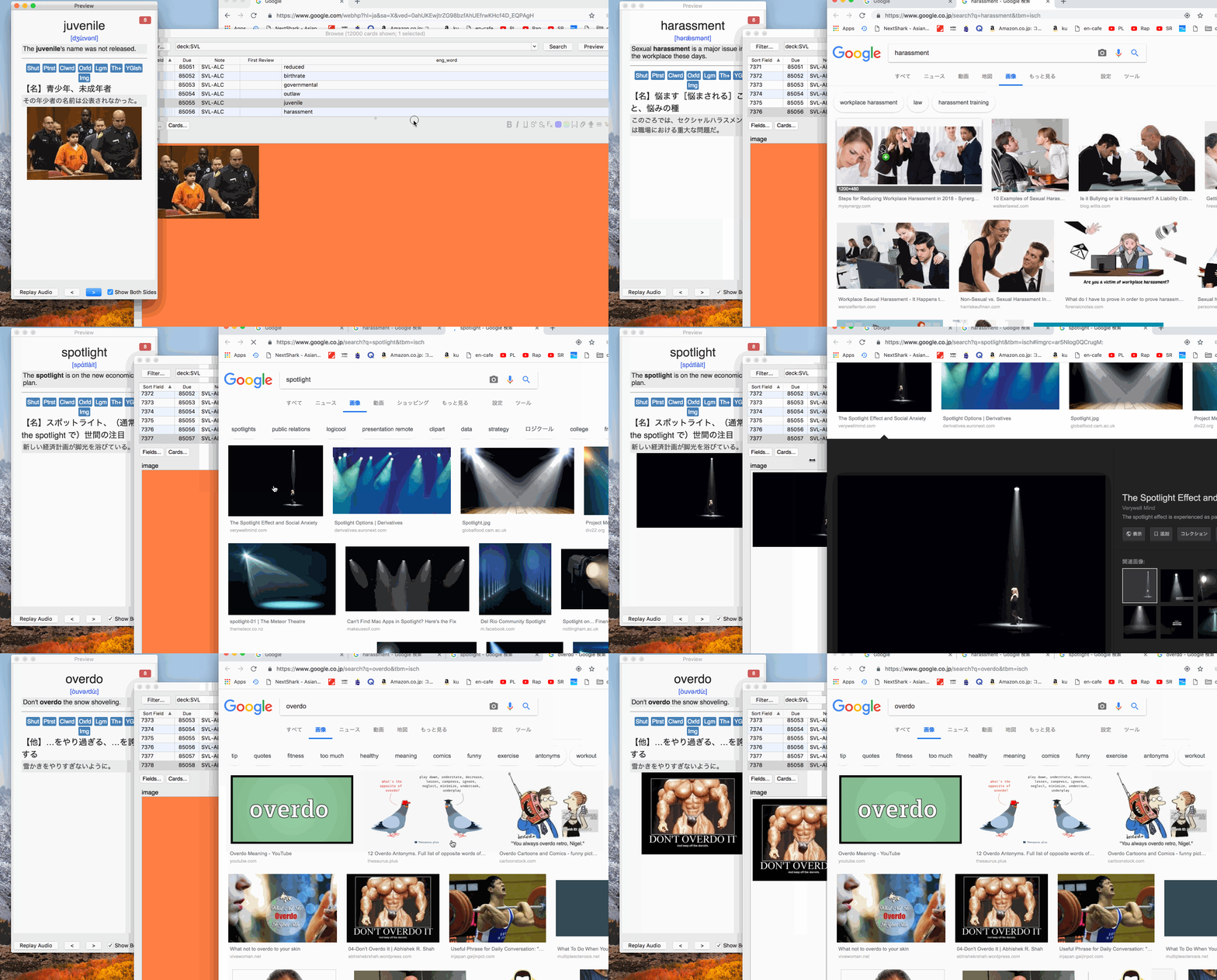
- Maximize **first field** of the editor of Note in Browser by shortcut (`Shift-Ctrl-E`) or (`Shift-Cmd-E`).
- Preview Previous via shortcut regardless of the focus of fields or window (`Shift-Ctrl-P`) or (`Shift-Cmd-P`).
- Preview Next via shortcut regardless of the focus of fields or window (`Shift-Ctrl-N`) or (`Shift-Cmd-N`).
- Preview Next and auto-open hyperlink for `id="primal-image-link"`. (`Shift-Ctrl-O`) or (`Shift-Cmd-O`).
## How to use
### Preparation
1. Open Anki browser
2. Choose deck which has notes which you want to add images to them.
3. Necessary only once: Create field and make it come very 1st field.
4. From menu bar execute `Widen First field` or hit `Shift-Cmd-E`, then you see 1st field become widen.
5. Open preview window
### Repeated steps until you exhausted by adding images to all cards.
1. Drag&drop image from a web browser to wide-orange-1st-field. Then check the preview window.
2. Hit `Shift-Cmd-O`, it renders a preview of next card then automatically open image search result. So, continue drag&drop!
### Notes
- You need to reorder field for image dropping to come very first field in a card.
- Preview Next/Previous shortcut do nothing unless preview window is already opened.
- If you want `Preview Next And Click Primal Image Link` work, you need to set a card to have a hyperlink with id `primal-image-link`. ex) `Img`.
## Background why I created this add-on
This add-on is basically for my own benefits, so I will explain some background.
Remembering completely vocabulary is always difficult.
To aid to create some clue in my brain, I found associating an image with the vocabulary is really efficient.
So I started associating images with each word in my decks which have 12000 vocabularies.
Then I noticed
- If the target field for image drag&drop(from a browser) is more broaden, it would be a lot easier to drop an image from a browser.
- That's why I make the 1st field of editor maximize(`800px`) and colorize with orange via shortcut.
- When I drag&drop image, I use mouse or trackpad, so focused window or field is not consistent, I wanted to make select next/previous word via shortcut regardless of current focus.
- That's' why I created a shortcut for previewing next/previous. Note: I intentionally override original `Shift-Cmd-P` which was assigned to `Preview` action.
### How I use this.
**Please ignore this if you find it TOO complex!**
I use
This Anki add-on is not for daily use, instead, it helps a very specific situation where you add images to a bunch of notes intensively for a specific period. This add-on provides following features which hopefully make drag&drop of an image from browser far easier.
Shift-Ctrl-E) or (Shift-Cmd-E).Shift-Ctrl-P) or (Shift-Cmd-P).Shift-Ctrl-N) or (Shift-Cmd-N).id="primal-image-link". (Shift-Ctrl-O) or (Shift-Cmd-O).Widen First field or hit Shift-Cmd-E, then you see 1st field become widen.Shift-Cmd-O, it renders a preview of next card then automatically open image search result. So, continue drag&drop!Preview Next And Click Primal Image Link work, you need to set a card to have a hyperlink with id primal-image-link. ex) <a id="primal-image-link" href="https://www.google.co.jp/search?q={{word}}&tbm=isch">Img</a>.This add-on is basically for my own benefits, so I will explain some background. Remembering completely vocabulary is always difficult. To aid to create some clue in my brain, I found associating an image with the vocabulary is really efficient. So I started associating images with each word in my decks which have 12000 vocabularies. Then I noticed
800px) and colorize with orange via shortcut.Shift-Cmd-P which was assigned to Preview action.Please ignore this if you find it TOO complex!
I use <a href="https://folivora.ai/>BetterTouchTool which allow me to set a global shortcut to send shortcut key to a specific App.
So I can invoke Preview Next And Click Primal Image Link from outside of Anki, thus I even don't have to activate anki app to open next card and image search result.
I set following global keyboard shortcut to send each key to Anki.app.
Shift-Cmd-N send Shift-Cmd-N to Anki.appShift-Cmd-P send Shift-Cmd-P to Anki.appShift-Cmd-O send Shift-Cmd-O to Anki.appCmd Cmd send Shift-Cmd-O to Anki.appSo my workflow while I'm adding an image to each note is.
Cmd Cmd(type cmd key twice), it makes preview next word on Anki preview window and open new google image link on browser then repeat from step-1.