Activity Rings
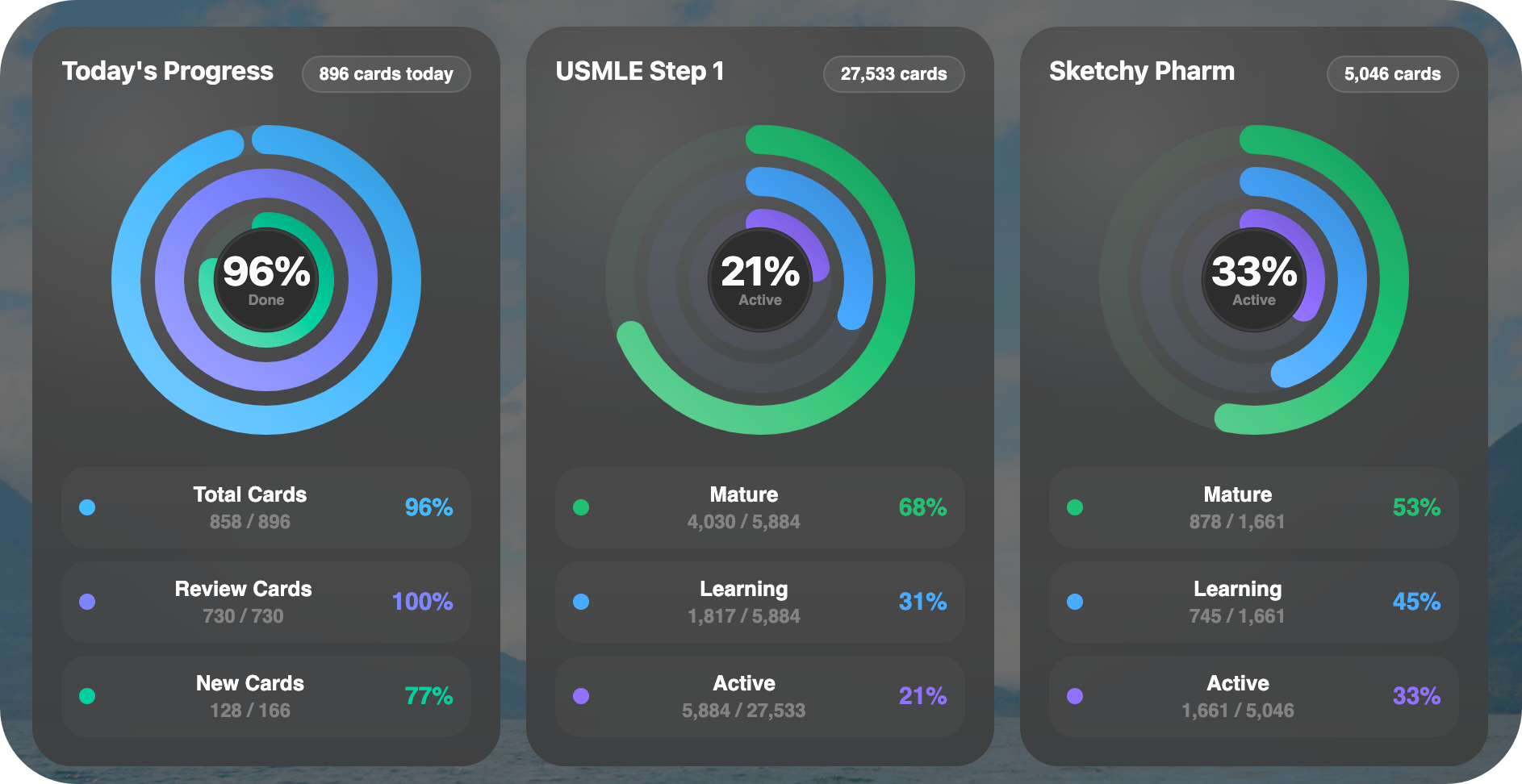
Activity Rings is an Anki desktop add-on that adds configurable Apple Fitness-style ring widgets to the deck browser and deck overview screens.

Compatibility target:
- Anki desktop 23.x and 24.x
- tested locally against Anki 25.07.x APIs during development
The add-on now supports:
- a visual settings window instead of forcing JSON editing
- ring-first compact cards plus wide detailed cards
- tag, arbitrary search, or today's-progress sources
- explicit numerator/denominator semantics per ring
- built-in metrics plus custom search metrics
- click-through to the Anki Browser
- theme-aware cards that integrate with normal Anki dashboards
Install
- Copy the
anki_activity_rings folder into your Anki addons21 directory.
- Restart Anki.
- Open
Tools -> Activity Rings.
On macOS, the add-on folder is usually:
~/Library/Application Support/Anki2/addons21
Alternatively, download and double click the activity-rings.ankiaddon to install the addon.
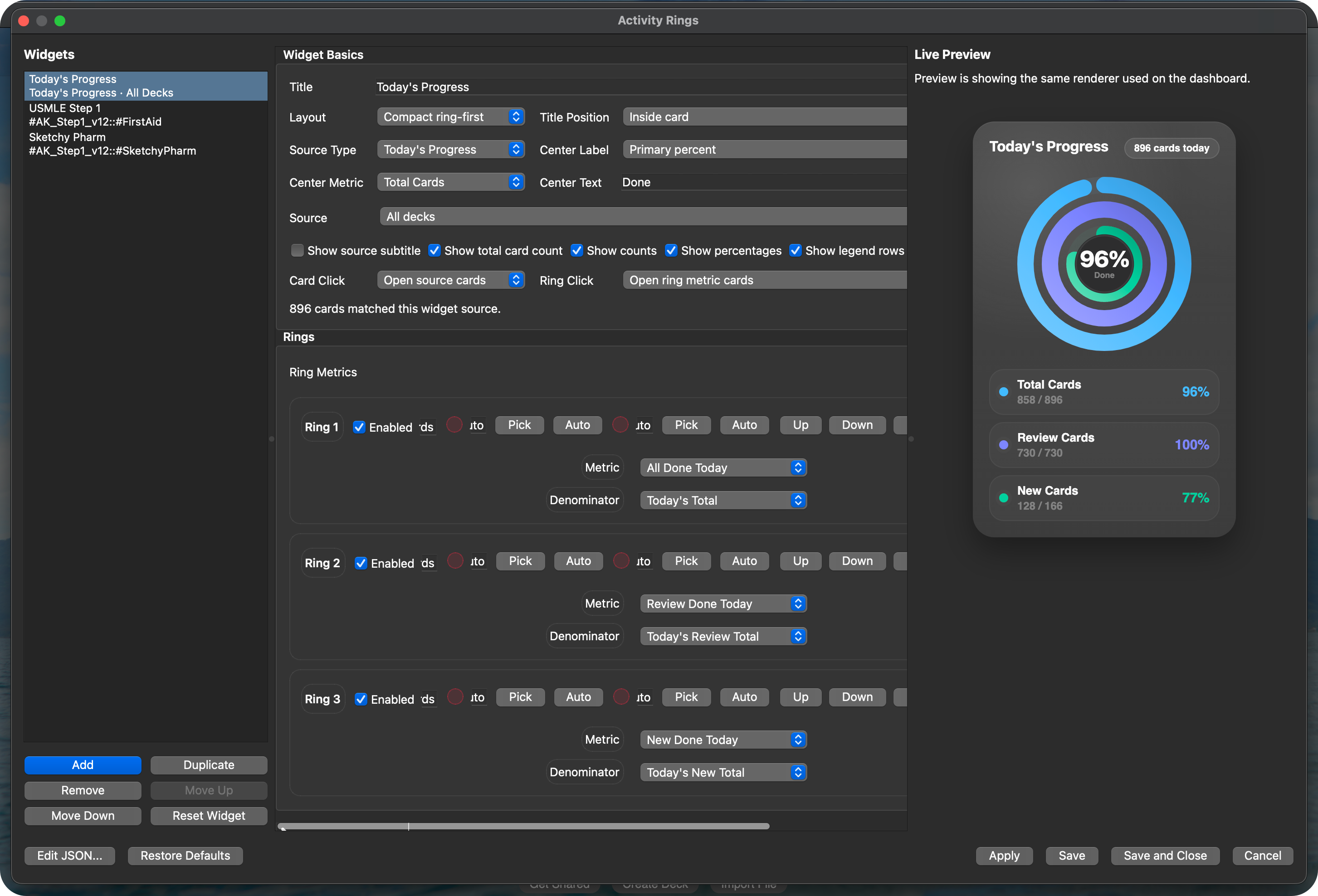
Use The Visual Editor
Open Tools -> Activity Rings or Tools -> Add-ons -> Activity Rings -> Config.
The editor is organized into:
- a left sidebar for adding, duplicating, removing, and reordering widgets
- a main editor for widget source, layout, ring semantics, and appearance
- an always-visible live preview that uses the same renderer as the dashboard
You can also:
- choose which ring drives the center percentage/count
- override the center caption text
- change the center percent text size
- keep all dashboard cards the same size with
Match widget sizes
- place the dashboard above or below the rest of the deck browser / overview content
Source Modes
Each widget can use one source:
Tag: choose a tag, with optional child-tag inclusionDeck: choose a deckSearch: use any Anki search query as the widget sourceToday's Progress: show today's new/review progress for all decks or one specific deck
Examples:
tag source: #AK_Step1_v12::FirstAidsearch source: deck:"Step 1" -is:suspendedtoday source: all decks, or one deck such as Step 1::Pharm
Tag matching tolerates optional leading # on tag segments, so #Parent::#Child and Parent::Child resolve to the same hierarchy.
If a tag source is left empty on purpose, the widget stays saveable as a placeholder, shows empty rings with Tag Empty, and clicking that dashboard card opens the standalone tag picker.

Ring Semantics
Each ring has:
metric: the numerator ruledenominator: the denominator rule
Built-in metric choices include:
allmatureyoungunsuspendedsuspendedburiednewnon_newlearningreviewdueleechreviewedtoday_review_completedtoday_review_totaltoday_new_completedtoday_new_totaltoday_all_completedtoday_all_total
You can also use Custom Search for either the numerator or denominator.
Examples:
Mature / UnsuspendedYoung/Learning / UnsuspendedUnsuspended / AllDue Today / UnsuspendedCustom Search / Custom Search
Default Ring Presets
New installs and Restore Defaults now start with three widgets:
Today's ProgressTagTag
The two study-source widgets intentionally start as empty tag placeholders so you can assign your own tags without editing JSON. Clicking either placeholder card on the dashboard opens the tag picker, and after you choose a tag you can immediately set the widget title.
That keeps the daily default motivating, while tag/search widgets still use honest maturity/availability semantics instead of pretending every ring is “completion.”
Click Actions
Widgets can open the Anki Browser:
- clicking the card can open the widget source
- clicking the ring can open the primary metric or the source
- clicking a metric row can open that metric’s numerator query
- if a tag widget has no tag selected yet, clicking the card opens the standalone tag picker instead
This makes the dashboard usable for drill-down, not just display.
JSON Still Works
The visual editor is the main workflow, but JSON config still works.
Edit JSON... is available inside the visual editor- malformed JSON is normalized safely where possible
- invalid widgets are repaired or skipped with warnings instead of crashing Anki
Example JSON
{
  "global": {
    "show_on_screens": ["deckBrowser", "overview"],
    "panel_margin": 18,
    "panel_spacing": 16,
    "cache_ttl_seconds": 30,
    "hide_when_no_widgets": false,
    "dashboard_position": "top",
    "theme": "auto",
    "palette": "soft",
    "default_card_style": "native",
    "debug_timing": false
  },
  "widgets": [
    {
      "id": "first_aid",
      "title": "First Aid",
      "source": {
        "type": "tag",
        "tag": "#AK_Step1_v12::FirstAid",
        "include_children": true
      },
      "layout": {
        "mode": "compact",
        "title_position": "inside",
        "show_source_subtitle": false,
        "show_total_cards": true,
        "show_legend": true,
        "show_counts": true,
        "show_percentages": true,
        "ring_size": 204,
        "ring_thickness": 18,
        "ring_gap": 8,
        "card_min_width": 290,
        "card_max_width": 390,
        "card_aspect_ratio": 1.08,
        "card_padding": 18,
        "center_label_mode": "primary_percent",
        "primary_ring_id": "mature",
        "center_label_text": "",
        "center_value_font_size": 30,
        "center_value_auto_fit": true,
        "center_caption_font_size": 11,
        "center_caption_auto_fit": true,
        "click_action": "source",
        "ring_click_action": "numerator"
      },
      "style": {
        "background_color": "auto",
        "card_opacity": 0.92,
        "border_color": "auto",
        "shadow_enabled": true,
        "track_color": "auto",
        "use_glow": false
      },
      "rings": [
        {
          "id": "mature",
          "enabled": true,
          "label": "Mature",
          "metric": { "type": "builtin", "name": "mature" },
          "denominator": { "type": "builtin", "name": "unsuspended" },
          "color": "auto",
          "track_color": "auto"
        },
        {
          "id": "young",
          "enabled": true,
          "label": "Young/Learning",
          "metric": { "type": "builtin", "name": "young" },
          "denominator": { "type": "builtin", "name": "unsuspended" },
          "color": "auto",
          "track_color": "auto"
        },
        {
          "id": "active",
          "enabled": true,
          "label": "Unsuspended",
          "metric": { "type": "builtin", "name": "unsuspended" },
          "denominator": { "type": "builtin", "name": "all" },
          "color": "auto",
          "track_color": "auto"
        }
      ]
    }
  ]
}