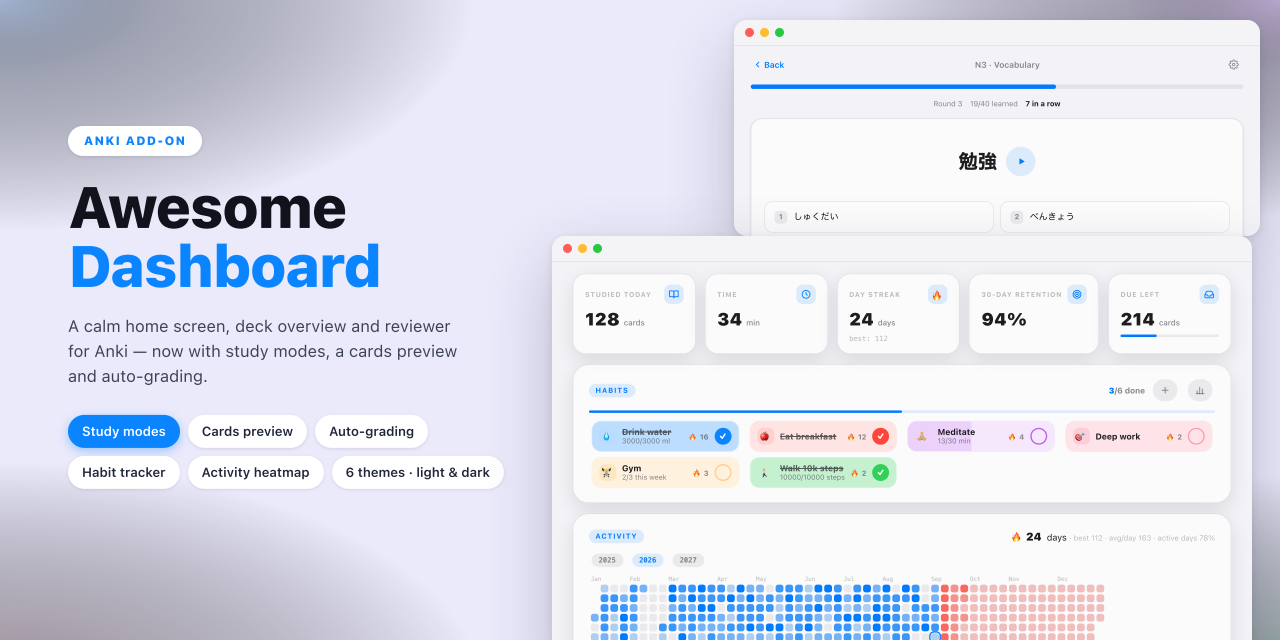
Awesome Dashboard — for Anki
Tiếng Việt · English





Awesome Dashboard replaces Anki's deck screen, deck overview and review chrome
with a single, consistent interface: stat cards, a GitHub-style activity
heatmap, a Pomodoro timer, a habit tracker, exam countdowns and an optional
sidebar — across six colour themes with matching light and dark palettes, in
English, Vietnamese, Brazilian Portuguese and Japanese.

Requires Anki 23.10 or newer (developed and tested on Anki 26.08).
📊 Dashboard
A time-of-day greeting, quick actions, stat cards, an activity heatmap you can
browse year by year, and a Pomodoro timer that keeps running while you study.
Exam countdowns sit under the greeting and turn orange inside 14 days.
The sidebar is optional and comes in two widths — full, or a compact icon rail.
While it is shown, the deck list and the header card move into it, with deck
search and a tinted icon per deck.
Decks nest by drag and drop, as in Anki's own deck browser: hold a deck for a
moment, drag it onto another and drop. To move one back to the top level, drop
it on the list header or on the band that appears under the list. Every row
also carries Anki's gear, which opens the deck's own menu: rename, options,
export, delete.
✅ Habits
A strip of habits under the stat cards: one click ticks today off, and the
click does not reload the page. Habits can be yes/no or counted towards a
target (2500 of 3000 ml, 25 of 30 minutes), and can repeat every day, on chosen
weekdays, or a number of times a week — that last one is scored by the week, so
skipping Tuesday costs nothing as long as the week adds up.
Report opens week, month and year views: a seven-day grid with per-day
totals, a calendar per habit, and a GitHub-style year strip, each with
completion rate, full days and best streak.
Habits live in your collection, so they ride along in .colpkg backups and in
sync between desktops. Deleting a habit archives it and keeps the history;
removing it for good is a separate, confirmed action.
📚 Deck overview
Back link, deck icon and description, three count cards, one primary study
button, a 7-day forecast built from the scheduler's real due dates, the
subdeck list, and quiet footer actions (options, custom study, rename, export,
description). Anki's own bars are hidden here — the page carries its own.
🎯 Study modes
Four Quizlet-style ways to work through a deck, opened with the Study modes
button on its overview. They run in the same window — no second webview, no
separate app — and by default none of them touches your review schedule.
| Mode |
What it does |
| Flashcards |
Flip through the deck at your own pace, shuffle, play audio |
| Learn |
Rounds of seven that get harder as a term sticks: true/false, then multiple choice, then typing it out. Miss one and it drops back a level |
| Test |
A fixed number of questions in a mix of kinds, marked at the end with a list of what you got wrong |
| Match |
Pair terms with definitions against the clock, with a personal best per deck |
Typed answers allow a spelling slip — a transposition or one edit in a longer
word — and say so rather than accepting it silently; a field holding several
synonyms accepts any one of them. A Learn session is saved in your collection,
so it survives closing Anki and syncs between desktops.
Which fields go on each side is worked out from the card template, not from
the order the fields happen to be in — so a note type whose first field is a row
number still gets the word, and a reverse card is a different question rather
than the same one twice. Pick them from the deck's own Study modes
screen, one setting per note type — up to two fields on the front and three on
the back — where the first
field on a side is the one being asked about, the rest is shown alongside it,
and a Details button on any revealed answer opens the whole card exactly as
the review screen draws it. Session lengths and question kinds are set there
too, on the deck, rather than in a window of their own. Cloze and Image Occlusion cards are left to
Anki's own reviewer.
🖼️ Cards preview
Every card in a deck as a grid of flippable tiles, opened with the Cards
preview button on its overview. Like the study modes it draws into the same
window — there is no second one to open or close.
Click a tile to turn it over, or set it to turn on hover; Flip all shows
every answer at once. Columns, rows per page, tile shape (tall through wide),
text size and card order are set on the grid itself, and they are remembered.
A dot in the corner says whether a card is new, learning, due, suspended or
buried, and a flag shows as a coloured square.
Tiles show what Anki itself renders, so cloze deletions, conditional templates
and furigana all come out right — images and audio included, which is the
one thing the add-on this was modelled on says it cannot do. TeX is typeset
with Anki's own MathJax, fetched only when a card on screen actually has any.
What a tile does not use is the note type's own stylesheet: it is written for
a full screen and falls apart at 270px, so tiles are drawn in the add-on's
palette instead, with the font sizes a field asks for scaled to fit.
🎴 Review screen
The header (back, deck name, edit, more) and footer (remaining counts, then
Show answer or the four rating buttons) are drawn in the page, so Anki's top
toolbar and answer bar can step aside. Rating intervals come from the
scheduler, so they follow your deck presets and FSRS.
An optional card skin rebuilds the answer from the note's fields — reading
above the word, audio button, numbered meanings, image, collapsible example and
notes — with a horizontal flip animation. Click or press Space to flip; rate
with the arrow keys or a mouse swipe and the card flies away.
Auto-grading is the other optional mode, and it changes how you answer.
Show answer works exactly as it always did, with a countdown bar underneath
showing which band you are in — and the time you took to get there picks Easy,
Good or Hard for you. Let the bar run out and the answer appears on its own,
graded Again. On the answer side you then say only whether you knew it — ←
no, → yes, Space to confirm — instead of judging how well; the keys are
listed under the card. The four rating buttons are hidden, and a click on the
result brings them back with the auto-picked one marked, so a mistake is one
click from fixed. The clock stops whenever Anki is
not the active window, so stepping away never costs you a card, and time spent
reading the answer never counts. Set the thresholds — globally or per deck —
in Settings → Decks.
Beside the edit button, an undo control puts back the card you just
answered, and Anki's own toast confirming it is drawn in the theme's colours.
Skip — the button at the right of the bottom bar, or C — sets the
current card aside for the rest of the session: it is buried, and comes back
the moment you leave the review screen, so a card you cannot deal with right
now is never pushed to tomorrow. The key can be changed in Settings →
Decks.
⚙️ Settings
Eight pages, laid out like macOS System Settings:
| Page |
What's in it |
| 📋 General |
Name, greeting, language, sidebar mode, dashboard sections, Pomodoro lengths |
| 🎨 Appearance |
Theme, light/dark mode, which screens to theme, hiding Anki's native bars |
| 🗂️ Decks |
Per-deck card skin and auto-grading, answer-time thresholds, the skip-card key, and rename / options / export / delete |
| 🧠 FSRS |
Enable FSRS, desired retention, optimise and evaluate parameters |
| 🎯 Study modes |
Whether the study modes and the cards preview appear, and whether a study mode may grade cards |
| 📅 Events |
Exam countdown list |
| ✅ Habits |
The habit list: add, edit, reorder, archive |
| ℹ️ About |
Version, webview build, and the reset options |
Configuration keys are documented in config.md. Prefer the dialog
over editing the JSON directly.
🧠 FSRS
Anki ships the FSRS scheduler natively; this add-on drives it from one place —
global on/off, per-preset desired retention, parameter optimisation and
evaluation, and days since the last optimisation.
🎨 Themes
Six themes (Terracotta, Glass — Apple HIG, Matcha, Aurora, Sunset, Sakura),
each with light and dark palettes — Aurora and Sunset paint their accent as a
gradient — plus a System / Light / Dark switch that
changes Anki's own appearance. Switching cross-fades the open page instead of
re-rendering it. Optionally themes Anki's other screens (Add, Browse, Stats,
dialogs) through its CSS variables and the Qt palette.
🌐 Languages
English, Tiếng Việt, Português (Brasil) and 日本語, following Anki's language
by default. Every
string lives in i18n/<code>.json — copy en.json, translate the strings
values, and the new language appears in Settings on the next restart. Each file
also carries its own month and weekday names, thousands separator and date
order, so dates read naturally. Missing keys fall back to English, so a partial
translation is fine, and python3 tools/check_locales.py reports gaps.
Anki's own screens — its toolbar, Add, Browse, deck options, even the rating
button labels — follow Anki's language, not this setting. So after you pick a
language the add-on offers to switch Anki to it as well and restart. Declining
keeps your current language rather than leaving the two out of step.
📥 Install
From AnkiWeb — in Anki, Tools → Add-ons → Get Add-ons…, then paste the
code 1243176816. Updates arrive
automatically from then on.
From a file — download the .ankiaddon from the
latest release,
then Tools → Add-ons → Install from file… and pick it.
Either way, restart Anki afterwards, then open Tools → Awesome Dashboard
Settings… (or the ⚙ button on the dashboard).
📄 Licence
MIT — see LICENSE.