Anki Excel Sync

AnkiWeb addon 1832015432

Batch exports Anki notes to .xlsx files organized by tag hierarchy and re-imports edits, preserving scheduling while allowing creation, modification, and deletion of cards.
AI-generated summary; may contain mistakes.

importexportnote-managementtagging

Open on AnkiWeb GitHub Find alternatives

AnkiWeb

Votes
28 (πŸ‘ 26 Β· πŸ‘Ž 2)
Updated
2026-05-18
Anki versions
25.09.4~
License
MIT (from the license file in the package)
Virus scan
No ClamAV match A match does not prove malware. No match does not prove that the code is safe.
Languages
Python, XML, Julia, JSON
Description language
en

Maintenance

active

  • Last update or commit: 2026-05-18 (167 days before the snapshot).
  • Test files: 154.
  • GitHub Actions workflows: 1.
  • Commits in the last year: 2.
  • Issues: 7 open, 20 closed.
  • Pull requests: 0 open, 1 merged.
  • Median first response: 10 hours (25 answered issues and pull requests).
  • Outside pull requests: 100% of 1 merged.

Will it work on my Anki?

Version branches
Min AnkiMax AnkiUpdated
2.1.152.1.382021-01-28
2.1.5025.09.4+2026-05-18
History across monthly snapshots

Loading…

Similar addons

Batch Edit Tools

Batch adds tags from vocabulary lists, replaces or clears specified field content, and fetches word pronunciations via API into card fields.

sync-integrationnote-managementtagging

4 votes 30% approval πŸ‘ 3 Β· πŸ‘Ž 1 ⭐ 0 Anki 23.09~ Updated 2024-05-26
export cards/notes from browser with metadata to csv or xlsx

Exports selected browser cards or notes, including visible columns, field HTML, and metadata such as interval and due dates, to CSV or XLSX, optionally using configurable field sets.

export

37 votes 82% approval πŸ‘ 35 Β· πŸ‘Ž 2 Anki 24.04~ Updated 2024-03-28
Card to Image Exporter

Exports selected Anki cards' answer sides as high-quality PNG images in bulk, organized by deck, rendering HTML, CSS, embedded images and MathJax formulas with customizable output settings.

export

1 votes 21% approval πŸ‘ 1 Β· πŸ‘Ž 0 Anki 25.02.5~ Updated 2025-05-27

Description

Anki Excel Sync GitHub link

An addon that lets you add cards and edit them via Excel. It batch syncs all excel files in a directory, and all notes that has specified tags. Creates an excel file per each tag.

Note: Supports only .xlsx files. (Microsoft Excel file) Notes cannot have more than two tags with selected super-tag. (Super-tag is the top-most level of hierarchical tags. Super-tag of tag science::physics::var would be science) If there are formulas in excel files, the formula itself will be seen as values, not computed values. Images put directly into excel files will not be loaded into Anki. Use Anki to put images inside notes. If you delete, rename, or modify a note type, Excel -> Anki will not work until Anki -> Excel runs. Import your edited excel files before changing note type. If you find any bugs, please report them here instead of in the comments. I do not get any notification from the comments. Alternatively, you could message me on reddit u/bluegreenmagick.

Setup

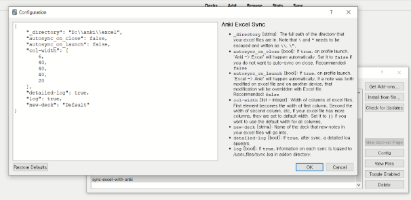
After downloading the add-on, restart Anki. Edit config set _directory. (Tools > Addon > Anki Excel Sync > Config) The excel files will be written to the directory, and searched from the directory. It is recommended to set it to an empty directory - other excel files in the directory will be deleted.

In the directory, make sub-directories with the names, the super-tags of notes you wish to sync.

Excel File Format

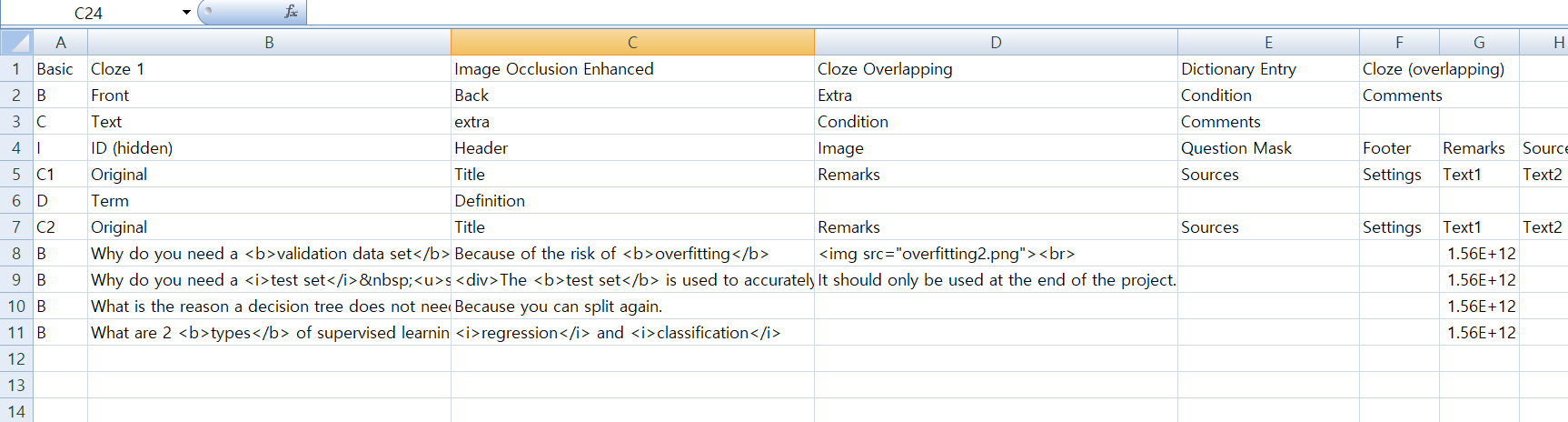
1st row: Names of note types.
<b>2nd row~</b>: note-type-rows. Each row represents one note type.
        <b>1st column</b>: designator of note type. Can be any sequence of letters.
        <b>2nd column~</b>: name of fields in note type. 
                *Must be the same as the name of fields of note type in Anki, or it will not work.

<b>n+2 row~</b>: note-rows. Each row represents one note.
        <b>1st column</b>: designator of this note's note type specified in note-type-rows
        <b>2nd column</b>: value for each fields. 
                *The order must be the same as the order specified in the note-type-row. 
                *You can leave it blank if you want.
        <b>Last column</b>: note id in Anki. 
                *The addon will automatically fill this cell in, so there is no need to put anything here. If it doesn't exist, creates new note.

Obviously, you aren't expected to type all the note type stuff. Intended use is to run 'Anki -> Excel' first, then edit / add notes on it.

Credits Thanks to finia2NA for adding compatibility for 2.1.50+

README

Anki Excel Sync

An addon that makes it much easier to export and import (sync) notes from Excel. Does not affect existing note schedule.

Note:

Supports only .xlsx files. (Microsoft Excel file) Notes cannot have more than two tags with selected super-tag. (Super-tag is the top-most level of hierarchical tags. Super-tag of tag science::physics::var would be science) If there are formulas in excel files, the formula itself will be seen as values, not computed values. Images put directly into excel files will not be loaded into Anki. Use Anki to put images inside notes. Note that All other excel files will be deleted in the directories will be deleted on Anki -> Excel sync. It is recommended to sync on a designated empty folder.

Setup

After downloading the add-on, restart Anki. Edit config set _directory. (Tools > Addon > Anki Excel Sync > Config) The excel files will be written to the directory, and searched from the directory.

In the directory, make sub-directories with the names, the super-tags of notes you wish to sync.

How To Use

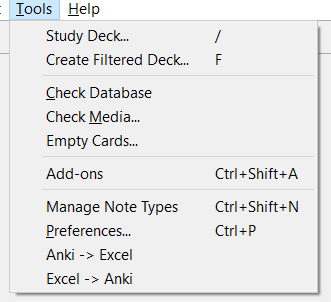
After following the steps in Setup, clicking on Tools > Anki -> Excel will export anki notes to excel files, clicking on Tools > Excel -> Anki will import excel files into anki notes. A confirmation popup will pop up.

If a Excel -> Anki sync was accidentally made, and needs to be reverted, backups are created before sync, so use backup from Anki's back up folder. Anki -> Excel sync cannot be reverted.

What It Does

This add-on batch syncs all excel files in a directory, and its corresponding cards in anki.

If _directory is set to D:\\Anki\\Excel, and the directory structure looks like this:

Anki
β”œβ”€β”€ Excel
|   β”œβ”€β”€ french
|   β”œβ”€β”€ chinese

And your tag structure looks like this:

french : total 1330 notes
β”œβ”€β”€ french::word : 30 notes, total 1230 notes (including sub-tags)
|   β”œβ”€β”€ french::word::noun : 1000 notes
|   β”œβ”€β”€ french::word::verb : 200 notes
β”œβ”€β”€ french::grammar: 100 notes
chinese : 400 notes

The excel files are created per tag in tag hierarchy. After running a Anki -> Excel sync, the directory structure will look like this:

Anki
β”œβ”€β”€ Excel
|   β”œβ”€β”€ french
|   |   β”œβ”€β”€ word
|   |   |   β”œβ”€β”€ noun.xlsx
|   |   |   β”œβ”€β”€ verb.xlsx
|   |   β”œβ”€β”€ word.xlsx
|   |   β”œβ”€β”€ grammar.xlsx
|   β”œβ”€β”€ chinese
|   β”œβ”€β”€ chinese.xlsx

After exporting anki notes to excel files, you can edit the excel files. You may create, modify, or delete rows. When editing is complete, click Excel -> Anki to import them in. The schedules will be preserved as long as the card id cell was not modified.

Excel File Format

**1st row**: Names of note types.

**2nd row~**: note-type-rows. Each row represents one note type.<br>
        **1st column**: designator of note type. Can be any sequence of letters.<br>
        **2nd column~**: name of fields in note type. <br>
                *Must be the same as the name of fields of note type in Anki, or it will not work.<br>

**n+2 row~**: note-rows. Each row represents one note.<br>
        **1st column**: designator of this note's note type specified in note-type-rows<br>
        **2nd column**: value for each fields. <br>
                *The order must be the same as the order specified in the note-type-row. <br>
                *You can leave it blank if you want.<br>
        **Last column**: note id in Anki. <br>
                *The addon will automatically fill this cell in, so there is no need to put anything here.<br>