Keshiki 景色
Background scenes for Anki's main window that follow the sun through the day, and can change once you're done studying.

- One picture across the whole window. The toolbar, the main area and the bottom bar show one continuous image, with no seams where they meet.
- Day cycles. Give a scene dawn, day, dusk and night versions. Each fades in between two moments of the sun you choose (from first light to sunrise, say), at a set time, or after the version before it finishes its transition, for the real sun where you are or the sunrise and sunset times you set.
- Daily lighting. Optionally light your day-cycle scenes (or all scenes) by the sun's height: warm low sun, plain midday, blue twilight and a dim, faded night, based on published daylight measurements and night-vision research. At night, a picture's own lights (lit windows, lamps, stars) stay lit and glow softly.
- All done for today. Show different scenes once nothing is left to study in any deck.
- Albums and shuffle. Add a batch of pictures, or a whole folder, and they become an album; a folder's album can stay in step with the folder as you add to it. On a screen, an album's pictures take turns with its other scenes: every 15 minutes up to once a day, or each time Anki starts. A screen with a single scene keeps it.
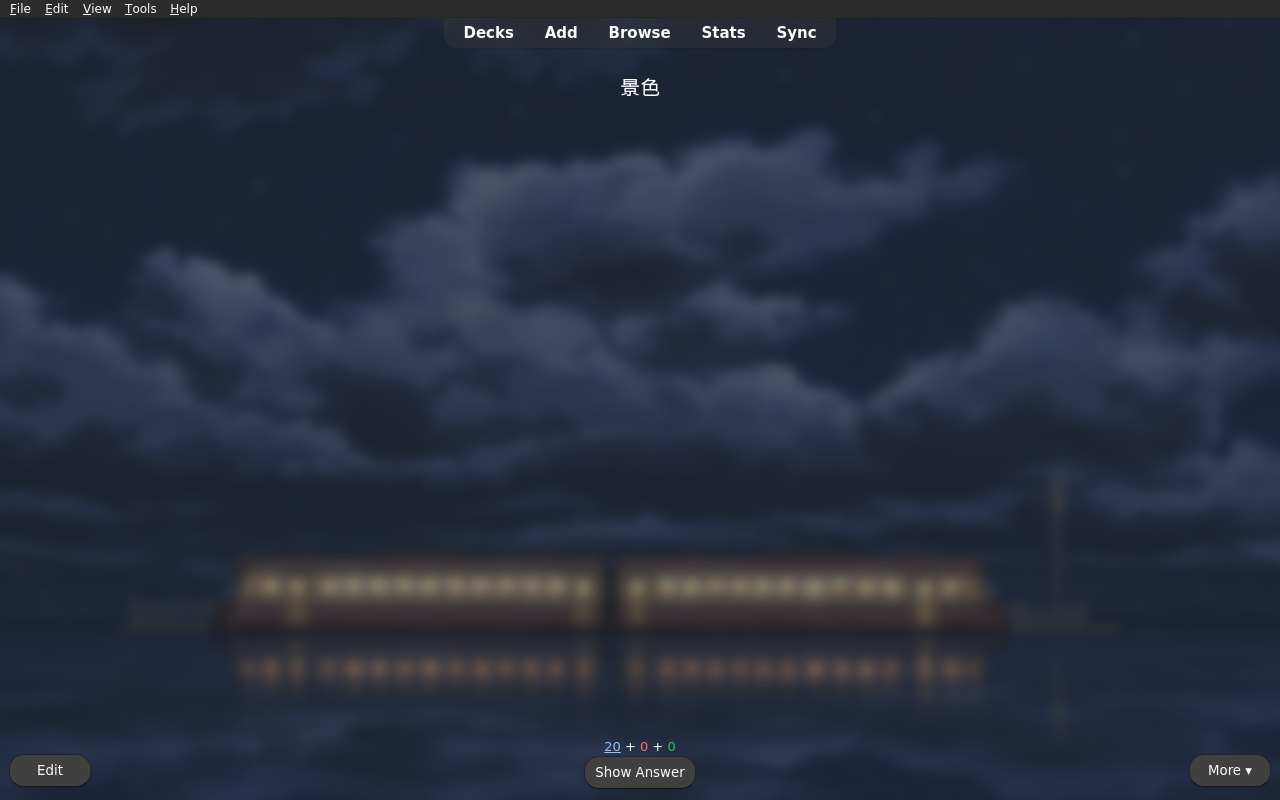
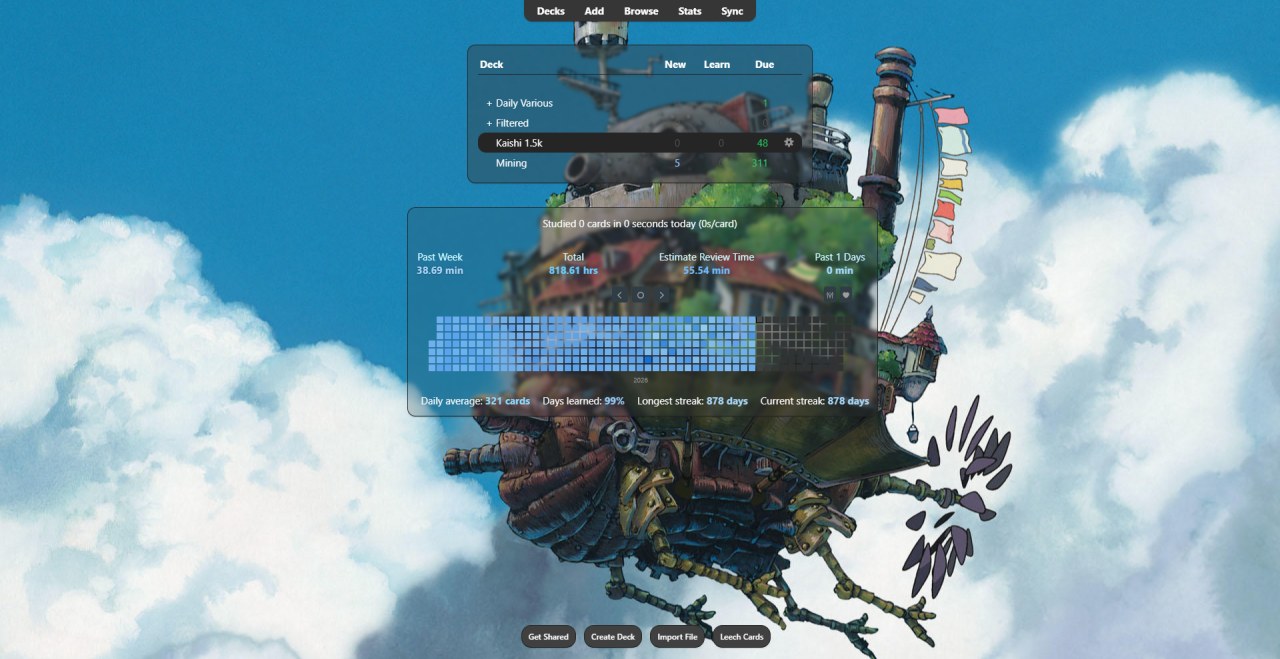
- Readable. Dim and blur are set separately for the deck list and for studying, and dimming follows Anki's light or dark theme. With backdrops on, the deck list panel and the statistics under it (a heatmap, say) sit on blurred panels, and text that's hard to read on the picture gets a slight color shift or an outline.

Using it
Open Tools → 🖼️ Keshiki.
- On Screens, choose Add images.... Several pictures become an album on the deck list, taking turns. Later, add pictures on Scenes; Combine pictures... there folds single-picture scenes into an album.
- On Scenes, under New scene, choose Day cycle, then pick a picture for each version. Drag along the strip under the preview to see any time of day, or press ▶ to watch the next 24 hours as a timelapse. Anki's main window follows along until you press Back to now.
- Back on Screens, give Studying its own scenes if you like, and set dim and blur. Turn on Use backdrops for the deck list and adjust them on Backdrops.
Your edits show in the main window as you make them; if that's slow on your computer, untick Preview in Anki's window at the bottom, and it changes only when you save. Save keeps them and Cancel puts things back.

Screenshots use stills from Studio Ghibli films © Studio Ghibli.
For day cycles that follow the real sun, choose Use my location on Day & time. Click Find my location to look up a rough location from your internet address (through ipapi.co). Nothing is sent until you click it. You can also type coordinates instead.
Images are copied into the add-on's user_files folder, so they stay when the add-on updates. Picture library & trash... under the scene list shows which are in use; unused ones go to a trash, where you can restore them or empty it. A folder kept in step isn't copied at all, and hiding a picture in its album (the crossed-out eye) leaves the folder untouched.
A picture much bigger than your screen, like a camera photo, is shown from a copy sized for the screen, and on a screen with blur, a smaller one, the smaller the more the blur. Anki stays quick. Without blur, fine detail can look a little softer; to show pictures as they are there, turn off Optimize large backgrounds on the General page. On a screen with blur, the blur hides the difference, so copies are always used. If Anki still lags or stutters, try Tools → Preferences → Appearance → Video driver: OpenGL in Anki, then restart it. The copies are kept in user_files/display, up to 1 GB; your pictures are never changed, and deleting that folder is safe.
Keshiki needs Anki 26.08 or newer. Turn off other background add-ons (like Custom Background Image and Gear Icon) while you use it. They draw over its picture.
More add-ons
- Tsunagi connects your Anki collection to dictionary tools, mining apps and scripts. It works with existing AnkiConnect tools, and its own API adds collection queries, FSRS and change events.
Development
Keshiki's plumbing (wiring with Anki, settings page shell, live reload, build
and test tooling) is Kiso, bundled into keshiki/_kiso/ when it's
built.
python -m venv .venv && . .venv/bin/activate
pip install pytest ruff "aqt[qt]" -e ../kiso
ruff check . && python -m pytest -q      # bundles Kiso first
tools/qt_checks.sh --screenshots /tmp/shots   # real Anki, offscreen
kiso build                               # dist/keshiki-<version>.ankiaddon
kiso sync --watch                        # copy into your Anki's addons21/keshiki
- GitHub Actions runs the same on every push (Kiso's add-on workflows: tests on Anki 26.08 and the newest, the real-Anki checks, the build). A tag
v<version> makes a draft release with the .ankiaddon and its .sha256.
- After the first sync and a restart, a running Anki reloads Keshiki on every sync, with no restart. The synced copy is listed as "Keshiki (dev)". Changes to the root
__init__.py still need a restart.
- To reload by hand, open Anki's debug console (Ctrl+Shift+;) and run
import keshiki; keshiki.reload_addon().
- Keshiki logs to Anki's
logs/addons/keshiki/ folder, which Tools → Add-ons → View Files opens one level up.
tools/qt_checks.sh fails on any deprecation notice Anki prints. Set KISO_STRICT_ANKI_NOTICES=1 to make pytest do the same; without it, notices are listed at the end of the run. On Linux the real-Anki checks need Qt's usual system libraries.