# Quick Bubble Search (Google & YouTube)
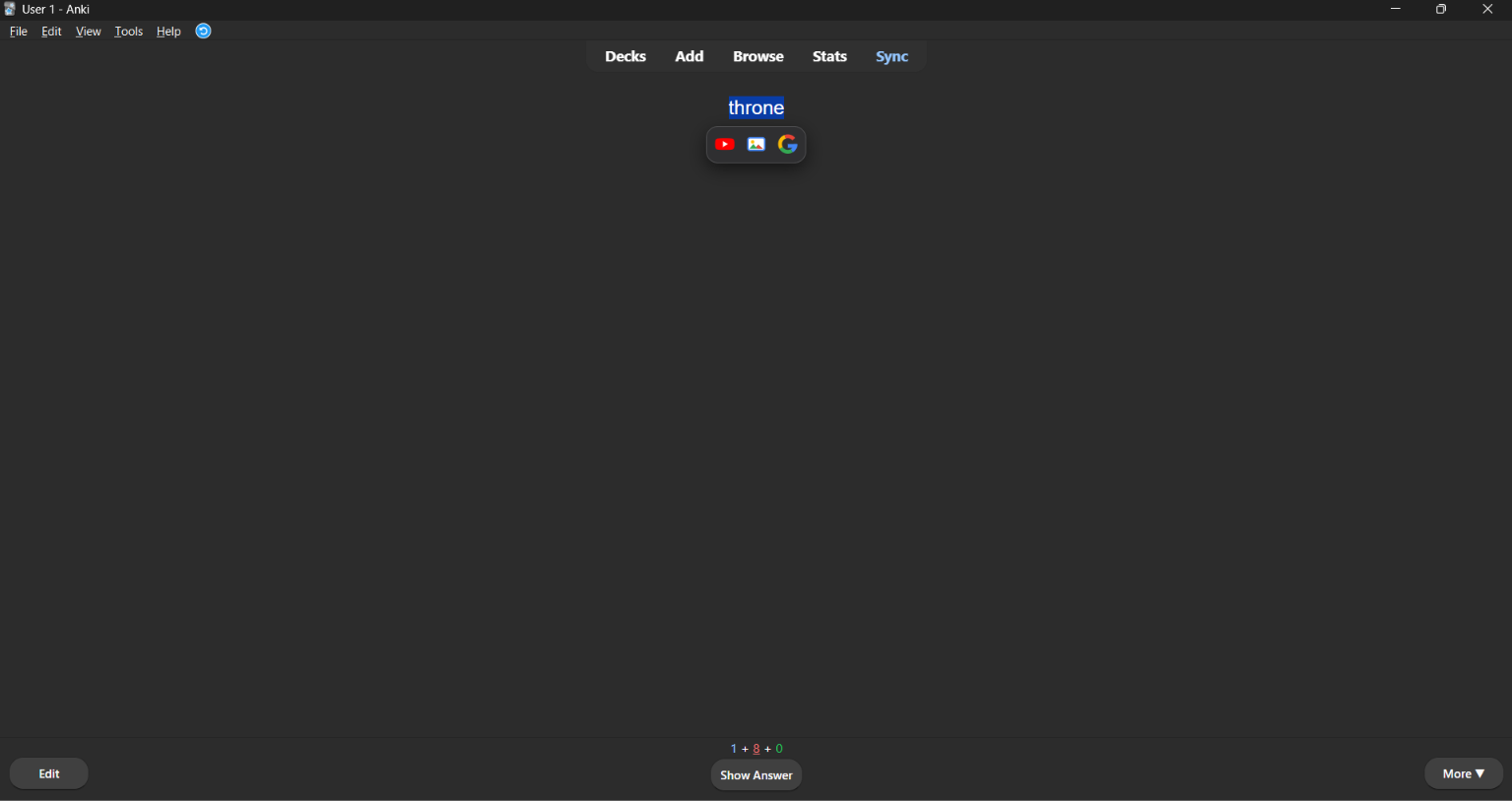
An Anki add-on. Double-click a word on a flashcard and small YouTube,
Google Images and Google icons appear right next to it. One click opens
the search in your browser. Any other website can be added from the settings.

Two ways to use it:
- Floating icons - double-click a word (or drag over a phrase) while
reviewing, in the card previewer, or in the card layout screen. The icons show
up next to the selection.
- Right-click menu - the same searches, and this one also works in the note
editor (Add and Browse) and in the reviewer More menu (
m key).
Both only show up when there is actually a selection, so nothing gets in your
way while you study. Either one can be switched off in the config.
Install
From AnkiWeb (recommended)
Tools > Add-ons > Get Add-ons... and paste the code 458766448, or open the
add-on page.
From a release file
Download context_search.ankiaddon from the
releases page,
then double-click it, or use Tools > Add-ons > Install from file....
From source
Tools > Add-ons > View Files - this opens .../Anki2/addons21.- Copy the
context_search folder into it.
- Restart Anki.
Usage
Icons
- Click any word on the card - it gets selected and the icons appear above it.
- Click the YouTube or Google Images icon.
Dragging across a phrase works too. Esc, scrolling, or clicking somewhere else
dismisses the icons.
Right-click
- Select a word or phrase.
- Right-click it.
- Choose
Quick Bubble Search (Google & YouTube) > YouTube: "..." or the
Google Images: "..." entry next to it.
That submenu is named after the add-on. Shorten it with submenu_label in the
config if it takes up too much room.
The search opens in your normal web browser.
The selection is tidied up before searching: {{c1::word}} is searched as
word, [sound:...] tags are dropped, line breaks collapse into spaces, and
surrounding quotes, brackets and commas are trimmed.
Settings
Tools > Quick Bubble Search (Google & YouTube)..., or the Config button
next to the add-on in Tools > Add-ons.
Searches tab - tick the ones you want, reorder them, and add any website
with Add...: a name, the search URL, and an icon. Test runs the search
once so you can check the URL before saving.
Behaviour tab - turn the floating icons off, let a single click select a word
as well (off by default, so only a double-click or a drag selects), set the icon
size, control the right-click menu per screen, and adjust how the selected text
is cleaned up.
Saving applies everything immediately, icons included.
Search URLs
Put a placeholder where the selected word goes:
| Placeholder |
Encoding |
Example |
{query} |
query string, spaces become + |
?q={query} |
{query_path} |
path segment, spaces become %20 |
/word/{query_path}/ |
{query_raw} |
no encoding |
special cases |
Without a placeholder the encoded word is appended to the end of the URL.
Icons
A built-in logo (YouTube, Google, Google Images, magnifying glass), a letter or
emoji badge, or your own image file. Chosen images are copied into
user_files/icons/, which survives add-on updates.
Google definitions, Forvo and YouGlish ship pre-written but unticked. Every
config key is documented in
context_search/config.md for anyone who prefers
editing config.json directly.
Development
context_search/       the add-on itself
  __init__.py         hooks, config and search logic
  settings.py         the settings dialog
  web/ctxsearch.js    the floating icon bubble (injected into the card webview)
  config.json         default settings
  config.md           reference for the config keys
  manifest.json       package id, name, version
  user_files/icons/   images added through the settings (not in git)
tools/check_addon.py  package sanity checks (no Anki needed)
build.ps1             builds dist/context_search.ankiaddon
docs/                 AnkiWeb description + publishing steps
screenshots/          images linked from the AnkiWeb page
python tools\check_addon.py   # validate the package
.\build.ps1                   # build dist\context_search.ankiaddon
How it works: webview_will_set_content injects web/ctxsearch.js plus a JSON
config into the card webview, and the bubble is built inside a shadow root so
note styling cannot reach it. Clicking an icon sends ctxsearch:<index>:<text>
through pycmd, which webview_did_receive_js_message picks up. The right-click
entries come from webview_will_show_context_menu,
editor_will_show_context_menu and reviewer_will_show_context_menu, reading
the selection with selectedText(). Either way the URL is opened with
aqt.utils.openLink. Nothing is sent anywhere else.
Publishing steps live in docs/publishing.md.
License
MIT - see LICENSE.