AnkiAnimatedBackground

Animated GIF and video backgrounds for Anki, with live preview and per-screen controls.

Overview
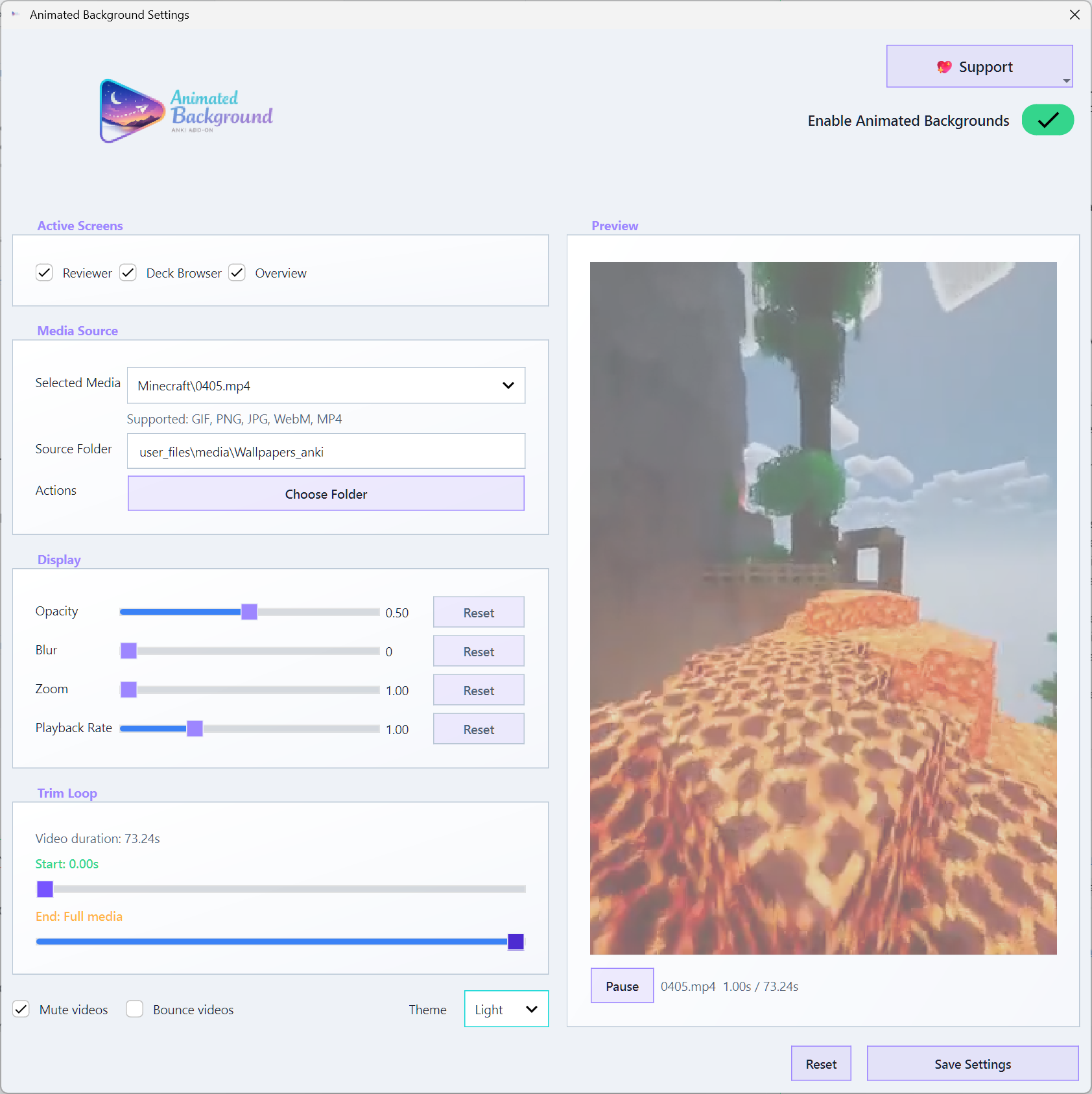
AnkiAnimatedBackground adds animated backgrounds to Anki's core study surfaces while keeping the add-on workflow focused on real usage:
- Reviewer support for card study sessions
- Deck Browser support for navigation and deck selection
- Overview support for deck landing pages
- Live preview in the settings dialog before saving changes
- Support for packaged sample media and user-selected local folders
- Controls for opacity, blur, zoom, trim, mute, and playback speed
Supported media formats:
Tutorial
Install
- Build or download the
.ankiaddon package.
- Open Anki.
- Go to
Tools -> Add-ons.
- Drag the
.ankiaddon file into the Add-ons window.
- Restart Anki.
First Run
- Open
Tools -> Animated Background.
- Leave the packaged sample selected, or choose your own source folder.
- Pick which screens should receive the background:
- Reviewer
- Deck Browser
- Overview
- Adjust the display controls:
- Opacity
- Blur
- Zoom
- Playback rate
- Trim start / trim end
- Mute
- Watch the live preview panel to confirm the result.
- Click
Save Settings.
Everyday Use
- Use packaged media for a zero-setup experience.
- Use your own local folder if you want to browse a personal wallpaper collection.
- If playback feels heavy, reduce video size, lower blur, or switch to a smaller file.
- If a file becomes unavailable, reopen settings and pick a valid source again.
Architecture
The add-on is intentionally split into a few small modules with clear roles:
__init__.py
Bootstraps the add-on, registers hooks, and exposes the settings dialog through Anki's Tools menu.src/config/config_manager.py
Owns config normalization, persistence, managed media handling, and source-folder resolution.src/injector/webview_injector.py
Injects image-based backgrounds and CSS into supported Anki webviews.src/injector/background_controller.py
Coordinates live background activation, native video playback, screen-state refresh, and cleanup.src/view/settings_dialog.py
Hosts the user workflow for selection, preview, tuning, reset, and save.
Runtime Map
Anki native runtime
Anki startup
Loads the add-on entry point.Main window / mw
Hosts the Tools menu and the current active screen.Reviewer / Deck Browser / Overview
These are the supported screens that trigger background refreshes.Qt WebView
The HTML surface used for image injection and normal Anki content.Qt Multimedia backend
The native playback backend used for video backgrounds.
Add-on components
__init__.py
Registers Anki hooks, creates shared services, and adds the Tools menu action.ConfigManager
Reads and writes profile-scoped add-on data, resolves selected media, and normalizes settings.SettingsDialog
Lets the user preview media, tune options, and persist changes.WebviewInjector
Injects CSS and image backgrounds directly into Anki's webview.BackgroundController
Decides whether a background should be active on the current screen and chooses the render path.NativeVideoBackground
Uses QMediaPlayer and a native overlay for video playback.
Add-on data
profile/addon_data/AnkiAnimatedBackground/config.json
Persistent settings.profile/addon_data/AnkiAnimatedBackground/media/
Managed imported media.assets/default_media/
Built-in sample backgrounds distributed with the add-on.
Startup and wiring
Anki startup loads __init__.py.__init__.py creates ConfigManager, WebviewInjector, and BackgroundController.__init__.py registers hooks on the Anki main window and exposes SettingsDialog from the Tools menu.
Settings flow
SettingsDialog loads current values from ConfigManager.- Live preview and staged changes are sent through
BackgroundController.
- Saving writes normalized settings back through
ConfigManager.
Image background path
- A supported Anki screen renders into
Qt WebView.
BackgroundController checks screen state and config.- For image media, it delegates to
WebviewInjector.
WebviewInjector injects CSS and an image layer into the webview.
Video background path
- A supported Anki screen renders into
Qt WebView.
BackgroundController checks screen state and config.- For video media, it delegates to
NativeVideoBackground.
NativeVideoBackground plays through the Qt Multimedia backend.- The video is drawn as a native overlay above the webview instead of as injected HTML.
Data access
ConfigManager reads and writes profile-scoped add-on data.ConfigManager resolves managed files from the profile media directory.ConfigManager resolves packaged defaults from assets/default_media/.
Screen refresh rules
- Anki screen-change hooks notify
BackgroundController.
BackgroundController re-evaluates the current target screen and selected media.- If the screen is unsupported, disabled, or media is missing, the add-on clears the active background.
Design Patterns
- Single source of truth:
ConfigManager owns normalized runtime configuration and media-path resolution.
- Controller pattern:
BackgroundController decides when backgrounds should appear, disappear, or fail closed.
- Strategy split by media type:
image backgrounds are webview-injected, while video backgrounds use native Qt playback.
- Staged editing workflow:
the settings dialog lets the user preview and tune values before persisting them.
- Defensive path handling:
media resolution stays rooted to the add-on or the chosen source folder to avoid path escapes.
Project Layout
AnkiAnimatedBackground/
|-- __init__.py
|-- src/
|   |-- config/
|   |-- injector/
|   `-- view/
|-- assets/
|   |-- default_media/
|   `-- packaging/
|-- tests/
`-- dist/
Data Storage
Runtime data is stored in the active Anki profile:
<profile>/addon_data/AnkiAnimatedBackground/config.json<profile>/addon_data/AnkiAnimatedBackground/media/
Packaged sample media lives inside the add-on package:
addons21/<addon>/assets/default_media/Wallpapers_anki/
Older versions stored runtime files under addons21/<addon>/user_files/. On startup, the add-on migrates those files into the profile data directory and retires the legacy folder so future Anki updates do not need to rename it.
Development
Build a local package with:
.\.venv\Scripts\python.exe package.py
Deploy to your local Anki add-ons folder with:
.\.venv\Scripts\python.exe deploy.py
Run the current test suite with:
.\.venv\Scripts\python.exe -m unittest discover -s tests -v
Notes And Limitations
- Desktop only.
- Large GIFs and videos can affect Anki responsiveness and memory usage.
- Video playback quality depends on Qt multimedia backend support on the host machine.
- Some codec or platform-specific failures may require switching to another file format or re-encoding the source video.
Output
Packaging produces:
dist/AnkiAnimatedBackground_<version>.ankiaddon
License
GPL-3.0. See LICENSE.