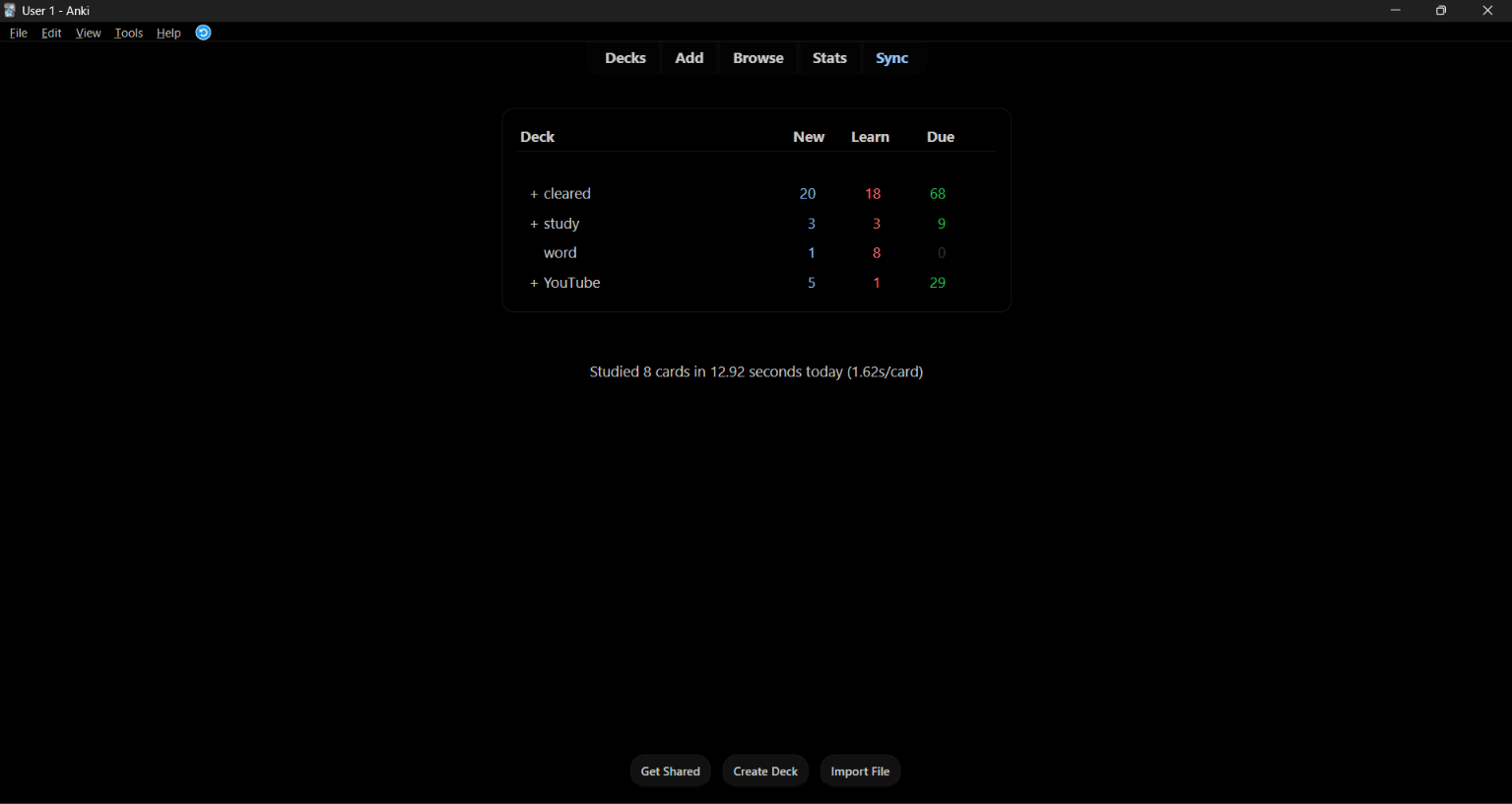
Dims everything Anki draws, and can repaint it in absolute #000000 black for
OLED/AMOLED screens.
Brightness
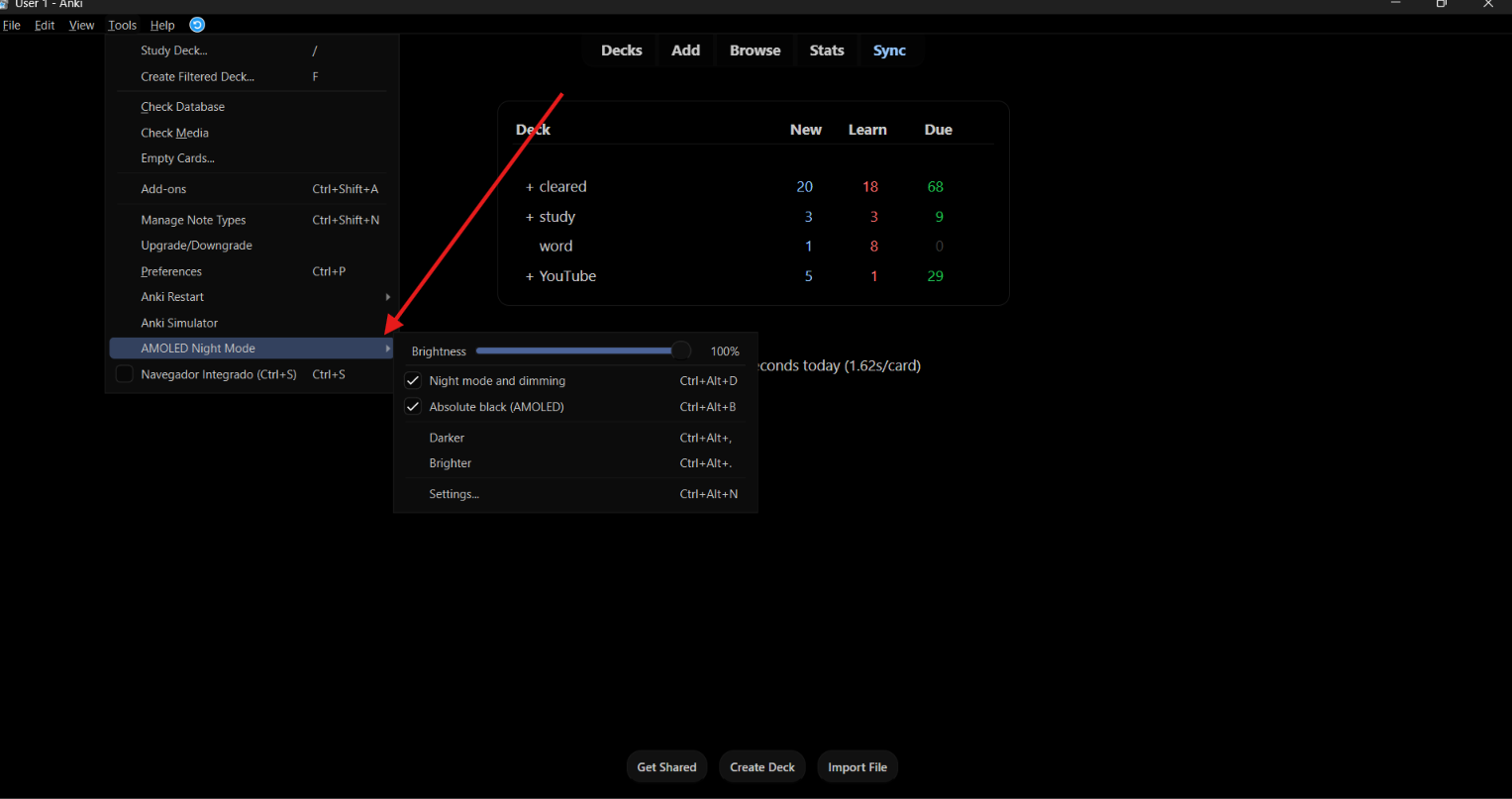
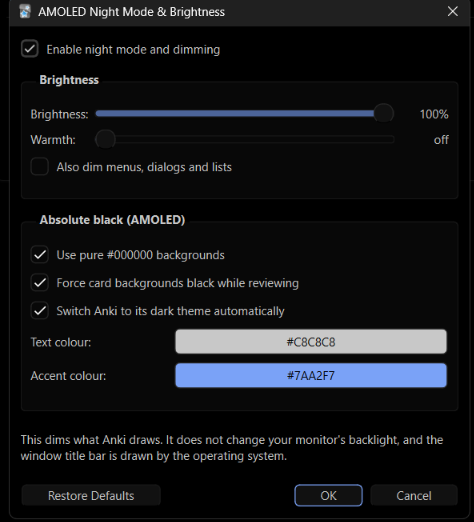
A slider sits at the top of Tools → AMOLED Night Mode, so brightness can be
changed without opening a dialog. Drag it and the study screen follows
immediately.
It dims the whole interface: deck list, toolbar, study screen, editor, graphs,
and optionally menus and dialogs too. This is a true brightness control rather
than a grey wash, so black pixels stay black at every setting.
Absolute black (AMOLED)
Replaces Anki's dark grey with real #000000. On an OLED/AMOLED panel black
pixels are switched off entirely, so this cuts power draw and removes screen
glow in a dark room. Text and accent colours are configurable, and card
backgrounds can be forced black while reviewing.
Warmth
Optional blue-light reduction for late-night study. It uses a multiply blend,
so blacks stay at zero instead of turning muddy orange.
Usage
- Tools → AMOLED Night Mode — brightness slider and quick toggles
Ctrl+Alt+N — settings window, previews every change liveCtrl+Alt+B — toggle absolute blackCtrl+Alt+D — toggle the add-on entirelyCtrl+Alt+, / Ctrl+Alt+. — darker / brighter
Every shortcut, colour and threshold is configurable.
Notes
- Absolute black is built on top of Anki's dark theme, so the add-on switches
to it automatically. That can be turned off.
- This dims what Anki draws. It does not change your monitor's backlight, and
it cannot repaint the window title bar, which the operating system draws.
- Disabling the add-on restores Anki's original colours exactly.
Tested on Anki 25.09 (Qt6).