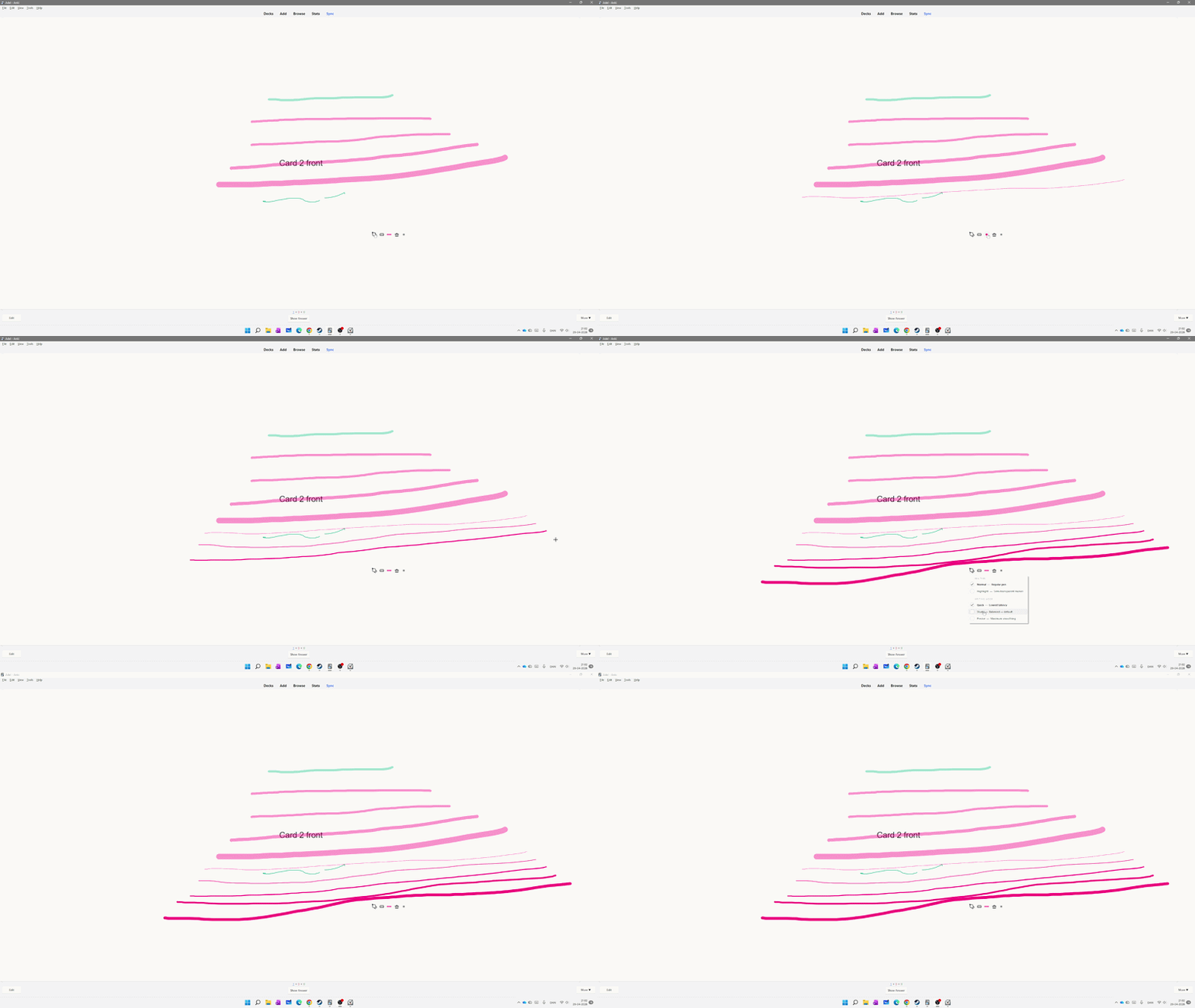
Minimalistic Drawing Panel adds a clean and lightweight drawing and handwriting panel to Anki. You can write, sketch, draw, annotate, and take handwritten notes directly while reviewing your flashcards without leaving Anki.
Use your mouse, touch screen, pen, stylus, Surface Pen, or compatible drawing tablet to write directly on your cards. It is useful for solving problems, drawing diagrams, making quick notes, practicing handwriting, and visual learning.
The goal is simple: give you a small and distraction-free digital scratchpad and drawing tool inside Anki while keeping your normal study workflow clean and simple.
Quick Demo
Write and draw directly while reviewing Anki cards
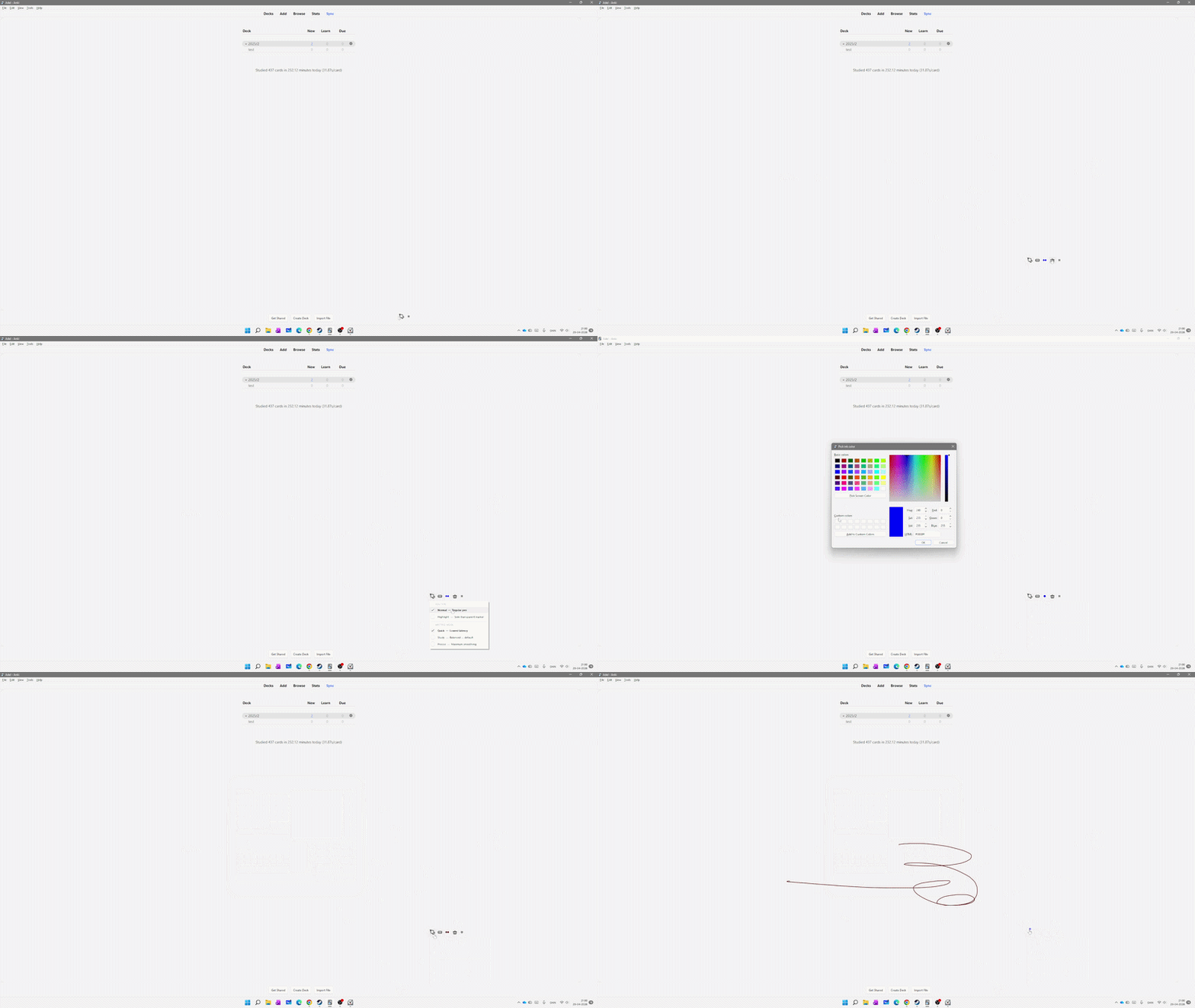
Choose colours and adjust pen thickness
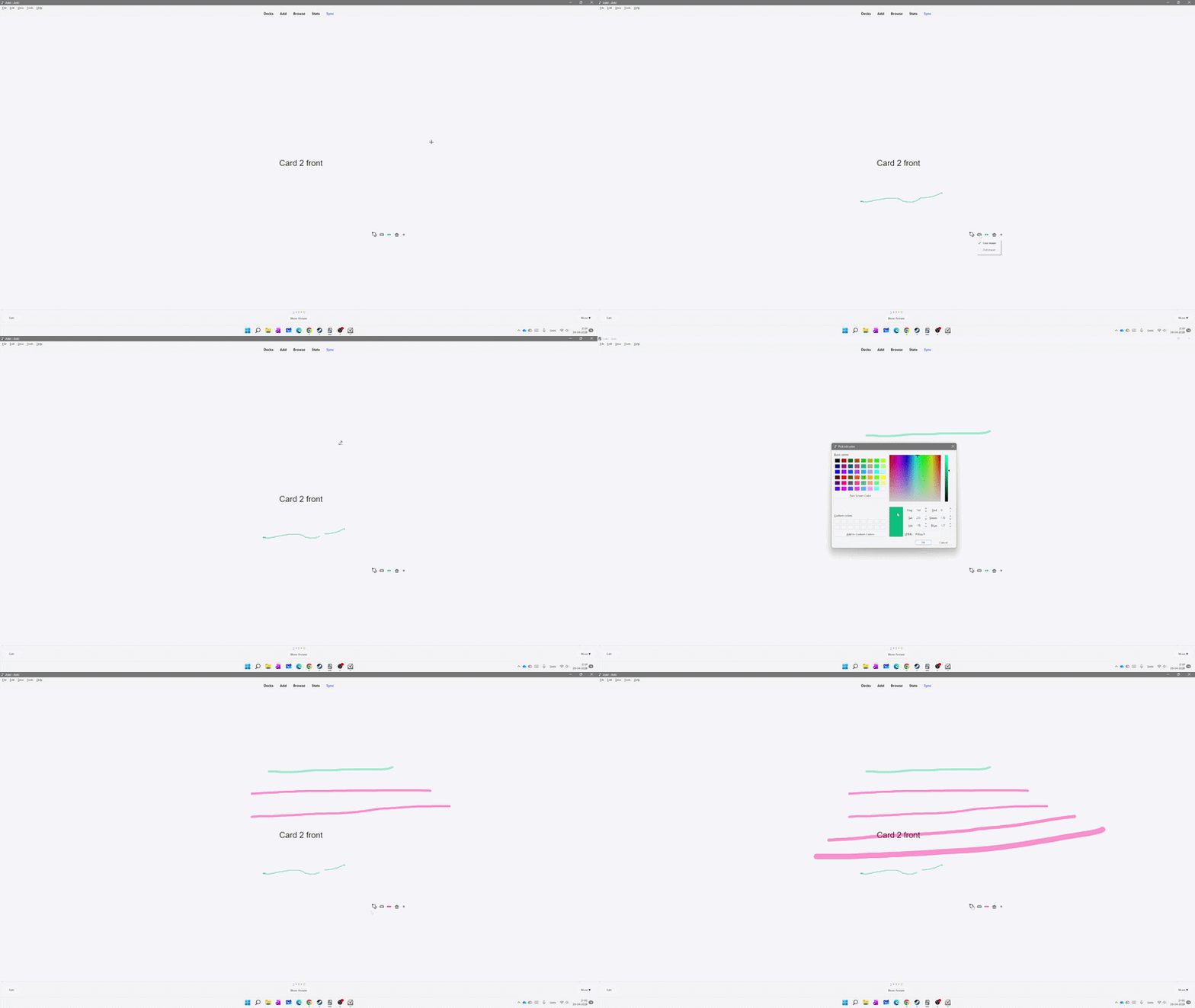
Switch between line eraser and dot eraser modes
What you can use it for
- Write answers before revealing the card
- Take handwritten notes while studying
- Draw diagrams and sketches
- Solve maths and physics problems
- Annotate information during review
- Practice handwriting
- Use a digital scratchpad while studying
- Support visual learning and active recall
Features
- Write and draw directly on any card during review
- Supports mouse, touch screen, pen, and stylus
- Pressure support for compatible pens and devices
- Surface Pen support – pen tip writes and the eraser tip erases automatically
- Compatible with Wacom Intuos pen tablets on Windows and Mac
- Line eraser and dot eraser modes
- Five pen thickness levels
- Active colour indicator
- Hold thickness dots to open the colour picker
- Configurable pen and side-button actions
- Automatically clears the drawing when moving to the next card
- Show or hide the toolbar
- Lock the drawing area to prevent accidental resizing
- Automatic Light and Dark mode support
- Clean and minimalistic design
Easy to use
- Click the pen button to activate the drawing panel.
- Write or draw directly during your Anki review.
- Hold the thickness dots to choose a colour.
- Hold the eraser button to switch between line and dot eraser modes.
- Use the small dot button to show or hide the toolbar.
- Move to the next card and the drawing can automatically clear.
Settings
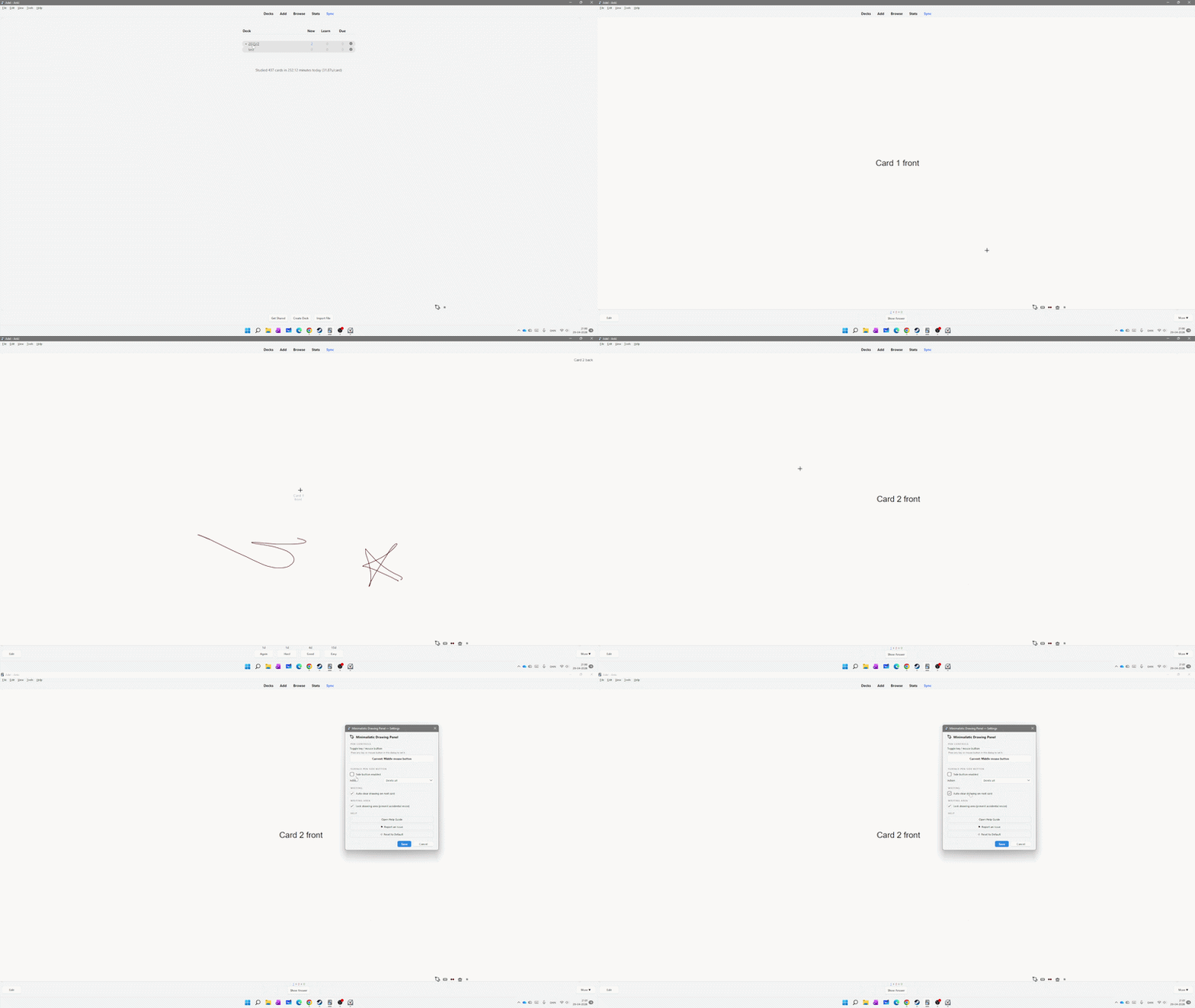
Open Tools → Minimalistic Drawing Panel Settings to customize the drawing panel and its behaviour.
You can adjust the available settings to make the panel work better with your own study workflow, mouse, pen, stylus, or drawing tablet.
Preview
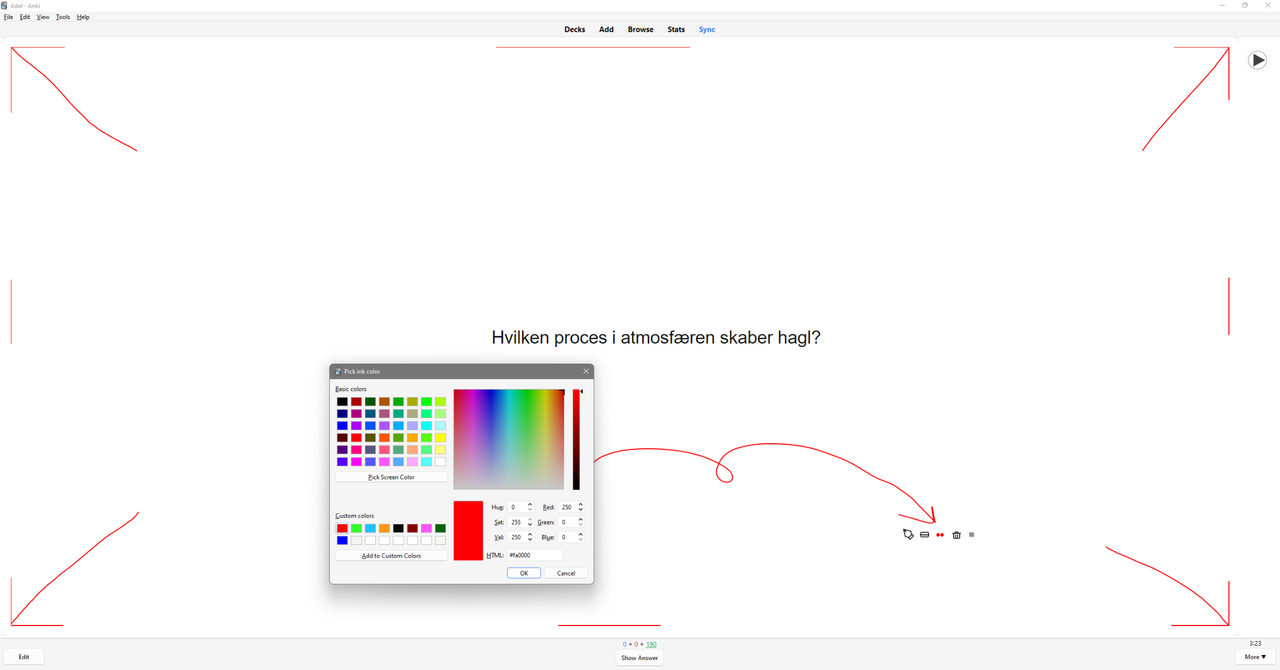
A clean drawing panel designed to stay out of the way while you study
Support
Report an issue or suggest a feature on GitHub
I originally created this add-on for my own daily study sessions because I wanted a simple way to write and draw directly in Anki without opening another application.
I continue to use it in my own studies, and the add-on has developed through real study situations and different ways of using it.
Different students use Anki in different ways, so it is always interesting to see how others use the drawing panel and what could make it even more useful.
Related Add-ons
A companion add-on for: FocusFlow.
A companion add-on for: Focus Mode Suite.
A companion add-on for: Mouse Buttons as Review Shortcuts.