Version History for Anki — Notes & Note Types
Read this in other languages: 한국어
Version History keeps a local timeline of observed changes to Anki notes
(fields and tags) and note types (card templates and CSS). You can inspect
per-field diffs, create named snapshots, and restore compatible content without
leaving Anki.
This is a safety net, not an audit log of every intermediate keystroke. Automatic
capture is debounced (1.5 seconds by default), so rapid consecutive operations can
coalesce into one stored state. Old unpinned automatic note versions are pruned
according to the retention settings.
History is stored locally per Anki profile under the add-on's user_files/.
It is not stored in collection.anki2, included in AnkiWeb sync, or shared
between devices. A sync can trigger capture of the state that arrived, but the
add-on cannot reconstruct a pre-sync state that was never captured. Create a
full baseline before sync when that earlier state matters.
Screenshots
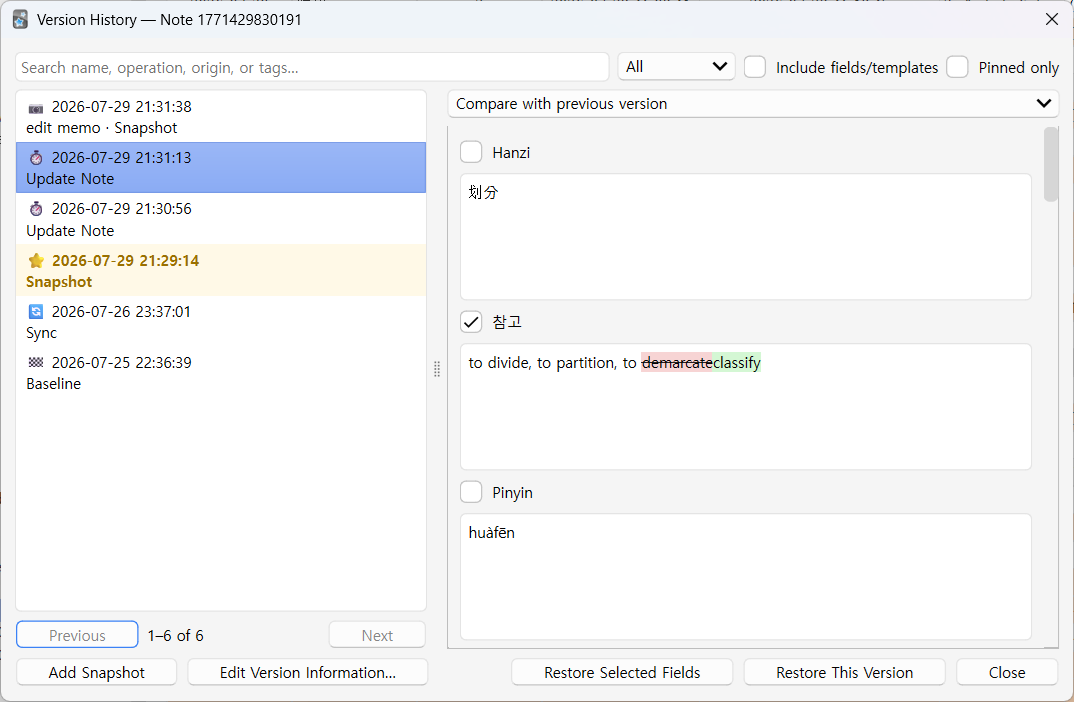
| Note history & per-field diff |
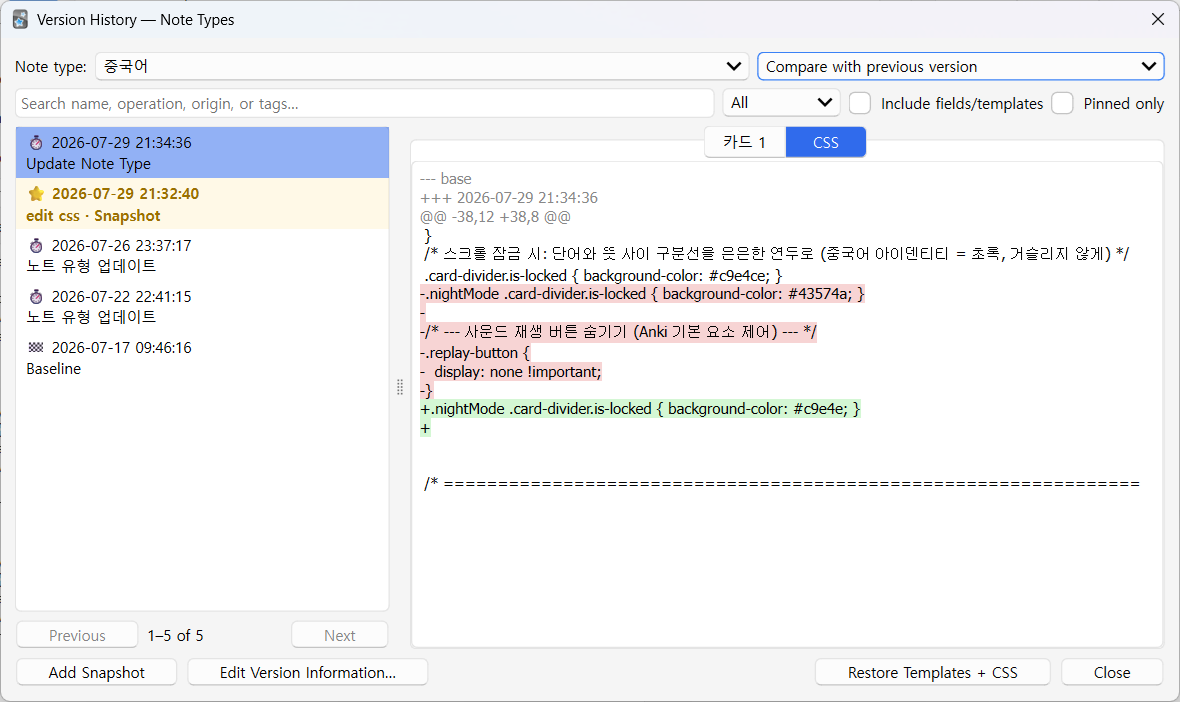
Note type (template/CSS) diff |
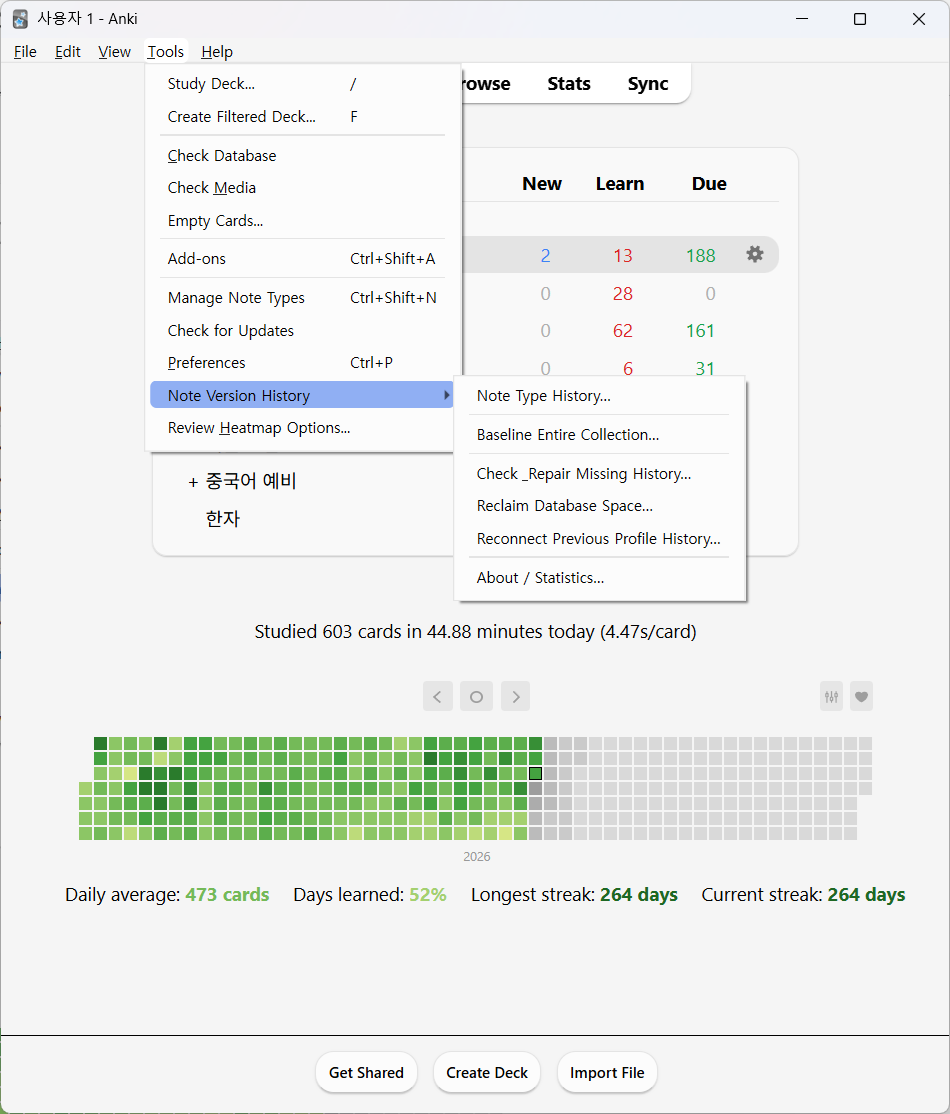
Tools menu |
 |
 |
 |
Features and capture limits
- Automatic capture — observable note and note-type changes are scanned after
Anki operations. Undo and redo are also rechecked. The default 1,500 ms debounce
means several quick operations may become one version rather than a row for each
operation.
- Sync-aware capture — normal merge-sync changes are rechecked and labeled
Sync. After a full-sync replacement, the add-on rescans all notes only if a
full baseline exists; in lazy mode it deliberately rescans only notes already
tracked. It cannot reconstruct the old state of an untracked note after sync.
- Lazy start, optional full coverage — installing the add-on does not copy all
existing notes. When a note is loaded in the editor, its pre-edit state is cached
and can become its first baseline. This does not protect untracked notes changed
by bulk operations, another add-on, or sync. Create a full baseline before such
operations if you need their previous states.
- Diff, search, and comparison — inspect fields and tags or templates and CSS;
search/filter 100-row pages; and compare two stored versions as A→B, including
versions on different pages.
- Snapshots and pinning — create named snapshots for one or many selected
notes and pin important versions. Pinned automatic versions are protected from
pruning. Manual snapshots are not pruned even after they are unpinned.
- Undoable restore — restores use Anki's public undoable APIs and are recorded
as new restore rows. Exact restore scope is documented below.
- Profile-aware local storage — history remains connected after a profile is
renamed. Reconnect Previous Profile History… can point the profile at an
orphaned history database without merging or deleting directories.
- Maintenance tools — check a fully baselined collection for missing history,
inspect statistics and the database location, and reclaim free SQLite space.
- English / 한국어 UI — follows Anki's language by default and can be overridden
in the add-on configuration.
Media-file history exists in the source but is disabled in this release. The
media-related configuration keys currently have no effect.
Requirements
- Anki 23.10+ (Qt6)
- Developed and tested on Anki 26.05
Installation
Fresh installation
- In Anki, open Tools → Add-ons → Get Add-ons….
- Enter
1237174160 (AnkiWeb page).
- Restart Anki when the installation finishes.
- Create the full baseline offered after startup if you want coverage for notes
that have not yet been opened or edited.
Upgrading from 1.2.0 or earlier on Windows
Versions through 1.2.0 could leave history.db open while Anki tried to preserve
user_files/ during an update. Windows then reported PermissionError: [WinError 5] while renaming user_files to addons21/files_backup. Version 1.2.1 closes
its runtime before future installs and updates, but the old version cannot run that
new code before the first upgrade.
For that one-time transition:
- Close Anki completely.
- Hold Shift while starting Anki and keep it held until Anki opens with
add-ons disabled for that run.
- Open Tools → Add-ons and run Check for Updates.
- Install version 1.2.1 or later, close Anki, and start it normally.
See Anki's official add-on troubleshooting and safe-mode
instructions. If
you do not need the old history, deleting the old add-on and installing it again is
also acceptable: use the same Shift safe-mode run to delete it, restart normally,
and install code 1237174160 again. See Local data and backups before deleting
anything you may want to keep.
First setup: create a baseline
The default lazy mode starts recording new observed states without copying your
whole collection. On the first profile open, the add-on offers a one-time full
baseline. Declining suppresses the automatic offer, but the command remains at:
Tools → Note Version History → Baseline Entire Collection…
A full baseline is strongly recommended before bulk Find & Replace, large imports,
full sync, or use of other add-ons that can modify many notes. It is required for
Check & Repair Missing History… and is the only way to guarantee a stored
pre-change state for notes that have never been tracked. The baseline reads the
collection in the background and can resume if interrupted.
Usage
Notes
- In the Browser, select one card and use Notes → 🕘 Version History…, the
right-click command, or Ctrl+Alt+H. The editor also provides a 🕘 button.
- Use Snapshot Selected Note(s) from the Browser context menu to snapshot one
or many selected notes in a chunked background job.
- Search names, operation labels, origins, tags, and optionally field content.
Filters include automatic, sync, snapshot, restore, baseline, deletion, and
pinned rows.
- Choose Compare specified versions (A→B) to set, swap, and clear comparison
endpoints across pages and filters.
Note types
- Open Tools → Note Version History → Note Type History…, or use the 🕘
Version history… button in the card-template editor.
- Inspect and compare front templates, back templates, and CSS; create a snapshot;
or restore the compatible template/CSS surfaces described below.
Tools menu
- Baseline Entire Collection… — create or resume the one-time full note and
note-type baseline.
- Check & Repair Missing History… — after a completed baseline, hash-check all
notes and capture states missing from history. In lazy mode it refuses to run so
it does not turn every existing note into a misleading automatic version.
- Reclaim Database Space… — run a full SQLite vacuum to return already-free
pages to the filesystem. It does not select additional versions for deletion.
- Reconnect Previous Profile History… — connect this profile to another
history database found under this add-on's
user_files/; it does not merge or
delete databases.
- About / Statistics… — show note/note-type row counts and the current local
database directory.
What restore does
| Target |
Restored |
Not restored / conditions |
| Existing note, whole version |
Stored field values whose names still exist, plus tags |
Does not reconstruct the historical note type, deck assignment, card states, scheduling, or review history. Stored fields with no current name match are skipped. |
| Existing note, selected fields |
Only selected stored fields whose names still exist |
Tags and every unselected/nonmatching field remain unchanged. |
| Deleted note, restore as new |
Matching field values and tags into a new note in a deck you choose |
The command is available only while that note's timeline is already open or otherwise reachable; there is currently no global deleted-note browser. The original note ID, cards, scheduling, and reviews are not resurrected, and the stored note type must still exist. |
| Existing note type |
Front/back HTML of templates matched by exact template name, plus CSS |
Does not add, delete, rename, or reorder templates; does not change fields/schema, sort field, note-type name, or scheduling. Missing names are reported and skipped/kept. This limited restore does not force a full sync. |
| Deleted note type |
Earlier template/CSS versions remain viewable |
It cannot be restored unless that note type still exists in the collection. |
Restores are undoable with Ctrl+Z. A restore is also recorded as a new history
row so the action remains visible in the timeline. If the relevant card-template
editor is already open, a note-type restore is loaded into that editor and takes
effect when you press Save.
The Deleted filter applies inside the note timeline you have opened; it is not a
collection-wide list of deleted notes.
Configuration
Open Tools → Add-ons, select Version History - Notes and Note Types, and
choose Config. The help pane documents every key; the defaults are:
- automatic capture: on
- debounce: 1,500 ms
- heartbeat scan: every 5 minutes
- retention: at most 100 unpinned automatic note versions per logical note and
180 days
- excluded note-type IDs: none
- language:
auto (follow Anki; en and ko are available)
Saving configuration immediately refreshes the settings cache and heartbeat.
auto_capture, debounce, and exclusions apply to subsequent work. Retention is
enforced at the next automatic maintenance opportunity (at most once per day), not
as soon as the Config dialog closes. A language change affects newly created UI;
restart Anki to reliably relabel the already-created Tools menu.
Turning auto_capture off pauses operation/sync/heartbeat capture, profile-open
catch-up and unclean-shutdown healing, and automatic retention maintenance. Manual
snapshots, the manual full baseline, Check & Repair Missing History…, history
viewing, and restore remain available.
The off period does not discard or advance the history scan marker/boundary, so the
first automatic scan after re-enabling may record the final observed state reached
while capture was off, but it cannot reconstruct that period's pre-change or
intermediate states.
Exclusions apply to automatic note capture only. They do not erase existing
history and do not exclude note types themselves, manual snapshots, or the manual
full baseline. Automatic-note retention does not prune note-type versions, manual
snapshots, baselines, restore rows, deletion markers, pinned automatic rows, or the
newest automatic row for a note. See the configuration reference
for exact keys, ranges, and timing.
Local data and backups
History is a schema-v2 SQLite database stored in a per-profile subdirectory of
user_files/. Notes are tracked by Anki GUID, and a profile setting keeps the same
database attached after a profile rename. The history database is separate from
the collection; only restore operations intentionally change the collection, via
Anki APIs.
- No sync: history is not uploaded by AnkiWeb and each device has its own
timeline.
- No collection-backup coverage: because this data is outside
collection.anki2, back up user_files/ separately if it matters to you.
- Updates: Anki is designed to preserve
user_files/ when an add-on is
upgraded (official user_files documentation).
Version 1.2.1 also releases this add-on's Windows file handles before updates.
- Uninstall: close Anki and copy the entire
user_files/ directory somewhere
safe before deleting the add-on. Anki 26.05 normally sends a deleted add-on
directory to the operating-system trash, but the trash is not a backup strategy.
Default Windows locations:
- AnkiWeb/prod:
%APPDATA%\Anki2\addons21\1237174160\user_files
- linked dev copy described below: inside the linked source tree at
src\note_version_history\user_files
The prod and dev directories therefore have separate configurations and separate
history databases even when they use the same Anki base. They do, however, act on
the same Anki collection when that base is shared.
Development
Tests and package build
python -m venv .venv
.\.venv\Scripts\python.exe -m pip install -e ".[dev]"
.\.venv\Scripts\python.exe -m pytest
.\.venv\Scripts\python.exe -m ruff check src tests build.py
.\.venv\Scripts\python.exe build.py                 # -> dist/*.ankiaddon
Only __init__.py, scheduler.py, and ui/ import aqt; the remaining modules
are headless-testable.
Everyday dev/prod switching in one Anki base (Windows)
Anki accepts a nonnumeric folder name for a local add-on, while an AnkiWeb add-on
uses its numeric ID. This lets the prod folder 1237174160 and a dev junction
note_version_history_dev coexist. Create the junction once, with Anki closed;
it remains valid until the junction is removed or the source path moves. Never
have both copies enabled at the same time.
Run this in Command Prompt (cmd.exe), replacing the source path if the
repository is elsewhere:
mklink /J "%APPDATA%\Anki2\addons21\note_version_history_dev" "C:\work\anki-version-history\src\note_version_history"
Or run this equivalent command in PowerShell:
cmd /c mklink /J "$env:APPDATA\Anki2\addons21\note_version_history_dev" "C:\work\anki-version-history\src\note_version_history"
The addons21 directory must already exist; starting Anki once creates the normal
base structure. See Anki's official add-on folder and symlink
guidance.
To switch versions:
- Open Tools → Add-ons.
- Disable the currently active copy and enable the desired copy. If prod is not
installed yet, disable dev first, then install code
1237174160.
- Confirm that exactly one of
1237174160 (prod) and
note_version_history_dev (dev) is enabled. If their display names are the
same, use View Files to distinguish their folders.
- Restart Anki before using the add-on. Enable/disable changes only take effect
after restart because add-ons are loaded at startup.
Do not point the junction at the numeric prod folder, install an .ankiaddon over
the junction, update the linked dev copy through Anki's package installer, or use
Anki's Delete action as a way to manage the source tree. To remove dev, close
Anki and remove only the junction itself; do not delete the source directory.
Isolated base for risky lifecycle tests
The same-base toggle is convenient for ordinary development, but it shares the
real profile and collection. Use a disposable base for package install/update,
uninstall, migration, full-sync, baseline/repair, and destructive restore tests.
Anki's -b option is an advanced startup option,
not a requirement for everyday source editing.
With every other Anki instance closed, start the isolated base:
"%LOCALAPPDATA%\Programs\Anki\anki.exe" -b "%LOCALAPPDATA%\AnkiVersionHistoryDev"
Always use the same -b argument for that base; the executable path can differ by
installation method. Build the .ankiaddon, then install it through the local
package installer in this isolated base. Do not add the everyday source
junction to it: two junctions that target the same source tree also share that
tree's user_files/, even though their Anki bases differ. A physically installed
package has its own user_files/ inside the disposable base and exercises Anki's
real install/update/uninstall lifecycle.
If an isolated base truly needs live-linked source, use a separate disposable
checkout or copy as the junction target so its runtime user_files/ is not the
one in your everyday working tree.
License
AGPL-3.0 © 2026 udonehn. Anki's anki/aqt packages are AGPL-3.0 and
this add-on links against them.