Description
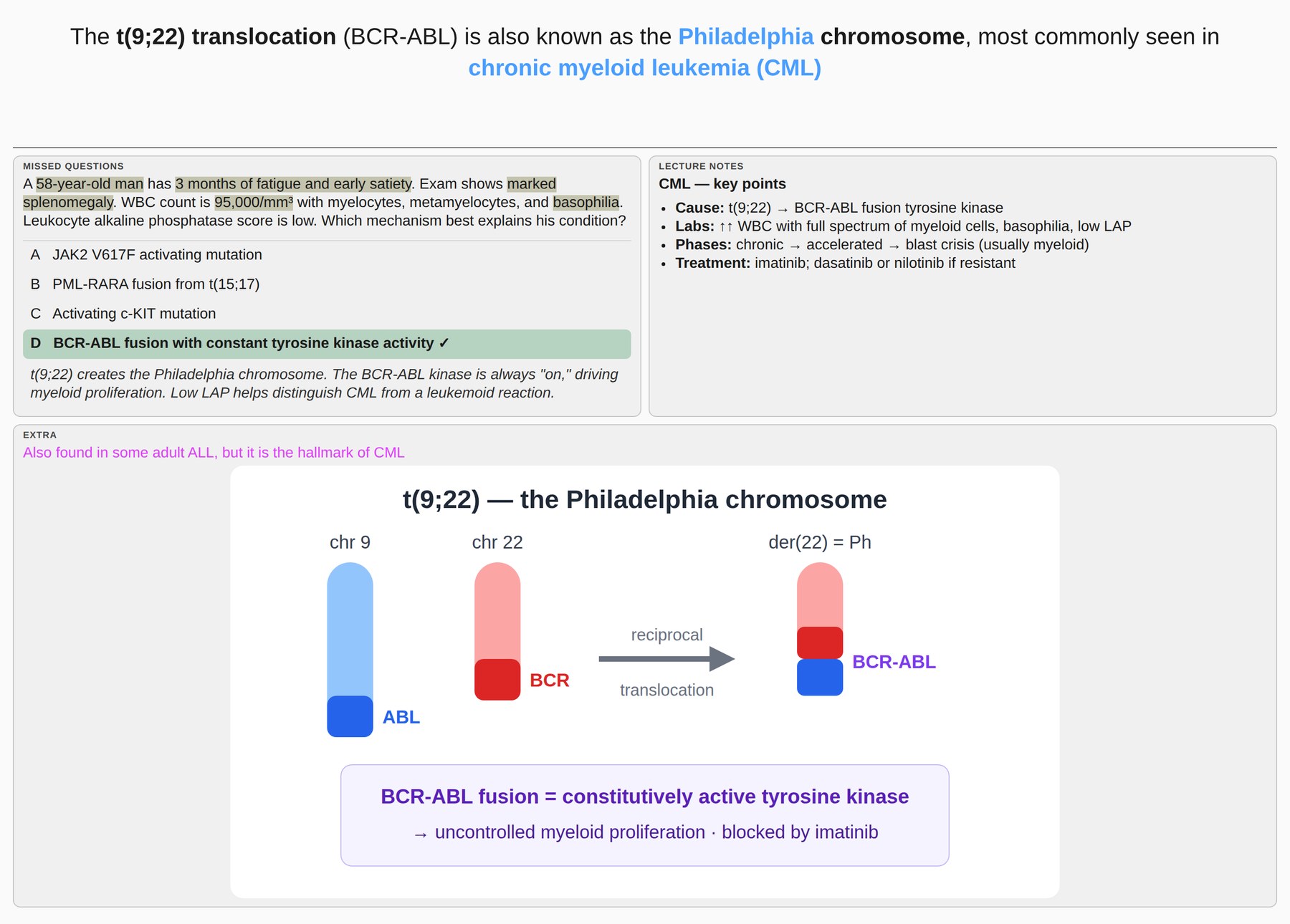
Shows up to 4 note fields in clean boxes right after the answer is revealed, so all your extra info is in one view. Choose side by side (all boxes in one row) or a 2×2 grid. Works with all card types (cloze and standard) and any note type.
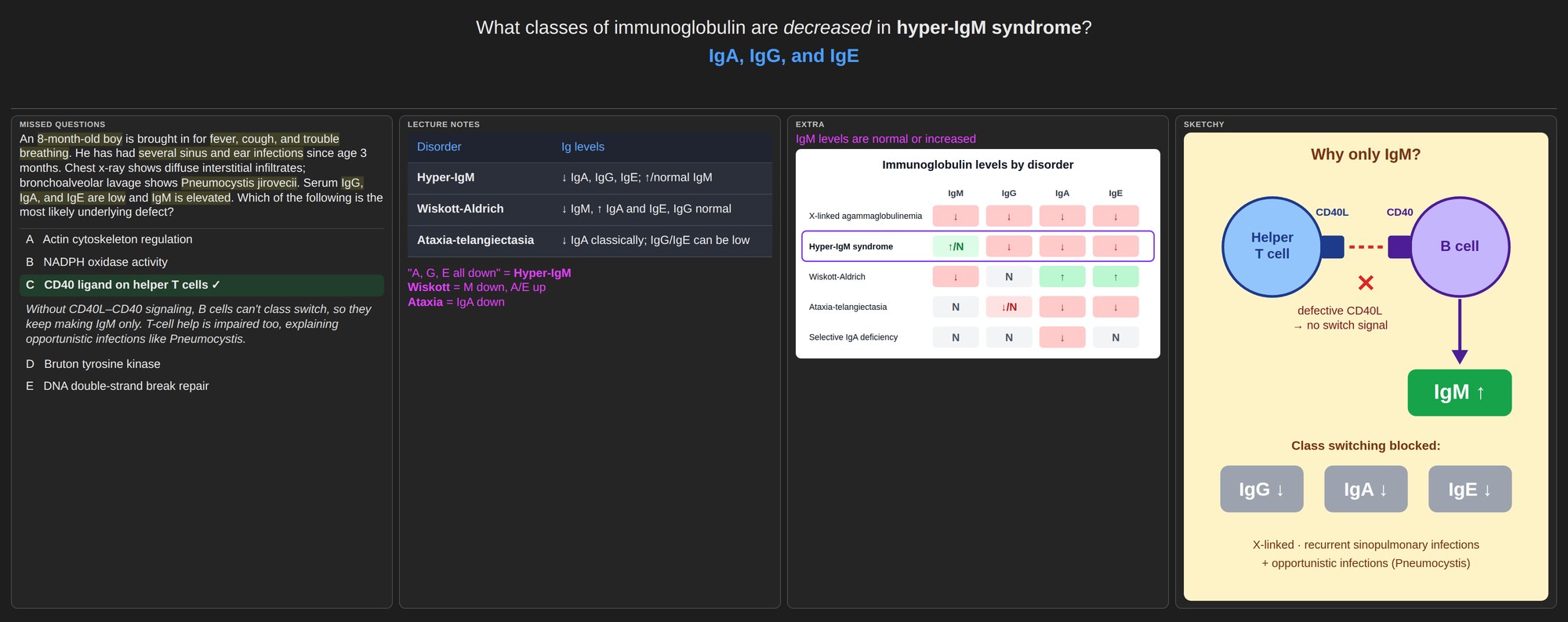
Features:
- Side-by-side layout (default) or 2×2 grid
- Boxes appear right after the answer, before other card content
- Empty fields are skipped automatically, so there are no blank boxes
- Pick fields from a dropdown of your own note types, or type any name
- Reorder, add, remove, rename, or hide any box
- One Size slider, plus optional Fit to Screen that auto-sizes everything to your window
- Text color follows your card automatically, so it works in light and dark mode
- Click any image in a box to zoom in full screen (scroll to zoom, drag to move)
- No jumping down when you reveal the answer, so the question stays in view
- Hotkey (G) to show or hide the boxes while reviewing
- Simple settings window with a live preview
Default fields (left to right):
- Missed Questions
- Lecture Notes
- Extra
- Sketchy
Designed for AnKing/AnKingMed decks but works with any note type.
Configure via Tools → Quad Reveal: Settings to match your own field names.
Requires Anki 2.1.50 or newer. Desktop only; add-ons don't run on AnkiMobile or AnkiDroid.
Support & Suggestions
Found a bug or have an idea? Email me at mohamadcodbo@gmail.com
Quad Reveal 2.1 — Update Notes 10/01/26
New: Picture Zoom
- Click any image inside a box to view it full screen
- Scroll to zoom (zooms toward your cursor), drag to move, double-click to reset, click to close
- Small images are enlarged so they're easier to read
- Turn it off under More options → "Click an image to zoom in"
Quad Reveal 2.0.1 — Update Notes 10/01/26
- Fixed: the page no longer jumps down when you reveal the answer. Anki normally scrolls to the answer line after flipping, which pushed the question out of view once the boxes made the page tall. You can turn this off under More options → "Don't jump down when the answer is revealed."
Quad Reveal 2.0 — Update Notes 09/27/26
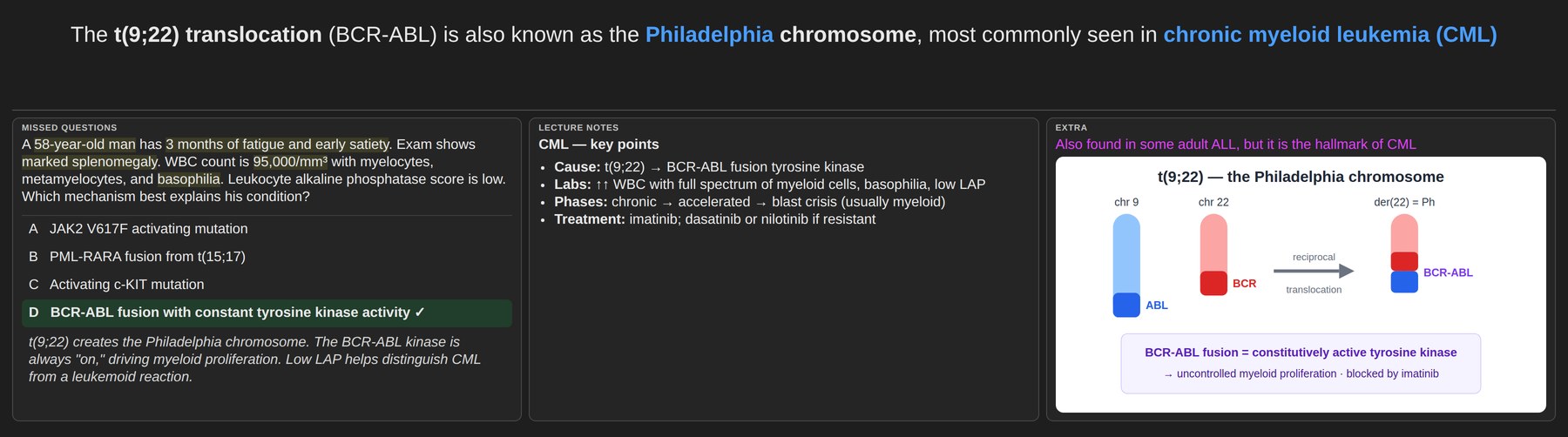
New Layout: Side by Side
The boxes can now sit side by side in a single row, so everything is visible at a glance. This is the new default. Prefer the classic look? Switch Layout to 2×2 grid in settings.
Redesigned Settings
The settings window has been simplified. The main screen now only shows what you use most:
- Layout: Side by side or 2×2 grid
- Size: one slider for text and images
- Text color: Auto, or pick your own
- Live preview of your boxes in their real order
- Fields list: checkbox to show/hide, box title, field, and ▲▼ arrows to set the order (the arrows replace the old priority numbers)
Everything else lives under More options.
Field Dropdown
The field box is now a dropdown listing every field in your note types, so there's no more guessing exact field names. If you leave the box title empty, it fills in automatically with the field name.
Automatic Text Color
Text color now defaults to Auto, which uses your card's own text color. Boxes stay readable in both light and dark mode. You can still pick a custom color, and click Auto to go back.
Show/Hide Hotkey
Press G while reviewing to hide or show the boxes (handy for self-testing or remote users). It's also available under Tools → Quad Reveal: Show Boxes. You can change the key under More options.
More Options
- Fit to screen: auto-sizes each box so everything fits your window without scrolling. Text stays between a minimum and maximum size you choose (default 14–22 px), and images never shrink below a readable size (default 450 px). If a box still can't fit, only that box gets its own scroll bar. Fields that need more room get more width.
- Separate text and image size: independent sliders for text, images, and box height
- Width: how much of the card width the boxes use
- Keep boxes in fixed spots: the old Fixed Mode, where empty fields leave a gap instead of shifting
- Shrink the question after flipping: makes the question smaller on the answer side to give the boxes more room
Bug Fixes and Improvements
- A field that looked empty but held a leftover space no longer creates a blank box
- A field containing certain code no longer stops the boxes from appearing
- Image size is no longer shrunk twice by the text size setting
- Box text never gets smaller than 14 px, so it stays readable
- Multiple images in one field (like Sketchy frames) now sit side by side when there's room
- The box that's alone in its row now uses the full width in 2×2 mode
How to Access Settings
Tools → Quad Reveal: Settings (or select the add-on in Tools → Add-ons and click Config). Click Save when done; changes take effect on the next card flip.
Quad Reveal — Update Notes 05/28/26
(Some settings below were renamed or moved in 2.0, see the notes above.)
What's New
Bug Fixes
- Grid carryover fixed — The 2×2 grid used to bleed into the next card, showing up before you even flipped to the answer. This is now resolved. The grid is cleanly removed every time a new card loads.
Content Size Controls
The old single zoom slider has been replaced with a more flexible sizing system.
- Overall Size — one slider that scales everything (text and images) together. Good for quick adjustments.
- Advanced mode — check the Advanced box to unlock independent control over:
- Text Size — scales only the text inside the grid panes
- Image Size — scales only images
- Grid Width — how wide the grid is as a percentage of the card (20–100%)
- Grid Height — the minimum height of each pane row
A live preview panel in the settings window shows a miniature version of the grid that updates instantly as you move any slider — no need to close settings and flip a card to see the effect.
Text Color
A Text Color picker lets you choose what color the text appears as inside the grid panes. Default is white. Click the colored swatch to open a color picker, or hit Reset to go back to white.
Field Placement — Two Modes
Each field row now has a Priority number. Above the field list, you choose how positions are assigned:
Priority Mode (default)
Fields are placed in order of their priority number: 1 → Top Left, 2 → Top Right, 3 → Bottom Left, 4 → Bottom Right
If a field is empty on a given card, it is skipped and the remaining fields shift up automatically to fill the gaps. So if Lecture Notes has no content, Sketchy moves to Top Right and Missed Questions to Bottom Left — no empty holes in the grid.
Changing a priority number automatically swaps with whichever field held that number, so two fields can never share the same priority.
Fixed Mode
Each field is pinned to a specific grid position (Top Left / Top Right / Bottom Left / Bottom Right) regardless of whether other fields are empty. Choosing a position that's already taken by another row automatically swaps the two.
How to Access Settings
Tools → Quad Reveal: Settings
From the Anki menu bar, click Tools, then Quad Reveal: Settings. Changes to sliders and colors are previewed live in the settings window. Click Save when done — changes take effect on the next card flip.