PDF Occlusion

AnkiWeb addon 783821131

Creates image occlusion and cloze cards from PDF lecture slides in bulk, with box drawing, automatic detection, keyboard shortcuts, and configurable masks.
AI-generated summary; may contain mistakes.

card-creationimportclozeimage-occlusionmobile-compatible

Open on AnkiWeb GitHub Find alternatives

AnkiWeb

Votes
5 (πŸ‘ 5 Β· πŸ‘Ž 0)
Updated
2026-09-07
Anki versions
2.1.66~
License
MIT (from the GitHub repository)
Virus scan
No ClamAV match A match does not prove malware. No match does not prove that the code is safe.
Languages
Python, JSON, YAML
Description language
en

Maintenance

active

  • Last update or commit: 2026-10-26 (6 days before the snapshot).
  • Commits in the last year: 47.
  • Issues: 0 open, 1 closed.
  • Pull requests: 0 open, 0 merged.
  • Median first response: 48 hours (1 answered issues and pull requests).

Will it work on my Anki?

Version branches
Min AnkiMax AnkiUpdated
2.1.502.1.66+2026-09-07
History across monthly snapshots

Loading…

Similar addons

PDF to notes has 1 fork β†’

Converts PDF pages into Anki normal or cloze notes, using each page’s first line as prompt and page images or HTML, with multiple-file, subdeck, scaling, and shortcut options.

card-creationimportcloze

9 votes 27% approval πŸ‘ 5 Β· πŸ‘Ž 4 ⭐ 6 Anki 2.1.66~ Updated 2022-07-24

Description

Anki Platform License

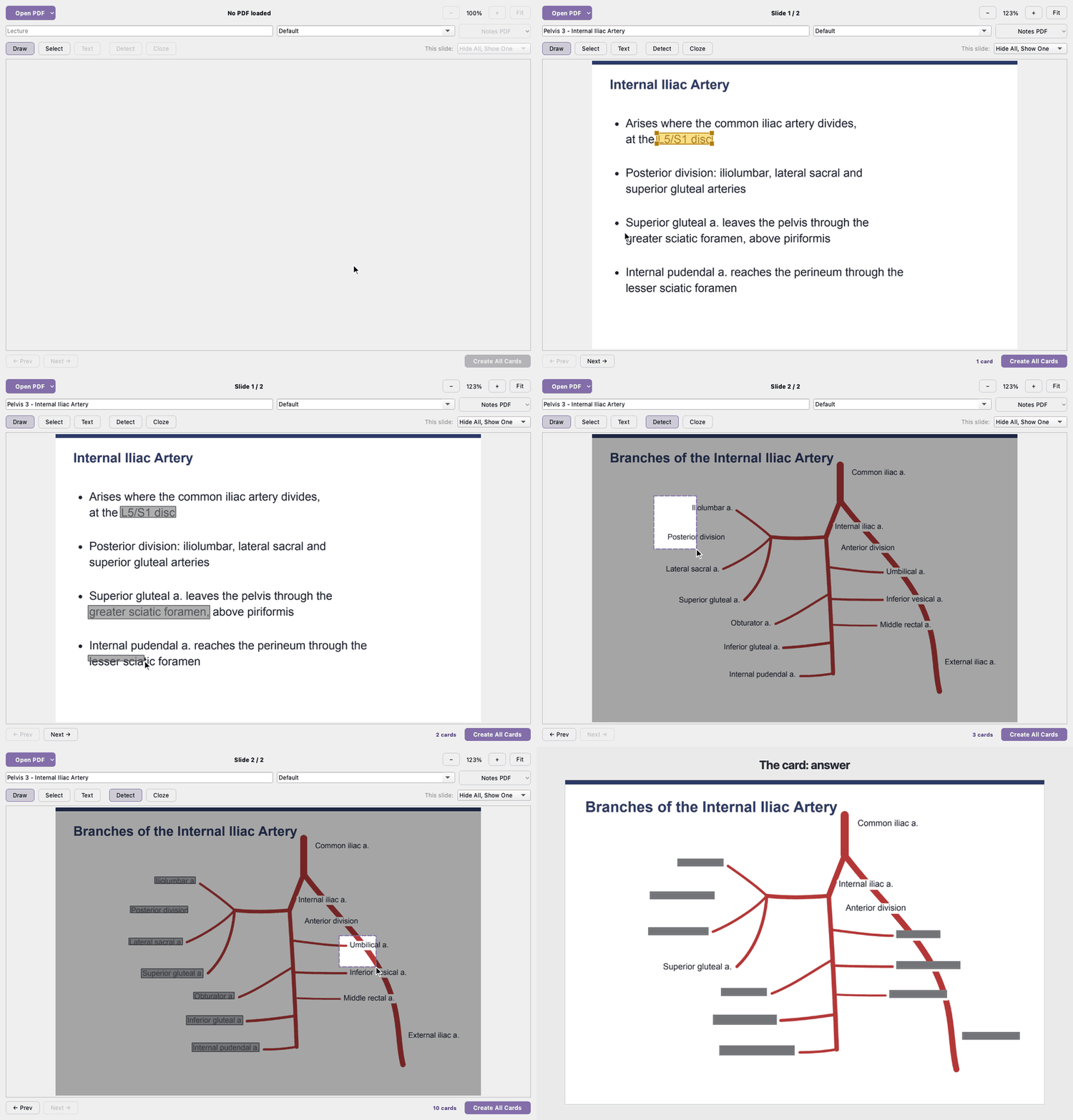
PDF Occlusion is an Anki add-on that creates image occlusion cards directly from PDF lecture slides. No more importing one image at a time. Open any PDF (or several at once), draw boxes over what you want to memorize, and generate cards in bulk. Built for studying from slide-heavy lectures.

Quick Start

  1. Go to Tools -> PDF Occlusion, or use the toolbar button in the card editor (Ctrl+Shift+P).
  2. Click Open PDF β€” one file or several.
  3. Click and drag to place boxes over the content you want to memorize, or press F and drag over a region to have them placed for you.
  4. (Optional) Select multiple boxes and press G to group them into a single card region.
  5. Pick a deck and click Create All Cards.

Keyboard Shortcuts

  • D / V / T β€” Draw / Select / Text tool
  • F β€” Detect, then drag over the area to scan
  • P β€” Peek through the masks
  • G / U β€” Group / ungroup selected boxes
  • N β€” Add a note to selected box(es)
  • Del / Backspace β€” Remove selected box(es)
  • Left / Right arrow β€” Navigate slides (nudges selected boxes instead)
  • Ctrl+A β€” Select all boxes on slide
  • Ctrl+C / Ctrl+V β€” Copy / paste boxes, across slides too
  • Ctrl+Z / Ctrl+Shift+Z β€” Undo / redo
  • Ctrl+ / Ctrl- / Ctrl+0 β€” Zoom in / out / fit
  • Ctrl+Shift+V β€” Cloze composer
  • Ctrl+Shift+P β€” Open from card editor
  • g β€” While reviewing: show all / hide all

Configuration

Tools -> Add-ons -> PDF Occlusion -> Config

  • occlusion_mode β€” "ao" Hide All, Show One (default) or "oa" Hide One, Show One
  • mask_color β€” RGB color of boxes not being tested (default [120, 120, 120])
  • highlight_color β€” RGB color of the box being tested (default [131, 110, 170])
  • mask_opacity β€” opacity of the mask rectangles on cards, 0–255 (default 255)
  • editing_mask_opacity β€” opacity of the masks in the editor, 0–255 (default 150); at 255 a box hides its content as you draw it, and P peeks through
  • show_all_shortcut β€” key that reveals the whole slide while reviewing (default "g", "" for none)
  • render_dpi_scale β€” resolution multiplier for rendered pages; higher = sharper cards, more memory (default 2.0)
  • default_zoom β€” starting zoom when a PDF opens (default "fit")
  • default_deck β€” route new cards to a specific deck by name
  • note_type_name β€” name of the note type to create/reuse (default "PDF Occlusion")
  • add_editor_button β€” show or hide the toolbar button in the card editor
  • close_after_creating β€” close the dialog automatically after cards are created

Notes

  • Requires Anki 23.10 or later
  • Works on macOS (Apple Silicon and Intel), Windows (x64), and Linux (x64 and ARM) β€” the PDF rendering library (pypdfium2) is bundled, no separate install required, on any Anki Python version
  • Detect boxes a ruled table cell by cell and anything else word by word; on a picture-only slide it falls back to macOS text recognition, so that case is macOS-only
  • Text-heavy slides can be made into cloze cards instead, in the same window (Ctrl+Shift+V)
  • Select a card in Browse and press Ctrl+Shift+P to reopen its slide and drag its boxes; Create All Cards updates existing cards in place, leaving scheduling and review history untouched
  • A PDF Occlusion note type is created automatically on first use
  • Media files are cleaned up automatically when the last card referencing a slide is deleted
  • Compatible with Image Occlusion Enhanced β€” both add-ons can run in the same profile

Source and bug reports: github.com/bananasrlowkeygood/anki-pdf-occlusion

README

pdf-occlusion-icon β€Ž β€Ž β€ŽPDF Occlusion

Anki Platform License

PDF Occlusion is an Anki add-on that creates image occlusion cards directly from PDF lecture slides. No more importing one image at a time. Open any PDF (or several at once), draw boxes over what you want to memorize, and generate cards in bulk. Built for studying from slide-heavy lectures.

Install

Add-on code 783821131, then restart Anki.

Quick Start

  1. Tools β†’ PDF Occlusion, or Ctrl+Shift+P in the card editor.
  2. Open PDF β€” one file or several. The arrow beside it lists recent sessions.
  3. Drag boxes over what you want to memorize, or press F and drag over a region to have them placed for you.
  4. Pick a deck and click Create All Cards.

Shortcuts

Key Action
D / V / T Draw / Select / Text tool
F Detect β€” then drag over the area to scan
P Peek through the masks
G / U Group / ungroup selection
N Note on selected box(es)
Del / Backspace Remove selected box(es)
Esc Clear selection
← / β†’ Slides β€” nudges selected boxes instead
PgUp / PgDn Slides (always)
Ctrl+A Select all boxes on the slide
Ctrl+C / Ctrl+V Copy / paste boxes, across slides too
Ctrl+Z / Ctrl+Shift+Z Undo / redo
Ctrl+ / Ctrl- / Ctrl+0 Zoom in / out / fit
Shift+drag box Move a grouped box's whole group
Shift+draw New box joins the selection's group
Shift+rotate Snap to 15Β°
Pinch / Ctrl+scroll Zoom at the pointer
Ctrl+Shift+V Cloze composer
Ctrl+Shift+C Wrap selection as a cloze
Ctrl+Return File the cloze card
Ctrl+Shift+P Open from the card editor
g While reviewing β€” show all / hide all

Configuration

Tools β†’ Add-ons β†’ PDF Occlusion β†’ Config

Option Type Default Description
occlusion_mode string "ao" "ao" = Hide All, Show One Β· "oa" = Hide One, Show One
mask_color RGB [120, 120, 120] Boxes not being tested
highlight_color RGB [131, 110, 170] The box being tested
mask_opacity int 0–255 255 Mask opacity on cards
editing_mask_opacity int 0–255 150 Mask opacity in the editor. At 255 a box hides its content as you draw it; P peeks through
show_all_shortcut string "g" Key that reveals the whole slide while reviewing. "" for none
render_dpi_scale float 2.0 Render resolution β€” higher = sharper cards, more memory
default_zoom "fit" / float "fit" Zoom when a PDF opens
default_deck string "" Deck preselected in the picker
note_type_name string "PDF Occlusion" Note type to create or reuse
add_editor_button bool true Show the toolbar button in the card editor
close_after_creating bool true Close the dialog once cards are created
pdf_hosting object off Publish the Notes / Slides PDFs so the card buttons open on your phone: folder you serve on the web (e.g. a GitHub Pages clone), its base_url, and git_push to commit and push them for you with your own git credentials. Off = cards keep local paths, desktop only. Published PDFs are public

Contact

  • Ravi Bandaru: ravi.bandaru@northwestern.edu
  • Johanna Lee: johanna.lee@students.jefferson.edu

License

MIT. See the included LICENSE file.