Selected Notes to Structured Text
This add-on lets one export a subset of one's Anki collection while retaining the context needed to interpret it. The selected notes can be copied to the clipboard or saved as a text file.
Field contents are preserved unchanged—cloze markup, HTML, MathJax, Unicode, and media references remain exactly as stored in the Anki fields. Compact metadata include the note type, full deck path, and (by default) tags.
The output is especially useful as input to an LLM: existing notes can be reviewed in context or used as exemplars for generating new notes that follow the same conventions.
Installation
Install Selected Notes to Structured Text from AnkiWeb using add-on code 1694585841.
Usage

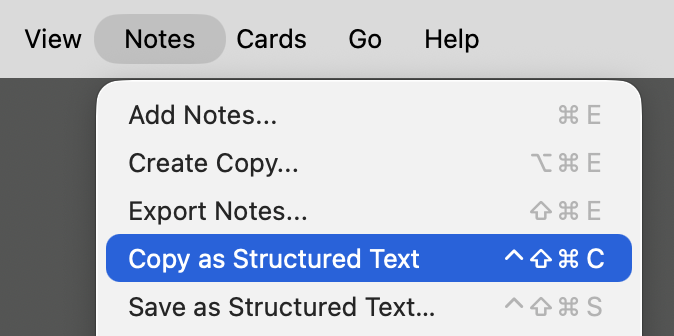
In the Browser, select one or more notes or cards, then choose either of the following menu items:
- Notes → Copy as Structured Text
- Notes → Save as Structured Text…
The same commands are available from the Browser context menu: in Notes mode, they appear directly; in Cards mode, they appear under Notes. Saved files are encoded in UTF-8 and have a default filename of the form anki-notes-YYYY-MM-DD.txt.
Configuration
The available options can be changed in the add-on’s configuration dialog:
Tools → Add-ons → Config
The default configuration includes tags and the principal textual fields of Anki’s built-in Basic, Cloze, and Image Occlusion note types.
Tags
Tags are included by default because they can provide context not contained in the note fields themselves. They complement the deck path included with every exported note.
For instance, a command note can use the simple prompt:
Convert <code>x</code> to a string.
and be tagged Python or JavaScript. The corresponding answers can then be:
str(x)
or:
String(x)
Without tags, the programming language would have to be supplied in some other way—e.g., by writing “Convert x to a string in Python.” in the prompt or by organizing notes into language-specific decks. Tags thus preserve contextual information outside Anki without requiring it in the prompt itself.
To omit tags, change:
"add_tags": true
to:
"add_tags": false
Fields
By default, the add-on includes the principal textual fields of Anki’s built-in Basic, Cloze, and Image Occlusion note types:
"fields": [
    "Front",
    "Back",
    "Text",
    "Header",
    "Back Extra",
    "Comments"
]
For custom note types, add their field names to this list in the desired output order.
A configured field that is not present in a particular note is simply omitted. A field that exists but is empty is retained as an empty field block. Whitespace contained in a field is preserved.
Shortcuts
The keyboard shortcuts can be changed in the add-on’s configuration dialog:
Tools → Add-ons → 𝕾 Selected Notes to Structured Text → Config
The default shortcut settings are:
{
    "shortcut_copy": "Meta+Ctrl+Shift+C",
    "shortcut_save": "Meta+Ctrl+Shift+S"
}
On macOS, Qt interprets Meta as Control (⌃), Ctrl as Command (⌘), Alt as Option (⌥), and Shift as ⇧. The default shortcuts are therefore ⌃⇧⌘C for Copy as Structured Text and ⌃⇧⌘S for Save as Structured Text…
No restart is required.
Format
Each note is represented by an anki-note block containing its sequence number, Anki note ID, note type, full deck path, and, by default, tags. The block then contains the configured fields. An example:
<@anki-note n="1" nid="1786185354532" type="Basic" deck="9.CMP" tags="Python regex"@>
<@anki-field name="Front"@>
Return a regex-safe pattern for the literal string <code>a.b</code>.
</@anki-field@>
<@anki-field name="Back"@>
<code>re.escape("a.b")</code>
</@anki-field@>
</@anki-note@>
A Cloze note might appear as:
<@anki-note n="2" nid="1786187284450" type="Cloze" deck="9.CMP" tags="Python"@>
<@anki-field name="Text"@>
{{c1::A tuple}} is {{c2::an immutable sequence of elements}}.
</@anki-field@>
<@anki-field name="Back Extra"@>
<p>The referenced objects themselves may be mutable. If <code>t = ([1, 2], 3)</code>,
the tuple continues to reference the same list object at index <code>0</code>,
but that list object can still be mutated, e.g. by <code>t[0].append(4)</code>.</p>
</@anki-field@>
</@anki-note@>
The <@…@> delimiters are deliberately simple. They make note and field boundaries explicit without requiring the field contents themselves to be escaped or transformed. The format is designed to be easy for an LLM to parse while leaving the field contents unchanged.
The n attribute numbers notes within the generated output. The nid attribute records the Anki note ID, which can be used to locate the original note in the Browser by searching for nid:1786185354532.
The deck attribute records the full path of the deck of the note’s first card in template order. If that card is temporarily in a filtered deck, its original deck is used. For note types whose cards belong to different decks, only the deck of the first card is represented. The full path is retained because the deck hierarchy may itself provide context for interpreting the note.
Selection and ordering
In Notes mode, notes are written in their current Browser display order.
In Cards mode, the selected cards identify their underlying notes. Each note is written only once, at the position of its first selected card. Thus, if the selected cards correspond to notes B, A, C, B, the output contains the notes in the order B, A, C.
The add-on always converts notes rather than individual cards.
Preservation of field contents
Field contents are copied exactly as stored by Anki. Some examples:
{{c1::A tuple}}
<pre>s = "abcdef"<br>s[1:4]</pre>
[sound:example.mp3]
<img src="example.jpg">
Referenced media files themselves are not copied or embedded; their references remain part of the field contents.
The add-on does not modify the Anki collection.
Related add-ons
For collection context, see:
Compatibility
Tested with Anki 26.08 on macOS Tahoe 26. Windows and Linux have not yet been tested.
Suggestions and bug reports are welcome. Please open an issue on GitHub.
License
Licensed under the GNU AGPL v3 or later.